
Build a Research Analyzer in 4 Minutes with Google AI Studio’s New Vibe Coding
Ever wished you could skim a research paper in 60 seconds instead of 60 minutes?
Yeah—same.
The latest update to Google AI Studio, called Vibe Coding, flips the script on AI tooling. It’s no longer just a “prompt playground.” Now you’re looking at a full-blown no-code app builder that spins your ideas into working tools—front-end, back-end, Gemini integration—all from one prompt.
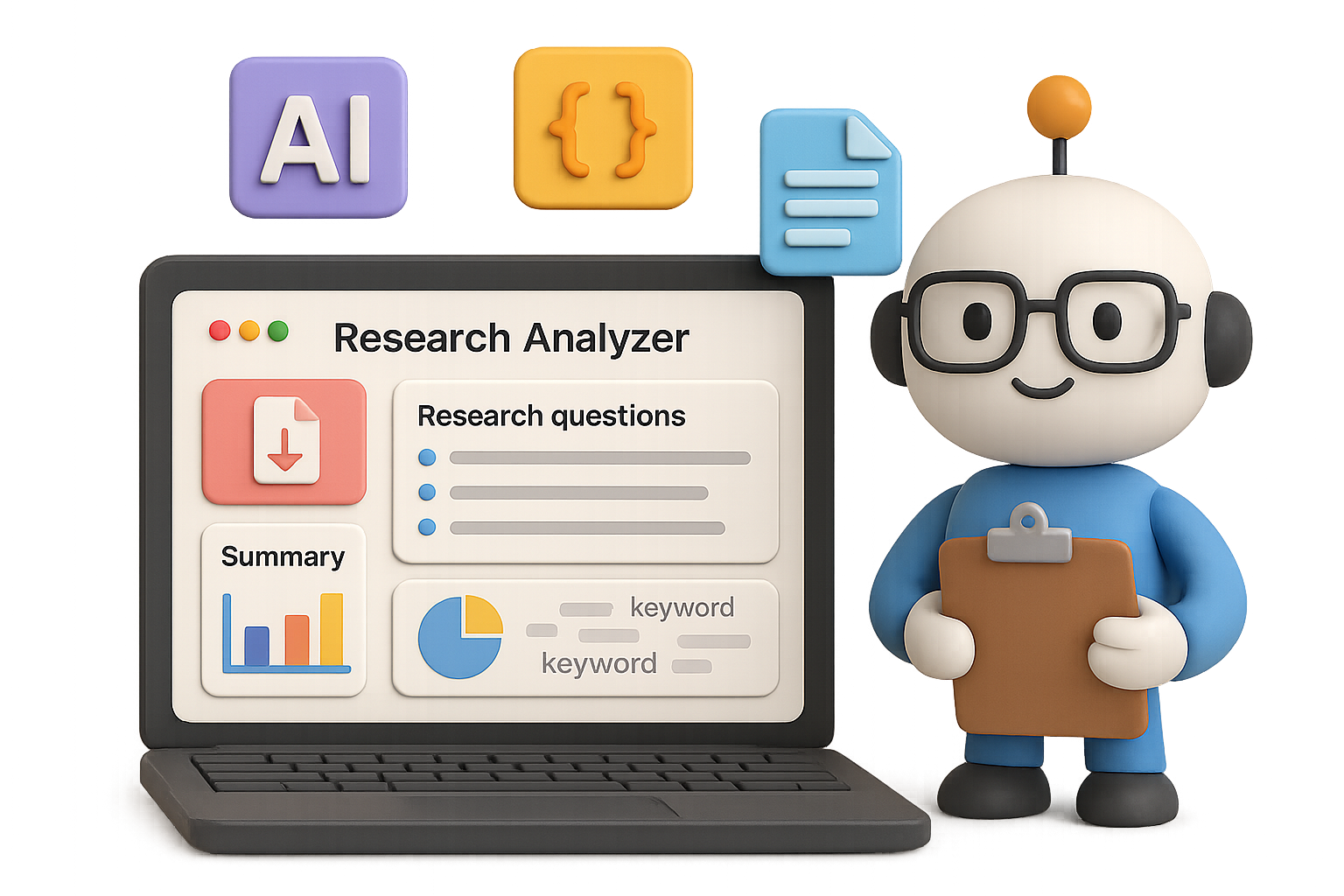
Let’s test it out by building something wildly useful: a Research Article Analyzer that eats academic PDFs and spits out clean summaries, quality scores, keyword clouds, and one-click exports.
Less clicking, more thinking. You in?

What You’ll Build (In Under 5 Minutes)
This analyzer is basically a personal research assistant with no salary or sleep schedule. Here’s what it does:
- Upload an academic PDF
- Enter one or more research questions
- Get back:
- Article title, authors, publication year
- Summary covering objective, methods, outcomes, limitations
- Quality metrics (clarity, rigor, evidence strength)
- A breakdown of how well the article answers your questions
- A relevance overview paragraph
- A keyword cloud summarizing main themes
- One-click export to Google Docs or PDF
Total time to build: ~3–4 minutes.

Step 1 – Fire Up Google AI Studio
Head to Google AI Studio.
Hit Build. Boom—you’re staring at a blank canvas with one deceptively simple prompt box.

Step 2 – Flip the Right Switches
Under “Supercharge your app with AI,” toggle on everything your tool will need:
- Generate images with a prompt
- Analyze images
- Gemini intelligence in your app
- Fast AI responses
- Think more when needed
Now you’ve got the tools loaded—time to give them a job.

Step 3 – Paste Your One-Prompt Wonder
Drop in this all-in-one prompt (go ahead and tweak the style later):
Create a web app called “Research Article Analyzer”.

1. Allow the user to upload a research article in PDF format.
2. Provide a multiline text box where users can enter one or more research questions (one per line).
3. Use Gemini Intelligence to extract and summarise:
   – Title
   – Authors
   – Year
   – Objective
   – Method
   – Key findings
   – Implications
   – Limitations
4. After the summary, add a **Quality Check Metrics** section with three 1–5 scores:
   – Clarity of research question
   – Rigor of methodology
   – Evidence strength
   Include a one-line interpretation for each score.
5. Build a table titled “Evaluation of Findings Against Research Questions” with columns:
   – Research Question
   – Related Findings / Evidence
   – Relevance (High / Medium / Low)
   – Brief Evaluation
6. Write an overall relevance paragraph explaining how the paper contributes to the user’s research focus.
7. Extract the 10–15 most frequent or important keywords and generate a professional word-cloud image on a white background using a neutral blue-grey palette.
8. Add two export buttons: **Export to Google Docs** and **Export as PDF**.
Hit Build. Sip some water. In less than 30 seconds, your app comes to life.

Step 4 – Meet Your Assistant
You’ll see a clean UI with:
- A PDF uploader
- A text box for research questions
- A big, shiny Analyze button
No code. No deploy headaches. Just vibes. And logic.

Try It on a Real Paper
Here’s what the workflow looks like:
- Upload any PDF of an academic article
- Enter 1–3 research questions (press enter between each)
- Hit Analyze
In about 45 seconds, you’ll get outputs like:
- Clean, headers-based summary – Easy to scan, instantly usable.
- Three quality scores – Rated 1–5 with a quick explanation (e.g. “Strong clarity, but methodology thin”).
- Table mapping findings to your questions – With clear relevance tags (High/Medium/Low).
- High-res keyword cloud – Ready to drop into your lit-review slide.
- One-click exports – Choose Google Doc for edits, PDF for sharing.
Need to tweak the prompt or fix a weird word? Use Regenerate. Your uploaded PDF and questions stay locked in, ready to roll.

Why Researchers Will Love This
- Saves your brainpower – Spend less time decoding jargon, more time drawing insights.
- Zero setup – No notebooks, no local installs, no crying over config files.
- Scalable for teams – Use it solo or share with collaborators. Each run is self-contained.
- Try other domains – This isn’t just for journals. Repurpose the app for case law, grant review, or even content marketing audits.

Bonus: What Else You Can Build With Vibe Coding
Once you see how fast things come together, other ideas snowball.
Try one-prompt builds for:
- Comparative dashboards from multiple papers
- Auto-generated slide decks with summary findings
- Data-viz reports from uploaded CSVs
- Policy brief writers or evaluation tools
- Personalized AI tutors for academic writing
Every element AI Studio creates is editable. Dive deeper when you’re ready—tweak the prompt, style the CSS, or fork the codebase. No gatekeeping.

Wrap-Up: The Fast Lane to Smarter Research
In the time it takes to make instant noodles, you just built a working tool that reads, analyzes, scores, and beautifies academic research. Zero syntax. All action.
If you think in questions—not code—Vibe Coding is your new power tool.
🎯 Want to sharpen your AI skills and build more? Check out Tixu—a beginner-friendly platform that teaches you how to think, experiment, and create with AI from day one.
Ready when you are.

Leave a Reply