
How to Create AI Characters That Stay Themselves—Every Time
Let’s be honest—nothing shatters immersion faster than a character whose face shifts like a bad Snapchat filter. One frame they’re a boss babe, next frame they’re a wax sculpture in distress.
If you’ve wrestled with inconsistent faces in storyboards, ads, comics, or video concepts, you know how frustrating it gets. Manually juggling reference images? Painfully slow. Adding multiple characters? Forget it—chaos multiplies.
But good news: the new Character Studio in OpenArt.ai skips the drama and locks in visual identity like a pro-grade creative suite. One training session = a character that stays themselves in every frame, every time.
Here’s how to build it—and what to do next.

Spin Up Your First Character (It’s Fast)
You’ve got two easy paths to start:
- Prompt your way in
Describe your character (“natural portrait of a Gen-Z influencer, studio lighting”). Choose a base model—Nano Banana Pro is solid for photoreal faces. - Use real photos
Upload 1–4 shots from different angles (front, profile, maybe a back view). More perspectives = better training.
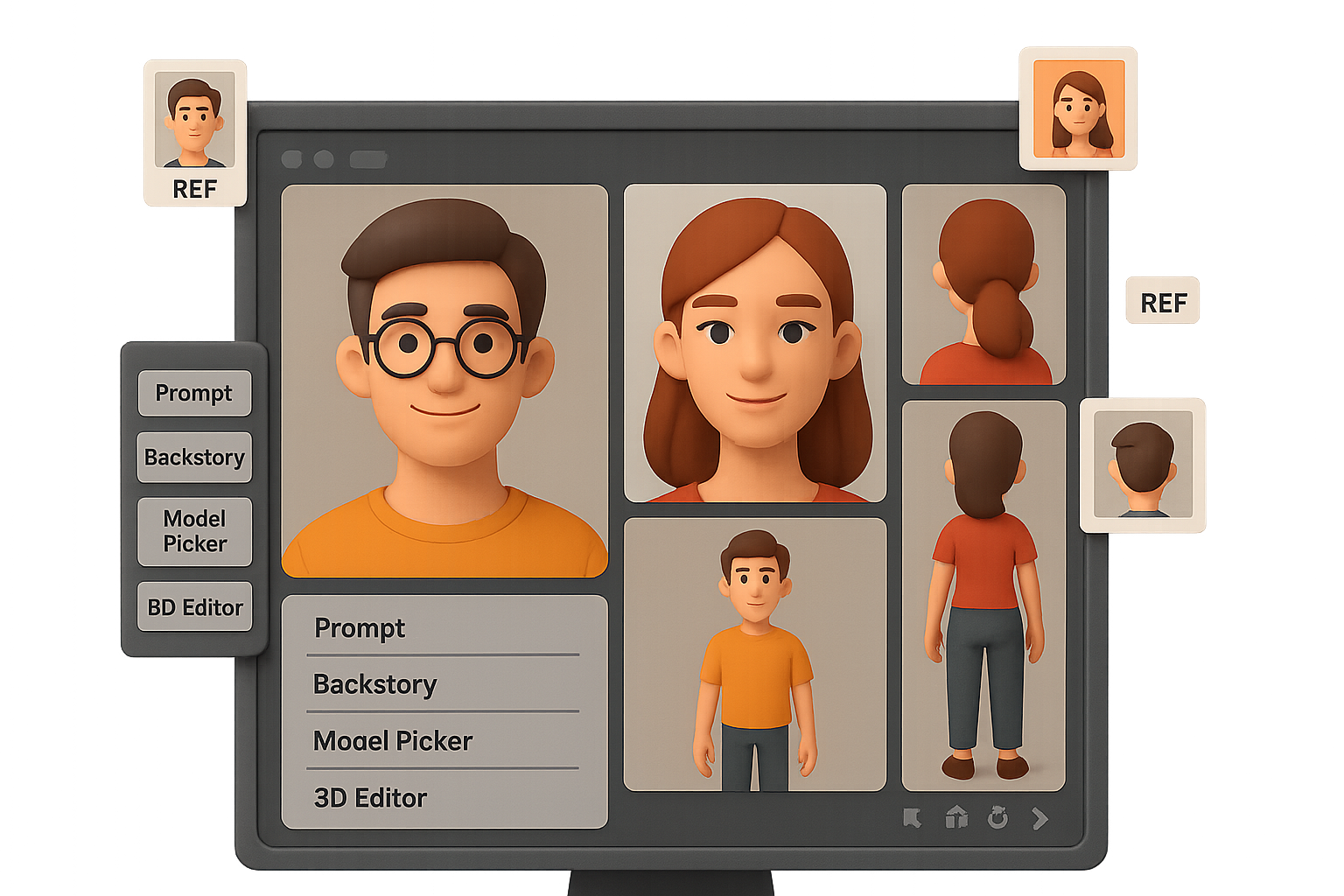
OpenArt spits out four views:
- Front
- Close-up
- Full body
- Back view
Happy with ’em? Lock it in. Want tweaks? Hit regenerate. Then just assign a name and drop a short backstory (“Robin, a 20-year-old ski racer who lives for the slopes”). That character context fuels every scene you create next.

Add a Co-Star (Optional—but Adds Fun Fast)
Want dynamic duos or an ensemble cast? Just rinse and repeat for Character #2. Training them separately keeps each identity stable—no melting faces when you bring them together.

Master the Character Studio Dashboard
Once your crew is ready, you’ll hang out in this dashboard:
- Characters – switch, stack, or solo your personas
- Prompt box – describe what’s happening
- Reference images – attach outfits, locations, props (tag as @image1, @image2…)
- Output size – go all the way to 4K
- Model picker – stick with Auto or pick your fave (Nano Banana Pro, SeaDream, etc.)
It’s simple once you do it once, and the results? Wildly consistent.

Quick Demo: Two Friends at the Resort
Try this out—
Prompt:
@Robin and @Ila at a ski resort (@image1). They pose for a selfie.
@Robin wears the pink outfit (@image2).
@Ila wears the blue outfit (@image3).
Then upload:
- image1 – a photo of the ski resort
- image2 – pink ski suit
- image3 – blue ski suit
Set output to 4K → Hit generate.
Boom: you get clean, face-accurate images with both characters holding their look like pros.

Unlock the Pro Moves
Wanna level up? These tools give you serious control.
A) 3-D Pose Editor
Click any image slot > “3D Editor,” then drag limbs or choose a sample pose. Adjust the angle or camera, hit Update Pose—OpenArt mimics it, pixel-perfect.
B) Character Placement Tool
Drop a background and use the Position tab to define exactly where your character stands. Ideal for panels, ads, or Pinterest-perfect layouts.
C) 4K + Print-Ready Outputs
Every feature—poses, backgrounds, placement—works at full print resolution. Not just for screens anymore.

From Still to Studio-Ready Video
Here’s where it gets spicy: OpenArt lets you animate your AI characters without losing identity.
Two ways to do it:
- Image-to-Video – Upload a start and end frame. Pick a video model like Kling 2.6, PixVerse, or Google Veo 3.1, adjust duration, and hit go. Result: a 10-sec video with consistent faces.
- Element-to-Video – Don’t have your first frame? Just input your character, pick a scene, and let the AI build around them.
It’s character animation, but without the 3-week rigging headache.

Your Rapid-Fire Checklist 🧠
Let’s wrap it up with a quick creator’s playbook:
- Train each character once—from either prompt or photos
- Add a short back-story (it helps scenes make sense)
- Tag image references in the prompt (@image1, etc)
- Use the 3D Editor for action-specific poses
- Drop characters precisely with the Position tool
- Go full-res for print—or switch to video anytime

Your Characters Deserve Consistency
If you need your characters to look like themselves, no matter the scene or format—OpenArt’s Character Studio nails it.
No more surprise face glitches. No more one-scene wonders. Just custom-built characters who stick the landing, frame after frame.
Ready to start building your own cast? Train your first creative persona today—and see what they can do.
Want step-by-step tutorials to sharpen your AI game even more? Start learning at Tixu—a no-jargon playground for anyone new to AI tools.
Leave a Reply