
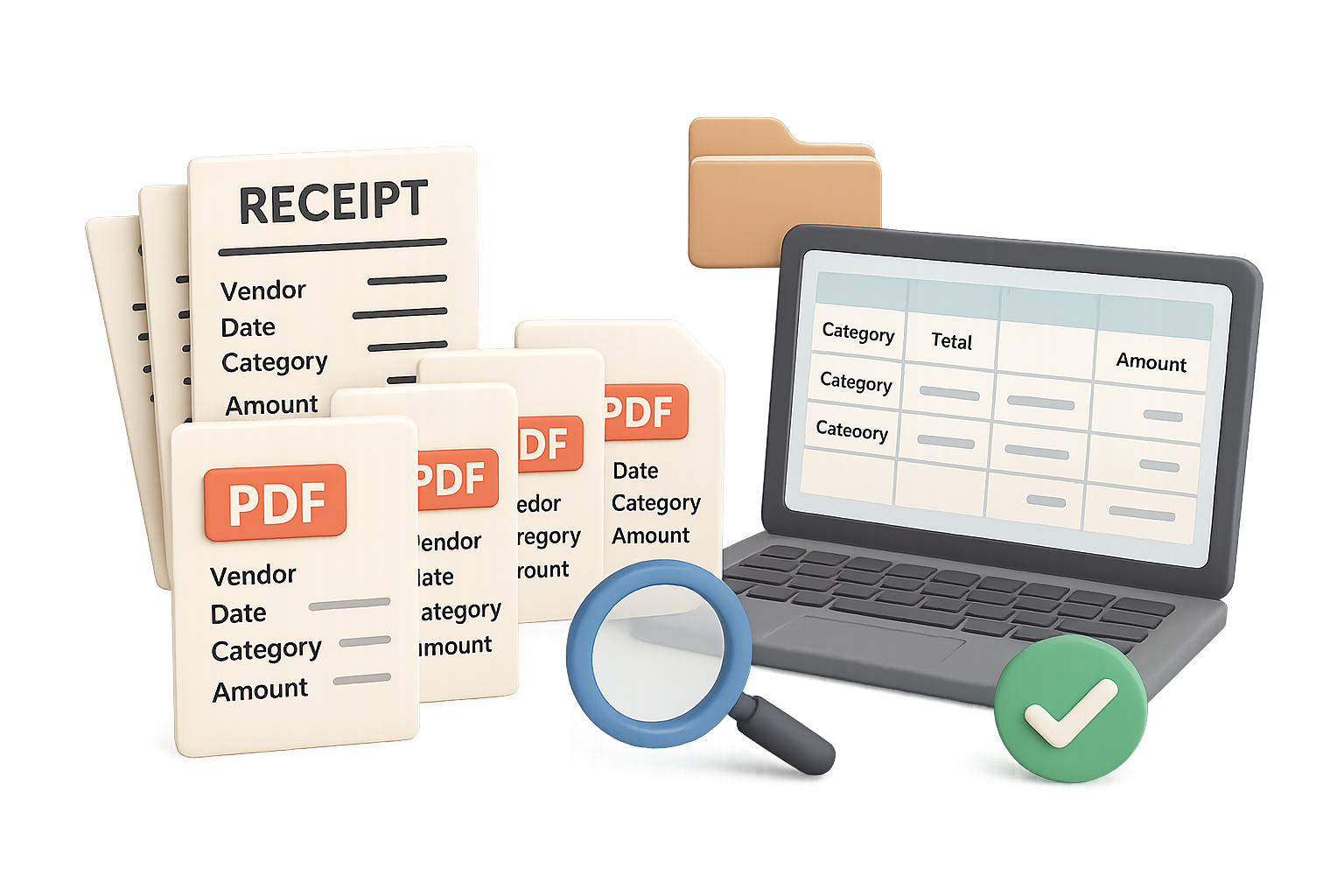
A folder of receipts can hold all the evidence you need—and still make review slower. When every file is named Scan_0047.pdf, you have to open documents one by one to find the vendor, transaction date, and amount.
Claude Cowork can help you turn that folder into a more reviewable accounting workpaper. In Claude Desktop, you can authorize a receipt folder and ask Cowork to read receipts, rename files, compare them with a vendor list, inspect line items, and build an Excel summary.
The practical win is less repetitive document handling and easier access to supporting evidence. Your judgment still matters: AI-generated labels and summaries need professional review. Here’s how to set up the workflow, check its output, and keep the evidence close at hand.
Start with a controlled receipt folder
The demonstrated workflow uses Claude Desktop on a Mac, with Cowork and its folder-selection option. Choose the folder containing the receipts, then grant access.
That permission is an operational decision—not just another button to click. Cowork can manipulate files in the authorized folder, and its permission warning includes the possibility of deleting files.
Before you start:
- Make a backup or work with copies.
- Use a dedicated folder for the client and period under review.
- Follow your firm’s confidentiality policies before granting AI access to client documents.
- State clearly which changes are allowed.
For example, you might say: “Rename these receipts, but do not delete files or modify their contents.” Clear instructions help define the task, but they don’t replace backups or your firm’s access controls.

Rename receipts to make each file easier to review
A useful filename can answer routine accounting questions before you open the receipt. The demonstrated workflow used this structure:
Vendor – Transaction date – Expense description or category – Amount
Claude read and renamed the files, reported the names it selected, and performed a verification step. Two spot-checks showed the extracted information matching the receipts:
- A Publix receipt dated June 24, 2022, was labeled as liquor with a total of $165.81. Opening it confirmed the date, amount, and liquor purchases.
- A Mission Barbecue receipt dated June 24, 2022, was named with a total of $47.04 and a meals-and-entertainment label.
These are reported checks from that receipt folder—not proof that every receipt-processing task will be error-free.
Keep extraction and classification separate. You can check a vendor, date, or printed total against the receipt. An expense category involves interpretation. A category in a filename is a proposed organizational label, not a final accounting or tax conclusion.
Do this next: Try a prompt that makes uncertainty visible:
Read each receipt in this folder and rename it using this format:
Vendor - YYYY-MM-DD - Proposed category - Amount.extension
Preserve the original file extension. Do not delete files or change receipt contents. Use the transaction date and total shown on the receipt. If a field is unclear, flag it for review rather than guessing. Afterward, provide a list of the renamed files and any uncertainties.
The date format makes files easier to sort. The instruction to flag unclear fields helps you review exceptions instead of silently accepting a guess.

Compare receipts with the client’s vendor list
After organizing the files, you can ask a practical follow-up: Do you have receipts for the vendors the client mentioned?
In the demonstrated workflow, the client’s vendor list was pasted into the conversation. Claude compared it with the authorized folder and reported no receipts found for:
- Starbucks
- Chipotle
- Panera Bread
That gives you a useful starting point for a document request. But “no receipt found in this folder” does not mean the client definitely failed to provide a required receipt. The document may be elsewhere, the vendor name may differ, or the list may include vendors with no transactions during the period.
Try wording the request carefully:
Compare this vendor list with the receipts in the authorized folder. Identify vendors for which you cannot find a matching receipt. List possible name matches separately, and describe the result as “no matching receipt found,” not as a confirmed missing transaction.
Use the result to guide follow-up. Don’t treat it as a substitute for reconciling the underlying records.

Ask targeted questions about receipt line items
Renaming files is helpful, but some review questions require a closer look at individual items. One demonstrated request asked Claude to inspect restaurant receipts for evidence of alcohol purchases.
Claude reviewed receipts individually, identified cases where a receipt lacked itemization, and noted that the Publix receipt labeled as liquor contained alcohol, supported by the brands listed.
For your review, distinguish among:
- Itemized evidence: specific products appear on the receipt.
- Insufficient detail: the receipt doesn’t provide enough information for a confident answer.
- A suggested category: a label offers context but doesn’t establish every underlying fact.
Ask Claude to show its evidence:
Review the restaurant receipts for line items indicating alcohol purchases. For each finding, identify the receipt and the supporting item description. Separately list receipts without enough itemization to determine whether alcohol was purchased. Do not infer alcohol purchases from the vendor name alone.
This can help you prioritize review. It does not determine business purpose, deductibility, or final treatment.

Build an Excel summary that links back to receipts
The final demonstrated task created an Excel workbook from scratch. Claude was asked to include information from the filenames, total amounts by category, and add clickable links that opened the source files locally.
The workbook included:
- Vendor names and transaction dates
- Categories and individual receipt amounts
- Category subtotals
- Links to supporting files
A tested link opened a Walmart document showing a $352 refund credit. That’s a useful reminder: a receipt folder can contain credits as well as expenses. Check how credits appear before relying on category totals.
Test local links in the environment where you’ll use the workbook. If you move the files or share the workbook, the links may no longer work.

Keep your professional review in the workflow
A renamed folder or polished spreadsheet isn’t the goal by itself. You want a reviewable package: organized documents, traceable amounts, visible uncertainties, and easy access to evidence.
Before relying on the output, spot-check extracted fields, review proposed categories, confirm credit handling, and reconcile totals to the relevant records.
Let Claude handle repetitive document organization; keep professional judgment with you. To build practical AI skills you can apply at work, explore Tixu.ai, a beginner-friendly AI learning platform.

Leave a Reply