
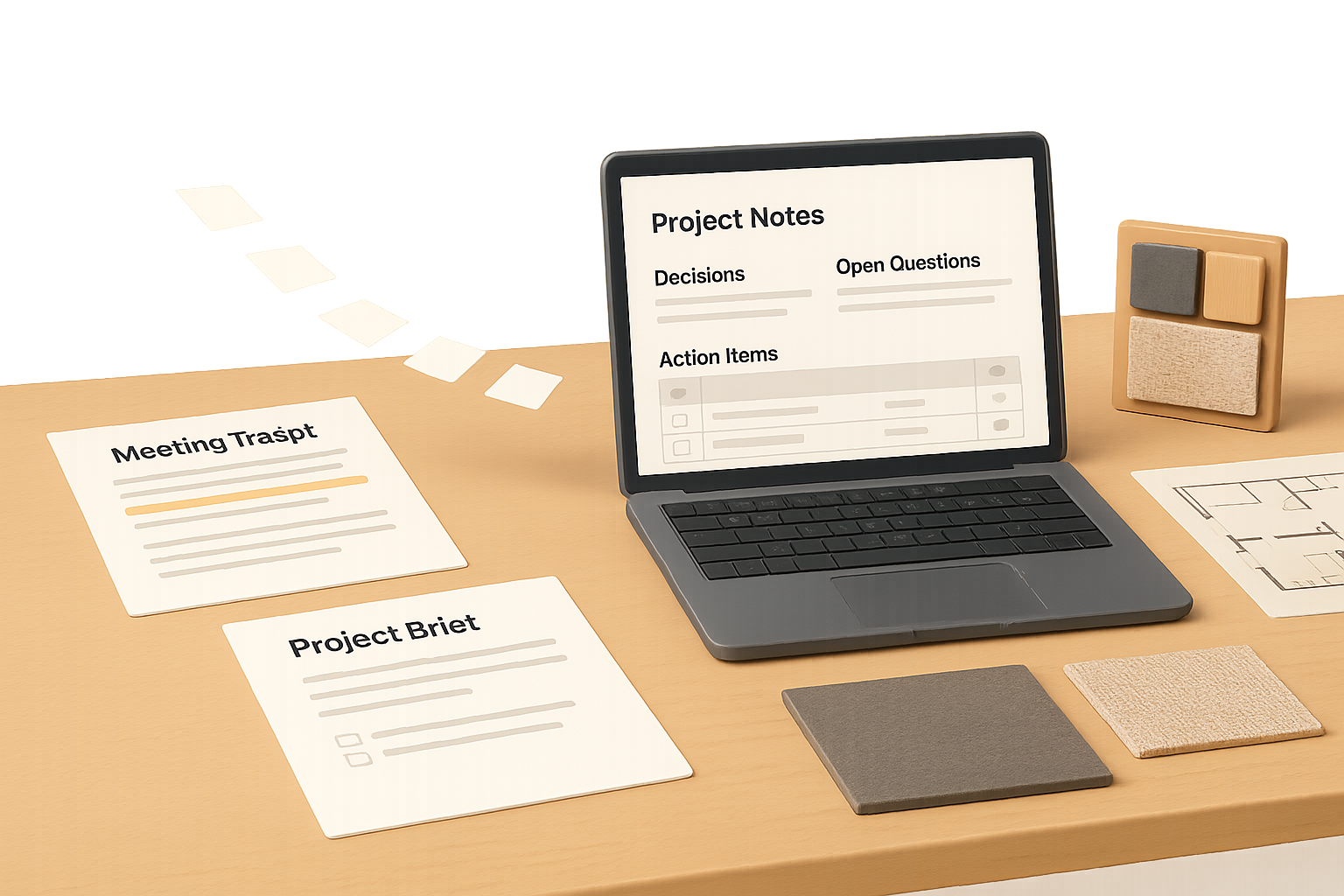
If Claude keeps giving you generic answers that need a full rewrite, the problem may not be the prompt—it may be the missing context. With a clear picture of your interior design practice, project constraints, and communication style, Claude can help you organize client meetings, draft project updates, and keep decisions easier to track.
The key is to build a reliable foundation, then use it for one repeatable workflow. You’ll see how to brief Claude about your studio, set up project context, connect working information, and review what it produces. You stay in control of design judgment, client commitments, and every detail that matters.
Brief Claude on how your interior design studio works
Start with your personal preferences or custom instructions in Claude’s settings. Treat them like the briefing you’d give a new studio team member before asking for help.
Include:
- Your practice: Studio name, project types, locations, and areas of expertise.
- Your clients: Who you work with, what they typically need, and how they make decisions.
- Your voice: Preferred tone, useful phrases, and language you avoid.
- Your tools: For example, SketchUp, Canva, Notion, and your email platform.
- Your priorities: Such as improving documentation or making client updates more consistent.
“Write professionally” gives Claude little to work with. Try: “Write warm, concise client emails with clear next steps. Avoid exaggerated language and unexplained design jargon.”
If you import preferences from ChatGPT, review them first. Remove outdated information instead of carrying it into a new system.
Check your privacy settings and any available memory controls, too. Memory is not a substitute for an accurate project brief. Feature names and availability can vary by plan and interface, so check what your account supports.

Save different communication styles for client emails and project updates
Inquiry replies, supplier follow-ups, and project updates each have a different job. Custom styles can help Claude match the tone you want without requiring a fresh explanation every time.
To create an inquiry-response style:
- Gather three representative emails you’ve written.
- Remove client names and sensitive details.
- Use them as writing examples when creating a custom style.
- Give the style a clear name, such as “Client Inquiry Replies.”
- Test it on a new inquiry and refine the result.
You can create separate styles for project updates, scope writing, and supplier correspondence.
Keep one distinction clear: a style guides how the response sounds, not which facts are true. Give Claude accurate information about your availability, services, and next steps. Review drafts before sending, especially when they mention fees or commitments.

Set up a Claude Project for each active design job
A Claude Project gives related conversations shared instructions and reference material. You can work from a maintained project brief instead of re-explaining the same renovation each time.
Include:
- Client priorities: Decision-makers, communication preferences, and practical needs.
- Scope: What’s included and explicitly excluded.
- Design direction: Specific materials, references, and agreed preferences.
- Budget and programme: Relevant allowances, milestones, and firm deadlines.
- Constraints: Building rules, retained furniture, access restrictions, and procurement risks.
- Decisions: What’s approved and what remains unresolved.
Keep the information current. Extra material only helps when it’s relevant and reliable.
Consider the fictional Henderson Residence. Its brief describes a Hong Kong apartment renovation, a client who responds well to physical samples, a foyer that sets the apartment’s design direction, and European furniture with potentially challenging lead times.
When asked what to prioritize, Claude can use those details to suggest preparing foyer samples and confirming furniture selections early. That’s more useful than a generic renovation checklist.
Only share client information you’re authorized to use. A project nickname and selective documentation may be more appropriate than full names, addresses, or detailed financial records.

Connect project information to your working tools
Projects hold the context you supply. Connectors can let Claude retrieve information from supported tools, such as Notion, so you don’t have to keep copying and pasting.
For a Notion-based workflow:
- Connect the appropriate workspace.
- Confirm Claude can access the relevant project pages and databases.
- Organize meeting notes, tasks, and decisions consistently.
- Ask a focused question, such as: “Which decisions are most urgent, based on deadlines and dependencies?”
If a connector supports writing and you grant permission, Claude may also create or update records. Check permissions carefully, and review consequential changes rather than allowing unrestricted access by default.
One useful task is turning a transcript from Granola or Fathom into structured meeting notes. In one example workflow, a 20-minute client call became categorized, dated Notion notes with decisions and action items in less than a minute after the connection and database were set up. That’s a single workflow example, not a guaranteed time saving.

Make meeting-note instructions reusable with a Skill
If you regularly process meeting notes, standardize your instructions. A Skill can package a workflow’s steps, reference material, and expected output.
Start with this reusable prompt:
Process this interior design meeting transcript for [project].
Use the project brief and meeting-note template. Separate discussion, confirmed decisions, open questions, and action items.
Put action items in a table with task, owner, due date, and dependency. Do not invent owners, deadlines, approvals, or specifications. Mark missing information as “Not confirmed.”
Highlight any budget, procurement, or programme risks supported by the transcript.
Confirm the destination project and show me the draft before creating or updating the Notion meeting record.
Transcript: [paste transcript]
Test the workflow with a sample transcript. Check whether tentative ideas appear as approvals, whether each action has evidence, and whether the destination database is correct.
Refine the Skill as you find issues. If Skills aren’t available in your setup, save the instructions in a text file and reuse them manually. You keep the checklist, but not the same automatic triggering or integration.

Turn design decisions into clearer client updates
Structured notes work well internally, but clients often need a simpler summary. Claude’s Artifacts can produce a rendered document or interactive page instead of another long chat response.
Ask for a project update that includes:
- The current stage and a brief progress summary.
- The three most urgent client decisions.
- Confirmed deadlines and next steps.
- A clear distinction between approved and pending items.
You can also explore room specification sheets, onboarding checklists, or budget trackers. Supply your brand guidelines when appearance matters.
A polished presentation still needs your review. Check dates, figures, specifications, and sharing settings before anything goes to a client.

Start with one interior design workflow
You don’t need to configure everything at once. Begin with one repeatable sequence:
Meeting transcript → structured notes → reviewed project record → client update.
Once that works reliably, add another workflow. The aim isn’t just to generate text faster. It’s to cut down on repeated briefing, keep decisions organized, and produce clearer documentation—while you retain control of design judgment and client commitments.
Ready to build practical AI skills for your work? Explore Tixu.ai, a beginner-friendly AI learning platform.

Leave a Reply