
Gemini Notebooks: Turn scattered chats into tidy, project-ready workspaces

You open Gemini and your brain hits a wall of loose chats and half-baked ideas. Frustrating, right? Google just fixed that. Gemini now embeds NotebookLM as Notebooks — a real folder + knowledge base hybrid. You get project-level memory, custom instructions per project, and auto-generated assets (slides, summaries, flashcards). That means less digging and more doing. Ready when you are.

What you’ll walk away with
- A quick sense of what Notebooks actually do.
- A 30-second setup you can follow right now.
- Pro tips that save time on day one.
- Plus one small experiment you can run this afternoon.

Roadmap
- What Notebooks are.
- How to create one.
- Smart ways to use them.
- Quick wins and rollout details.
Start a Notebook and stop losing ideas
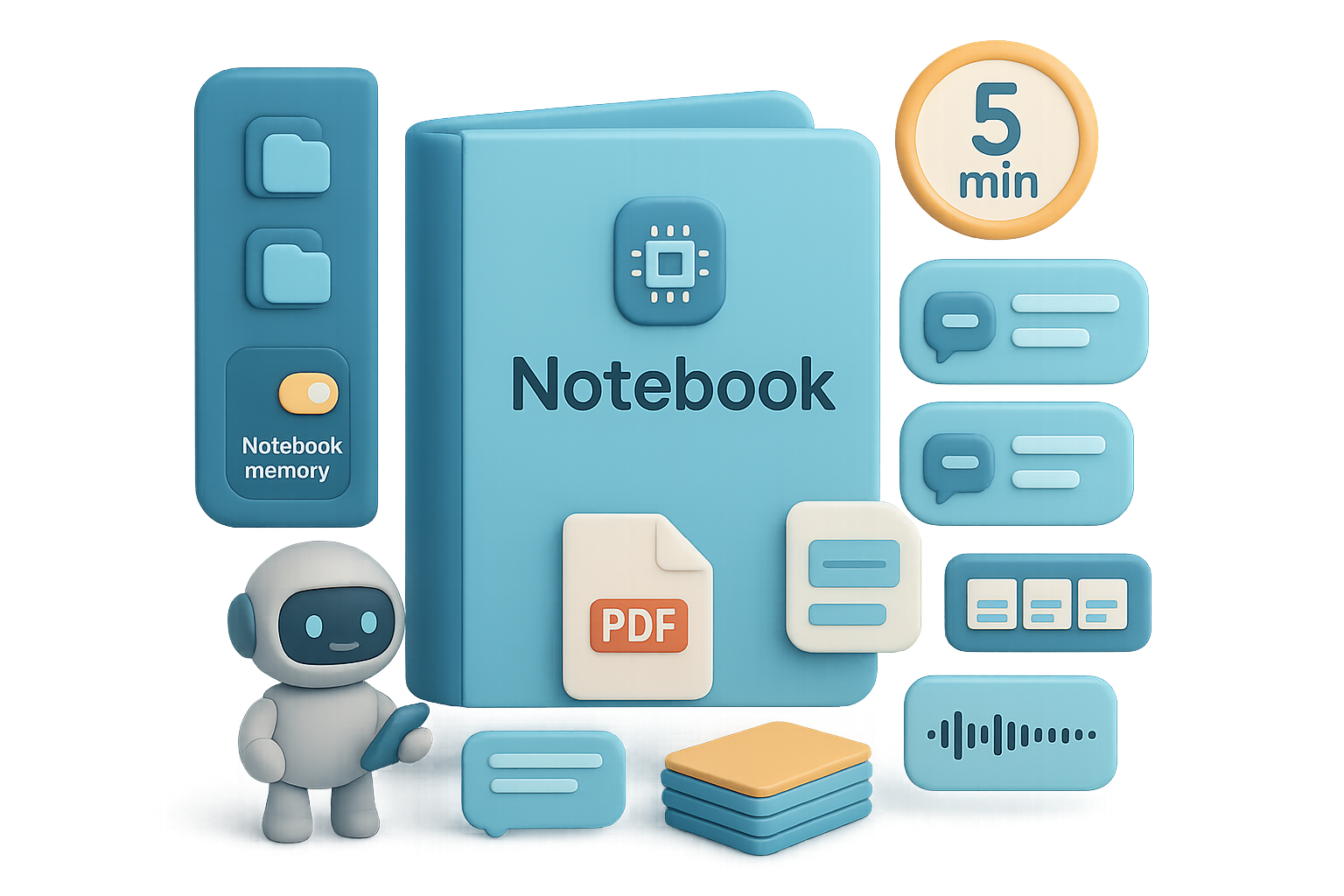
Open Gemini and look left. You’ll see Notebooks. Each Notebook holds:
- Ongoing chats.
- Uploaded sources (PDFs, URLs, Drive files, transcripts).
- Auto-made assets (audio summaries, slide decks, flashcards).
Think of it like a folder that also remembers context. Everything you add stays grouped. No more hunting in “All Chats.”

Make project memory work for you
Flip on Notebook memory and Gemini uses past chats in that Notebook when answering. That matters because:
- You avoid repeating context.
- Research stays coherent across sessions.
- You keep instructions per project (casual vs. formal tone).
AI won’t replace you—someone better at organizing AI will. Use Notebooks to be that someone.

Create your first Notebook (30-second guide)
Do this next:
- Click New Notebook in the sidebar.
- Name it (e.g., “Marathon Training”).
- Add sources now or later (upload files, pull from Drive, paste a URL).
- Open ••• → Settings → enable Notebook memory and add Instructions.
That’s it. Any chat you start with the Notebook open files into that project.

Automate the grunt work (use the right view)
You can chat three ways:
- Inside NotebookLM — great for media-rich asset creation.
- Inside Gemini while the Notebook is open — best for fast, memory-powered conversations.
- A fresh Gemini chat with a Notebook attached — handy for one-offs.
Most people prefer Gemini with a Notebook open. It feels snappier and keeps everything organized.
Pro tips that aren’t obvious on day one
- Retro-file old chats: In All Chats → ••• → Add to Notebook. Once filed, the chat drops from the global list.
- Pin up to five Notebooks to the sidebar for instant access.
- Jump to the full NotebookLM interface via the top-right “NotebookLM” button to generate slides or infographics in seconds.
- Desktop only for now. Mobile support usually follows, but plan around desktop workflows.

Replace Chrome hacks with native Notebooks
If you used extensions like Chat Architect, you can probably retire them. Native Notebooks beat add-ons because they:
- Integrate memory and custom instructions.
- Sync with NotebookLM’s asset tools.
- Work across browsers without extra setup.

Rollout — who gets it first
- Rolling out to Gemini Advanced (Ultra) subscribers first, then Pro, then free-tier users.
- Gradual regional rollout — if you don’t see Notebooks yet, you’ll get them soon.
- Existing NotebookLM projects appear automatically in Gemini; no import required.

Quick checklist before you dive in
- Create one Notebook for an active project today.
- Upload 1–3 key sources (a PDF, a Drive doc, a URL).
- Turn on Notebook memory.
- Add one instruction (tone or answer style).
- Start a chat and ask Gemini to summarize the sources.

Why this matters
Notebooks turn Gemini from a habitually forgetful chat into a reliable project partner that remembers context and keeps your work tidy.
Try creating a Notebook for your next project and see if you don’t cut 10–30 minutes of context work per session. If you want a friendly way to learn practical AI skills that speed this kind of setup, check out Tixu — a beginner-friendly AI learning platform.
Ready when you are.

Leave a Reply