
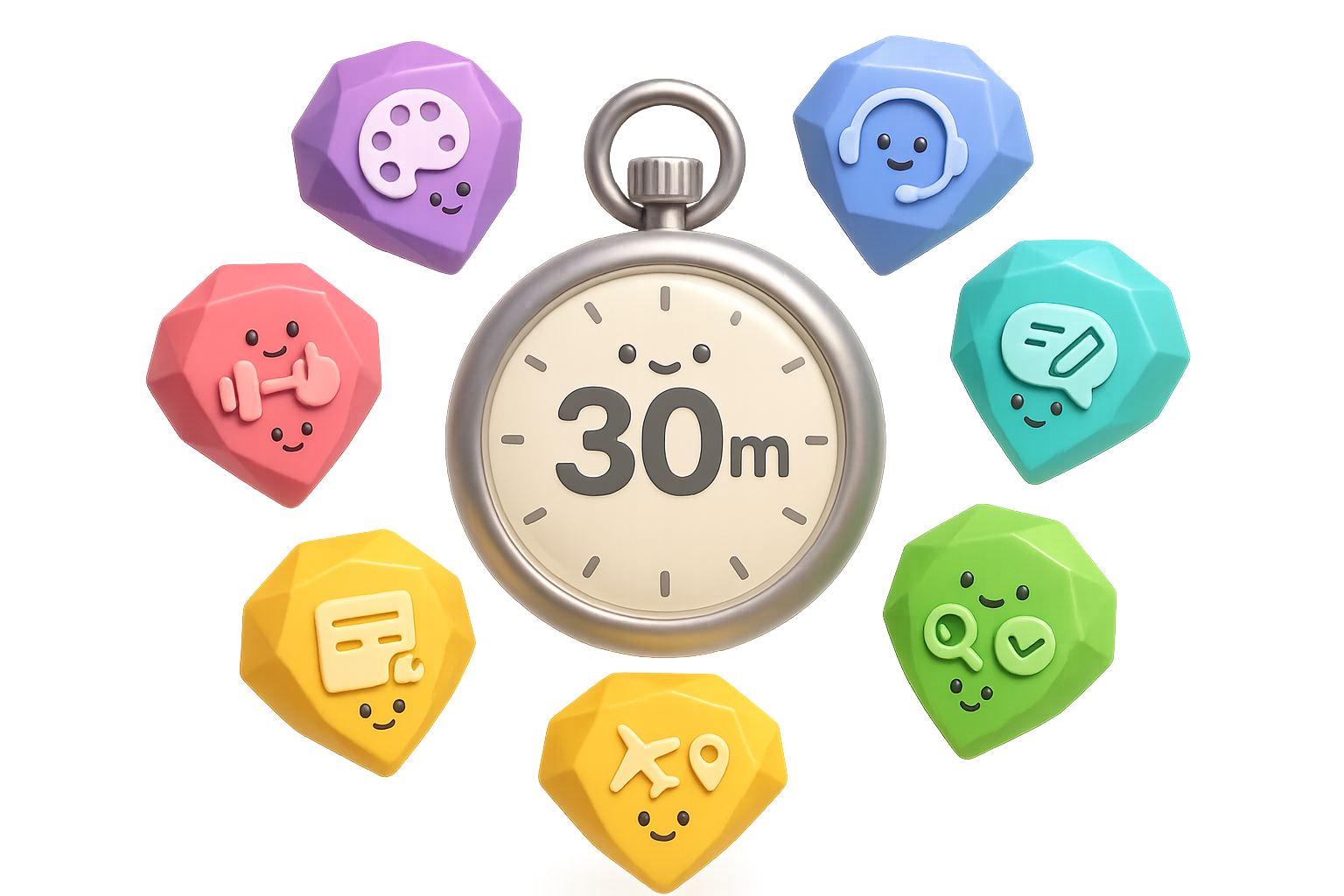
Why Google Gemini Gems Matter
You keep repeating the same instructions. You paste FAQs. You re-explain the brand every time. That steals hours and patience.
Gems fix that. They act like mini-assistants with memory, tone and default tools. Once you train one, it remembers your rules so you don’t have to.

Make brand-perfect visuals every time with Google Gemini Gems
Stock prompts give safe, generic images. A Gem remembers your brand, so every output matches your look. Short win. Big impact.
How to build it
- Go to Gems → New Gem.
- Name it Brand Infographics or something obvious.
- Paste your brand guide—hex colors, fonts, tone, layouts—into Instructions.
- Toggle Default tool → Create images.
- Hit Save and test.
No brand guide? Upload a favorite marketing image and ask Gemini: “Extract a prompt that recreates this visual style.” Paste its answer into the Gem.

Turn customer support into a time-saver with Google Gemini Gems
Handling repetitive tickets drains teams. Feed policies, product docs and FAQs into a Gem and let it draft accurate, on-tone replies. You free up agents for the tough stuff.
Key settings
- Set Canvas as default so replies appear without system notes.
- Attach living files from Drive; the Gem references the latest version.
- Copy the customer email, drop it in, tweak tone, send.
Teams often reclaim hours per week. That’s fewer repetitive replies and better focus on escalations.

Use a Gem as your prompt-engineering sidekick
Struggling to write the “perfect” prompt? Don’t guess. Teach the Gem your prompt goals.
It returns:
- A concise, ready-to-use prompt.
- A detailed, production-ready prompt.
- Clarifying questions with multiple-choice options to refine it.
Iterate until you’re happy, then paste into Gemini, Midjourney, or another model. You improve prompts without the trial-and-error grind.

Run a “Stupidity Checker” for fact and clarity reviews
Post-ready content still contains mistakes. Drop your draft in a Gem and get three things back:
- Incorrect statements it found.
- Awkward or confusing phrases.
- Missing details that would make the piece stronger.
Think of this Gem as a brutally honest second pair of eyes. It saves you from public faceplants.
Build a personal wellness coach Gem
Want a simple fitness or nutrition buddy? Give a Gem your restrictions, fitness level and schedule. Attach trusted resources—NotebookLM is Google’s research notebook you can link for citations.
Setup ideas
- List dietary restrictions and fitness goals.
- Attach a NotebookLM notebook or workout articles.
- Ask “What 15-minute workout fits my rest day?” or “Plan a high-protein dinner with what’s in my fridge.”
Not medical advice. Great for daily planning and accountability.

Bridge NotebookLM and Google Workspace where you work
Gems live outside gemini.google.com if you’re on Google Workspace. Summon them inside Docs and Gmail.
How it helps
- Docs: Draft long-form content that cites your NotebookLM research.
- Gmail: Reply with your support Gem without switching tabs.
Open the right-hand Gemini sidebar → three-dot menu → pick your Gem. Suddenly your research and templates sit right where you write.
Travel like you have a personal concierge
Upload boarding passes, hotel PDFs and car reservations. Add one instruction: “Use these to answer any travel question I ask.”
On the road:
- Ask for the hotel address while in a taxi.
- Ask for your return flight number at security.
- Keep everything handy without riffling through apps.
It’s a tiny travel hack that beats fumbling under pressure.

Bonus: Explore Google’s pre-made Gems
Open Gem Manager and browse Pre-made by Google. Useful ones include:
- Brainstormer – fast idea generation for videos and posts.
- Lesson Planner – create course outlines quickly.
- Analyst – pull insights from pasted tables.
Clone one, tweak it, and you’ve cut setup time.
Do this next — Quick Starter Checklist
- Pick one repetitive weekly task.
- Gather reference material (brand guide, support docs, workout articles).
- Create a Gem and paste instructions or attach files.
- Set the right default tool (Images, Canvas, Code).
- Test with a real prompt, fine-tune, then enjoy the saved time.
Harnessing Gems turns Gemini from a polite chat partner into a fleet of specialized helpers. Start with one Gem; measure the time you get back; scale from there.
Build one Gem today and stop repeating yourself. Ready when you are.
Learn AI fundamentals and practical workflows at Tixu — a beginner-friendly AI learning platform.

Leave a Reply