Category: General

  • Master the 4 AI Powers to 10x 2026 Results

    Master the 4 AI Powers to 10x 2026 Results

    Why 2026 Will Be the Year of the AI Generalist

    You’re probably already plotting your “grind year” for 2026. More hours. More content. More hustle.

    But here’s the reality: that strategy is officially running on fumes.

    Leverage is the new hustle.
    And AI? It’s the cheat code.

    If you can blend a few AI-native skills, you can skip the burnout and hit compound wins instead. That’s what being an AI generalist is about—stacking four core “powers” that make you faster, sharper, and damn near unstoppable.

    Let’s break them down—and show you how to start using each one this week.


    illustration

    Automate the Grunt Work

    Time is your most expensive asset. Buy it back.

    Freeing up 5–10 hours a week isn’t a dream—it’s Step One.

    Modern large language models (LLMs) like Claude 3 or GPT-4o can run full-blown workflows that:

    • schedule meetings
    • summarize emails or calls
    • prep research notes for demos or interviews

    Here’s your quick-launch primer:

    1. Connect your favorite tools (Gmail, Notion, Google Calendar) using Zapier or Make.
    2. Pick one task that eats your soul every week.
    3. Write a reusable prompt (“Workflow”) that clearly outlines the steps.
    4. Trigger it with a simple phrase like: “Prep next call with Sam.”

    Even a single well-oiled automation can free up over 100 hours a year. That’s two extra workweeks you get back—without clocking overtime.


    illustration

    Build Software Without Touching Code

    Think building apps is just for coders? Flip the script.

    Describe your idea, drop it into a no-code platform, and you’re building by dinner.

    Try one of these AI-friendly builders:

    • Bubble – power user’s go-to for no-code web apps
    • FlutterFlow – great for mobile-first, pixel-perfect apps
    • Google AI Studio – plug in a prompt, get a functioning prototype

    Fast-track blueprint:

    1. Choose a process in your life that’s… kinda broken. (“I never track my workouts.”)
    2. Ask ChatGPT or Claude to create a 1-paragraph brief for how the app could work.
    3. Paste it into Bubble or FlutterFlow and tweak from there.

    Bonus tip: a few hours learning dev lingo (think “API” or “CRUD”) goes a long way. You don’t need a CS degree—just a little curiosity and Wi-Fi.


    illustration

    Create Eye-Catching Visuals & Sound Like a Pro

    Copy is great. But visuals and audio? They land harder, faster.

    Thanks to generative tools, you can now produce studio-grade visuals, videos, or music in no time:

    • Images: Midjourney v6, DALL·E 3, Stable Diffusion XL
    • Video: OpenAI Sora (text-to-video), Google Veo (cinematic motion)
    • Music: Suno.ai—create royalty-free tracks in almost any genre
    • All-in-one: InVideo combines image/video gen with editing power

    Mini-challenge to flex this skill:

    1. Take a pic of a household object.
    2. Use Midjourney to generate 5 visual ads in different styles.
    3. Drop ’em into InVideo, add a Sora-generated video snippet.
    4. Export a 15-second “Super Bowl” ad.

    You’ll walk away thinking, “Wait. I made this?” Yep. You did.


    Connect Through Content That Persuades

    No matter what you’re building, writing is your multiplier.

    Whether it’s an email pitch or a multi-platform content drop, persuasive language moves the needle.

    So train your writing assistant—aka your “AI whiteboard”—to speak in your voice, know your audience, and repurpose like a beast:

    1. Pick a context-aware tool: Notion AI, Claude, Jasper — your call.
    2. Feed it your best posts, brand guidelines, and audience notes.
    3. Prompt it to remix your ideas into LinkedIn threads, tweets, newsletters, ad copy, even video scripts.

    Let the AI handle first drafts so you can focus on tone, structure, and actual strategy. You’re the editor-in-chief now—congrats.


    illustration

    Master the Stack: Automate → Build → Create → Connect

    Each power alone is useful. Together? They make you frictionless.

    • Automate to free your calendar.
    • Build tools for yourself or for others.
    • Create visuals and videos that get traction.
    • Connect by sharing ideas that stick and sell.

    This four-stack system gives you leverage across work, business, and brand building. Want to stay competitive in 2026? Stop siloing your skills—start stacking them.


    illustration

    Your 7-Day AI Generalist Sprint

    Don’t just read—build. Here’s your week mapped out:

    • Day 1 – List three repetitive tasks. Automate one.
    • Day 2 – Draft a one-paragraph brief for a micro-app.
    • Day 3 – Build v1 in Bubble or FlutterFlow. Ship to a friend.
    • Day 4 – Photograph anything. Generate 5 variations in Midjourney.
    • Day 5 – Turn those visuals into a 15-sec video with InVideo or Sora.
    • Day 6 – Plug it all into your AI writer. Draft and polish one post.
    • Day 7 – Publish. Ask for feedback. Iterate. Repeat.

    This sprint will stretch your thinking. And it might just launch your next project.


    illustration

    Here’s the Bottom Line

    2026 won’t reward who hustles hardest. It’ll reward who compounds smartest.

    AI generalists win because they don’t pick one lane—they build highways between them. And the road gets faster with every mile.

    Ready when you are.

    👉 Want to start mastering AI skills—without drowning in jargon?
    Check out Tixu, the beginner-friendly way to learn AI fast, with real-world projects that actually stick.
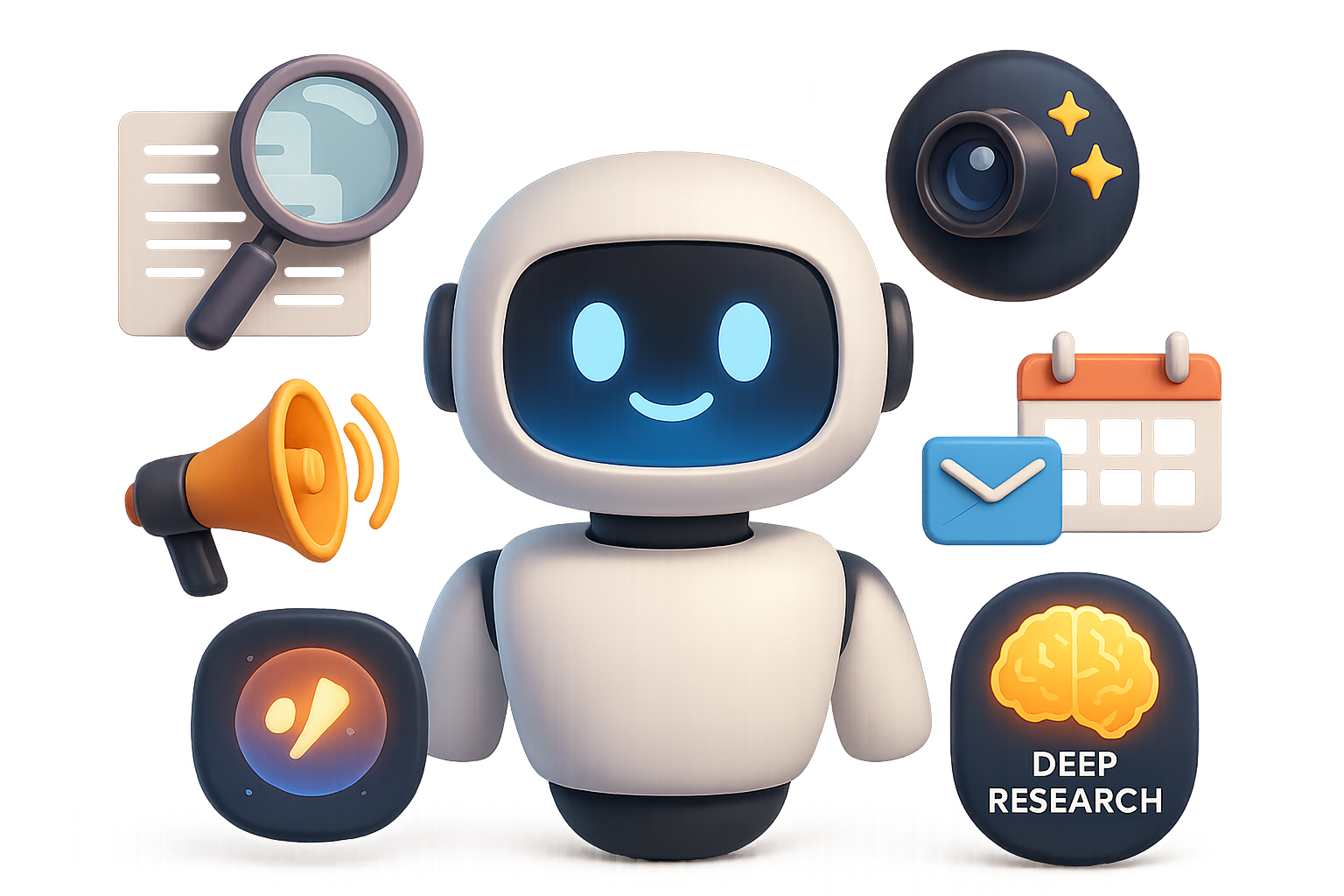
  • Unlock Gemini 3.0 Pro: Automate, Analyze, and Create Faster

    Unlock Gemini 3.0 Pro: Automate, Analyze, and Create Faster

    Unlock Gemini 3.0 Pro Like a Power User

    Still treating Gemini like a fancy search bar? You’re leaving hours—and serious workplace wizardry—on the table.

    Google’s latest AI model, Gemini 3.0 Pro, is more than a question-answering machine. It’s your research assistant, image generator, narrator, analyst, and workflow automator—packed into one clean interface. All you need is a little know-how to flip the right switches.

    This guide skips the fluff and walks you through seven practical ways to turn Gemini into your backstage genius. Let’s go.


    illustration

    Pick Your Speed: Fast vs. Thinking

    Before anything else, click that model chooser in Gemini. You’ve got two lanes:

    • Fast – lightning-quick replies for simple searches.
    • Thinking – slower, but built for deeper, structured reasoning.

    Here’s the play: use Thinking when you need insight, not just answers. Whether it’s a marketing funnel strategy or a cost-benefit breakdown, the extra processing time pays off.

    Because “pick the cheapest” doesn’t cut it when the ROI math bites back later.


    illustration

    Turn On the Multimodal Magic

    Gemini doesn’t just read text—it sees, hears, and summarizes across media. Here’s where it gets juicy:

    1. Analyze Images and Create Visuals (No Design Degree Required)

    • Snap a photo of your scribbled notes or messy whiteboard. Gemini will turn it into a clean bullet list or table.
    • Need a header image for a pitch? Try: “realistic startup office at golden hour, open laptops, diverse team.” Behind the scenes, Gemini uses Imagen 2 to generate crisp, royalty-free images.

    Bonus: Free tier includes 2 generations per day. If you’re image-heavy, upgrade to Gemini Advanced for unlimited.

    2. Crack Video the Lazy Genius Way

    Drop in a YouTube video link or upload your own. Then say:
    “Summarize key features demoed, with timestamps and categories.”

    Boom—Gemini watches it for you and returns a highlight reel outline. Faster than scrubbing through at 1.5×.

    3. Digest Giant Docs. Without Reading Them.

    Thanks to a 2 million-token context window, you can throw whole project folders (or 1,500-page PDFs) into a single chat.

    Ask for summaries, red flags, or even cross-file correlations. No more CTRL + F scavenger hunts.


    illustration

    Deep Research: The Analyst You Wish You Had

    Got a question like: “What are the three biggest AI trends of the last 90 days—specifically for marketers?”

    Type it in. Gemini activates a built-in Deep Research agent that pulls from papers, blog posts, and news. You’ll get a multi-page, citation-backed briefing served on a digital platter.

    • Free tier: 5 reports/month
    • Upgrade for unlimited exploration

    Perfect if you’d rather spend time acting on insights than chasing footnotes.


    illustration

    Automate the Grunt Work in Your Google Workspace

    Gemini plugs directly into Gmail, Calendar, and Drive. Here’s how that helps you win back your time:

    • Email: It can draft replies using the full thread for context.
    • Calendar: Ask it to find the next mutual free spot—done.
    • Drive: Upload mixed files, then request key points or a one-pager summary.

    This stuff lives in the free plan. But once you experience it, the ROI will sell you on going Advanced.


    illustration

    Need Voiceovers? You’ve Got AI Studio

    Go to Google AI Studio > Audio > Single Speaker.

    1. Drop your script in.
    2. Pick a voice.
    3. Click generate.

    In seconds, you’ve got natural-sounding audio for your product walkthrough, training module, or narrated blog post.

    No mic. No editing bay. No fuss.


    illustration

    Animate Like a Pro (Without Being One)

    Gemini Advanced now connects with Veo, Google’s fresh video brain.

    Upload a still image and give it a nudge: “Animate to an 8-second loop, with soft lighting and slow pan-in.”

    You’ll get a slick, looping video clip—website hero material or thumb-stopping social asset—without having to learn After Effects.


    Your Gemini Quick-Start Checklist

    Here’s your fast lane to pro status:

    1. Toggle to Thinking mode when you need strategy, not speed.
    2. Use the camera icon to pull data from handwritten notes or receipts.
    3. Ask for “sources” and Gemini drops in clickable citations.
    4. Upload docs in bulk—project folders, PDFs, meeting notes—then summarize.
    5. Turn on Workspace extensions for full Gmail/Calendar/Drive context.
    6. Use Imagen 2 for sharp visuals, Veo for animated loops.
    7. Save Deep Research credits for high-stakes questions.

    illustration

    Final Takeaway

    Used passively, Gemini is just another chatbot. But you’re not here for average.

    Push it one level deeper, and Gemini becomes a weapon-grade productivity tool that:

    • Scans, summarizes, and visualizes
    • Automates your Google stack
    • Speaks in your voice, draws in your style, and thinks across formats

    One afternoon of testing these tools, and you’ll leapfrog 95% of users fumbling at the surface.

    Ready when you are.

    Want more help using AI like a pro? Explore beginner-friendly tutorials over at Tixu.ai—your launchpad for mastering modern tools, no jargon required.

  • Master 7 Game-Changing AI Skills for 2026

    Master 7 Game-Changing AI Skills for 2026

    Grounding & RAG: How to Stop Your AI from Making Stuff Up

    You ever fire off a prompt, get a slick-sounding response… and then realize it’s totally made up? Yeah—large language models love to riff when they don’t know the answer. That confident nonsense? It’s called hallucination.

    But you can rein it in—fast.


    illustration

    Tame Hallucinations with Context + Self-Checks

    The simplest fix? Give your AI real stuff to chew on.

    Drop in your PDF, research paper, meeting transcript, spreadsheet—anything you want it to reference. Then say:

    “Only answer based on this source. If it’s not in there, just respond with ‘I don’t know.’”

    That one-liner is doing serious work. It cuts hallucinations by anchoring the model. Now add this prompt cherry on top:

    “For each major claim, add a confidence level (high/medium/low) and list anything you couldn’t find.”

    Boom. You just turned your model into its own reviewer. Doubt is now visible—and so are blind spots.

    illustration

    Go Further with RAG: Built-in Facts, Less Fiction

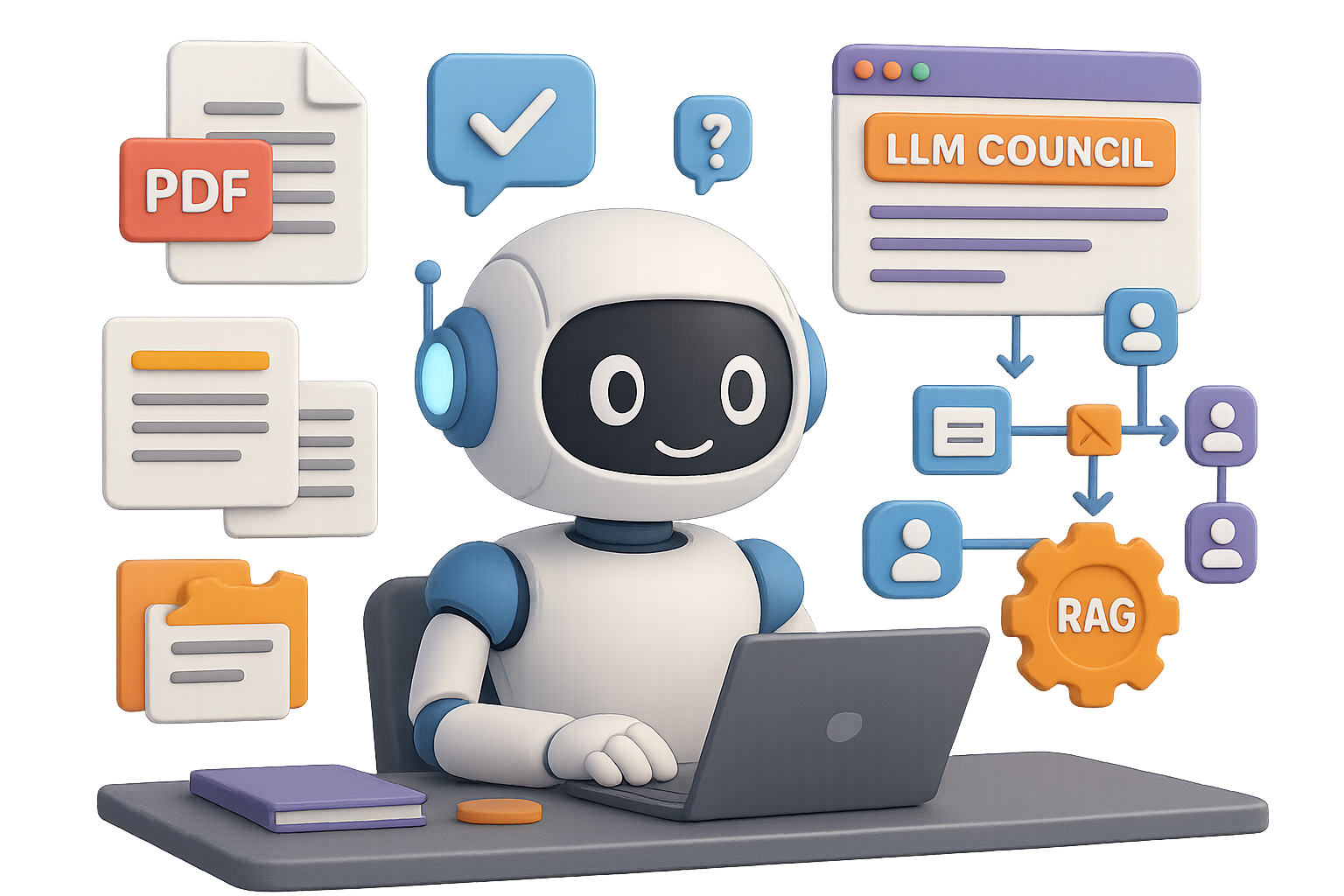
    Want to level up? Meet RAG—Retrieval Augmented Generation.

    Google’s free tool Notebook LM lets you:

    • Import multiple sources (articles, papers, docs)
    • Auto-cite every claim
    • Highlight contradictions across sources

    Toss in a prompt like:

    “Call out missing viewpoints or bias.”

    And watch hallucinations drop like your to-do list on Friday afternoon.


    illustration

    Run an “LLM Council” Before You Press Send

    ChatGPT doesn’t always win. Sometimes Claude crushes it. Sometimes Gemini’s take is sharper. How do you know who to trust when the stakes are high?

    Build your own panel of AI experts. Here’s how:

    1. Paste the same question into 3–4 different models.
    2. Compare answers—look for overlap and standout insight.
    3. Ask one model to rank the (anonymized) responses.

    Congrats—you’ve got a mini bake-off and an AI fact-check in one go. Zero fluff, max substance.


    A cartoon robot character pointing at a flowchart depicting a lead generation process, including icons for forms, lead scoring, LinkedIn, and email communication.

    Think in Systems: Orchestrate, Don’t Just Prompt

    Prompting is fun. But power users build workflows.

    Here’s your 3-step starter kit:

    1. Write down each task in a repetitive process (think: processing leads, onboarding clients).
    2. Flag what’s automatable.
    3. Connect 2–3 steps using a no-code tool like Zapier, Make.com, or n8n.

    One simple example:

    • New lead fills out form →
    • AI enriches company info via LinkedIn →
    • Model scores lead quality →
    • High-fit lead gets a custom email draft →
    • Everyone else, into nurture flow.

    You just built a micro-agent. No devs, no drama.


    A computer laptop displaying various icons related to video content creation, including options for title, thumbnail, and script, alongside a coffee mug that reads 'Afternoon Build'.

    Vibe-Coding: Spin Up Micro-Products in an Afternoon

    You don’t need to be an engineer to release a tool.

    Generative platforms like Replit AI, Emergent.dev, or Locofy let you ship real stuff—today. People are already building things like:

    • A cleaner, clickable YouTube prompt library using Softr.
    • A “content council” that runs your input through LLMs, has them critique each other, and gives you the best response—hosted on GitHub Pages.
    • An AI content studio: punch in your idea, get SEO titles, thumbnails, scripts, and a weekly calendar.

    These aren’t MVPs—they’re business tools. Sometimes lead magnets. Sometimes leverage for just you.

    Software’s cheap now. What will you ship?


    illustration

    Creation Got Easy—Curation Is the Edge

    Anyone can generate 30 posts in an hour.

    But editing? Refining? Choosing what’s worth publishing?

    That’s where you win.

    Sharpen these habits:

    • Keep a swipe file of customer/user pains. Build for what repeats.
    • Set a “quality bar” checklist—if it doesn’t hit the mark, rewrite or scrap it.
    • Inject your take. Lived experience, uncommon pairings, real voice—still unbeatable.

    Volume is easy. Taste is rare.


    illustration

    Know Where AI Doesn’t Belong

    Not every task wants a co-pilot.

    Long-form narrative. Strategic decisions. Delivering tough feedback. Hold the AI.

    Instead:

    1. Think first. Let the model poke holes.
    2. Guard one part of your creative process as human-only.

    That’s not resistance—it’s cross-training for your brain.


    illustration

    How to Future-Proof Your Workflow

    By 2026, the game won’t be who writes fastest. It’ll be who thinks best with AI.

    Here’s how to stay ahead:

    • Ground your models with real sources. Add self-checks.
    • Use RAG for citation-backed answers.
    • Treat LLMs like a team—run councils to vet high-stakes work.
    • Build workflows, not just one-off prompts.
    • Ship micro-tools. Execution is now a prompt away.
    • Curate like a pro. Creation is easy; picking winners isn’t.
    • Know which tasks need soul, not syntax.

    Adopt just a few of these, and you’ll be a year (or three) ahead of the pack.


    Ready to make this way of working second nature?

    Start learning smart workflows and prompt engineering the beginner-friendly way at Tixu.ai – the AI learning platform built for curious creative minds like yours.

  • Build AI Wealth Loops That Compound in 2026

    Build AI Wealth Loops That Compound in 2026

    The Age of AI Loops: Four Flywheels to Your First Million

    Feeling overwhelmed by AI’s breakneck pace—and wondering how the next wave of success stories keeps hitting escape velocity?

    You’re not crazy. ChatGPT hit 100 million users in two months. OpenAI’s Sora? A million sign-ups, even faster. Startups like Cursor and Perplexity AI leapt from zero to nine figures in just 18 months.

    But here’s what the headlines don’t always tell you: these aren’t straight-line wins. They’re loop-powered—systems that compound speed, learning, and defensibility over time.

    Below, you’ll find four looping strategies that founders, builders, and ambitious side-hustlers are using to stack results fast—and make that first million feel less like a moonshot, more like a blueprint.


    illustration

    Build Your Balance Loop: Product Nobody Can Ignore

    Imagine you’re on a tightrope.

    One side: your asymmetric advantage—skills, industry know-how, or unique access you’ve built up over time.
    The other: a hair-on-fire customer problem—so urgent, people will actually pay you this week to solve it.

    Lean too far toward your skills, and you build something cool but irrelevant. Chase only customer pain, and you’re stuck competing with better-funded teams solving the same thing.

    Start the loop that keeps you centered:

    1. Jot down 3–5 asymmetric strengths—think career stories, uncommon access, niche insights.
    2. Brainstorm a few customer pains that are urgent, frequent, and expensive to ignore.
    3. Use AI to stress-test ideas. Build quick prompts, MVPs, or landing pages. Don’t guess—validate.

    Each feedback cycle helps shift your weight and tighten your focus. Eventually? You’re not guessing anymore—you’re balancing like a pro.


    illustration

    Speed-to-Revenue Loop: The Faster You Ship, the Faster You Learn

    Here’s a spicy stat for you: Cursor went from 0 to $100M ARR—faster than any enterprise tool, ever.

    Their cheat code? Daily shipping. While others are workshopping roadmaps, Cursor is already launching the next release.

    In today’s AI landscape, “wait and see” is a trap. Models evolve weekly. GPT-6 might drop next Monday. Your “clever platform” could become obsolete by Friday.

    So flip the script. Product–market fit isn’t a destination—it’s a moving target.

    Here’s how to chase it:

    • Ship updates in public and gather signal instantly.
    • Use what you build. If your team isn’t the #1 user, why should anyone else be?
    • Stay paranoid—in a good way. Assume next week’s AI release makes half your work outdated.

    The shorter the gap between idea and test, the faster your loop spins—and the sooner revenue clicks.


    illustration

    Signal-to-Innovation Loop: Learn Faster Than Anyone Else

    Ask yourself: is your startup collecting data, or building signals?

    YouTube A/B-tests every thumbnail, title, and layout in real-time. Each interaction feeds more models → better recs → tighter engagement → infinite loop.

    Now look at Quibi. It raised $1.75B (!!), launched with rigid assumptions—and flamed out in six months. No feedback loop. Just a graveyard of untested convictions.

    You don’t need billions. You need smart loops.

    Build your signal intelligence like this:

    • Set up daily or weekly metrics reviews—no skipping.
    • Automate alerts on retention drops, onboarding friction, or cohort cliffs.
    • Route insights straight into product decisions. Make learning a reflex.

    Here’s the unlock: Your code can be cloned. Your pricing can be copied. But your velocity of insight? That’s your moat.


    illustration

    Sweat-Equity Loop: Outlearn Before You Outscale

    “Hustle culture” is overrated. But sweat skill? That’s different.

    In the AI gold rush, the edge goes to those who stay close enough to the ground to feel the tremors. That means solo builders, early founders, even intrapreneurs—elbow-deep in prompts, customer chats, and shipping cycles that leave no sleep unburned.

    Here’s why this loop compounds:

    1. You build product quality no clone-tool can match.
    2. You gain judgment—founder-specific wisdom that sticks even if the project doesn’t.

    Carlos, a bootstrapped builder in Barcelona, wrote his app’s onboarding flow line by line—and doubled week-one retention. He didn’t outsource excellence, he earned it.

    Eventually, this loop becomes a flywheel. Early sweat lays the rails for later scale.


    illustration

    Recap: The Four Loops That Compound Your Edge

    Let’s make it ultra-clear. Here’s how the flywheel starts spinning:

    1. Balance your unique edge with a hair-on-fire user need.
    2. Ship faster than the market (and models) can shift.
    3. Obsess over signal, not just data.
    4. Sweat the early details that make copycats cry.

    Handle those—and you won’t just build something cool. You’ll build something that gets better as it grows.

    Ready to ditch the straight-line grind and think in loops instead?

    Start sharpening your AI edge at Tixu—a beginner-friendly platform where you’ll learn fast, build smart, and ship what actually lands.

  • Will AI Agents Kill Uber’s Edge?

    Will AI Agents Kill Uber’s Edge?

    The End of the App? Why Uber’s Real Competition Isn’t Just Lyft

    You know that feeling when you head outside, tap your phone, hit Uber, and voilà—ride secured. Easy, almost reflexive.

    But here’s the twist: What happens when you never tap again?

    When your personal AI hustles rides, shops deals, and makes decisions faster than you can swipe, suddenly “being the app everyone opens first” doesn’t mean much.

    In a world run by intelligent assistants and autonomous vehicles, Uber’s biggest edge—its app—starts looking pretty flimsy.

    illustration

    Apps Don’t Own You. Algorithms Do.

    Uber built an empire on aggregation. Tap a button, get a ride. Behind the curtain:

    • Real-time pricing smooths out peaks,
    • Massive user base keeps momentum, and
    • Most of us don’t want 12 ride apps cluttering our homescreen.

    But when everyone’s got an AI concierge shopping around for the best option—price, wait time, carbon impact—that loyalty? Gone.

    You won’t open Uber. Your AI will query it, alongside every other provider in the ecosystem.

    Fast-forward five years and ride-hailing becomes a raw ingredient—commodity transportation, not a product with a unique flavor.

    illustration

    The Asset Owners Beat the App Brokers

    Once AI enters the ring, here’s how you win:

    1. Own the vehicles. Control supply, maintenance, and charging infrastructure.
    2. Cut costs. Lowest price per mile gets picked more often by AI agents.
    3. Play nice with tech. Solid APIs + guaranteed availability = AI approval.

    Translation: whoever controls the stuff—that is, the cars—controls the customer.

    Uber? Right now, it owns zero cars. That’s a problem.

    illustration

    Who’s Got the Full Stack?

    Let’s stack up the contenders:

    • Tesla
      Builds the EVs. Codes the autonomy. Controls production, distribution, and network rollout. This isn’t a car company—it’s a vertically integrated transport machine.
    • Alphabet (Waymo)
      World-class autonomy research + deep OEM partnerships means Waymo gets to plug smart brains into existing machines at massive scale.
    • Amazon (Zoox)
      E-com beast turned transport player. With AWS infrastructure and logistics know-how, Amazon isn’t just testing AVs—they’re building end-to-end delivery ecosystems.
    • Uber
      A stateless platform. Great software, yes. But no cars. No factories. And driver turnover as high as ever.

    Three of these players build real-world systems. One just connects dots on a screen.

    illustration

    But Can’t Humans Just Handle the Spikes?

    A common argument: let AVs cover the base and bring in humans for surges.

    Sounds neat. Reality’s a bit messier:

    • Drivers don’t love staying on standby “just in case.”
    • AVs can run 24/7 with high fleet utilization. The math tilts in their favor.
    • Multi-seat pods can scale dynamically, making surge coverage smoother without human involvement.

    “Humans for Friday night chaos” is feel-good theory—but not a long-term plan.

    illustration

    What Could Keep Uber in the Race?

    Now, don’t roll credits just yet. Uber’s not dead—it just needs a pivot. Fast.

    Here’s how they stay in the game:

    • Double down on humanity. Market top-rated drivers like Uber’s “Superhosts.” For some riders, a helping hand or friendly convo is worth an upcharge.
    • Partner with AV giants. Shared revenue beats shrinking margins. A strong alliance with Tesla, Waymo or Zoox could lock in vehicle supply without bleeding cash on hardware.
    • Be the ultimate mobility wallet. Expand beyond rides. Fold in scooters, shuttles, public transit, and more so your app becomes a single-stop travel planner.
    • Open the API floodgates. Let AI agents tap straight into Uber’s backend. If you’re no longer the destination, become the infrastructure highways run on.
    illustration

    What This Means for Drivers

    If you’re behind the wheel today, let’s talk straight.

    Autonomy’s coming. Slowly? Possibly. But inevitably.

    Driving gigs still make sense as short-term income. Long-term? Not so much. Your best move: upskill, diversify, and keep an eye on this shifting landscape. Because one day, those Friday night rushes might no longer need you.

    illustration

    Mobility Is Headed for Commoditization

    Lower costs, better safety, always-on fleets—it all pushes transportation toward a “commodity” zone.

    That’s great for consumers (hello, $3 rides). Brutal for brands who don’t control the backend.

    Middlemen don’t thrive in commodity markets. Builders do.

    illustration

    So, Who’s Still Standing in 2034?

    Put your long-term bets where the assets live.

    Owning a slick app? Cool. But owning factories, fleets, and the ability to deploy millions of AVs? That’s where transport power lies.

    Uber reinvented mobility once. They could do it again—but only if they swap “we match riders” for “we enable the future of transport.”

    Otherwise, the next time your AI orders a ride, Uber might not even make the list.


    Want to stay ahead while the AI wave builds?
    Tixu is a beginner-friendly platform that helps you learn AI tools, fast—no PhD required.
    Check it out at Tixu.ai and start building your edge.

  • Build Smarter AI Agents with GPT-5.2 Upgrades

    Build Smarter AI Agents with GPT-5.2 Upgrades

    GPT-5.2 vs GPT-5.1: Should You Upgrade Your AI Agent Stack?

    Time’s up for guesswork.

    After a weekend of real-world testing, the verdict’s in: GPT-5.2 isn’t just better—it’s a clear next step if you care about speed, accuracy, and output quality in your autonomous agents.

    Better orchestration. Cleaner plans. Results that actually impress clients.

    Yep—it costs more. But if “done right the first time” matters, you’ll see why that premium pays off fast.

    Let’s break down why GPT-5.2 outperforms its predecessor, where the higher costs make sense, and what happens when you plug it into real production agents.


    illustration

    Skip the Guesswork

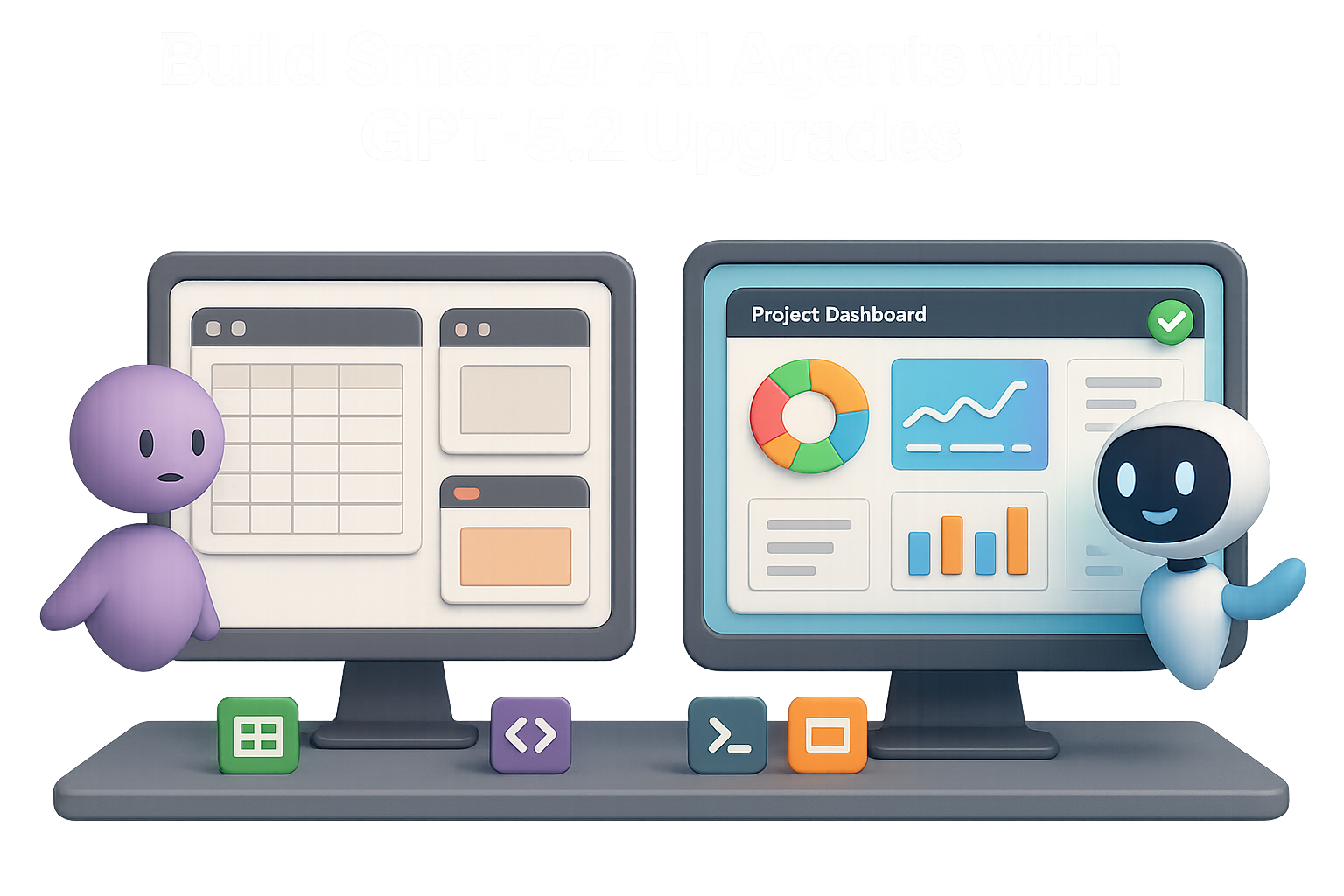
    • GPT-5.2 is a serious leap for complex, multi-tool knowledge work—think spreadsheets, slide decks, and production-ready code.
    • It handles tool-chaining with real autonomy. No hand-holding required.
    • The catch? It’s pricier:
      • ~1.4× the base price of GPT-5.1
      • Up to 12× if you’re going “Pro” for speed

    Worth it? Depends on your task. Let’s dig in.


    A digital illustration depicting four benchmark test categories for AI models, including GDP-Val Benchmark, SWE-bench, Needle-in-a-haystack Test, and Tower-Bench Tool-Calling Suite, with a cute AI character on the right and a computer keyboard in the foreground.

    Benchmarks That Actually Matter

    Not every leaderboard is built for the trenches. We focused on four that reflect real work—not just trivia games.

    1. GDP-Val Benchmark
    Measures tasks with economic weight (reports, models, specs).
    GPT-5.2 nearly doubles GPT-5.1’s score—and finally crosses the “human expert” line.

    2. SWE-bench
    A GitHub-based test suite for practical software fixes.
    GPT-5.2 beats GPT-5.1 and CodeX Max (a model built specifically for engineering).

    3. Needle-in-a-haystack Test (256k Tokens)
    Requires sifting through massive documents.
    GPT-5.2 scored close to 100% accuracy. If your agent reads PDFs for a living, this is huge.

    4. Tower-Bench Tool-Calling Suite
    Tests how well a model calls (and sequences) APIs.
    Going from 95% to 98% might seem minor—until you realize it cuts error rates nearly in half.

    What really stands out? GPT-5.2 doesn’t just call tools. It hands off tasks like a project manager with a Gantt chart and high standards.


    illustration

    The Price Tag—and the Payoff

    Here’s what you’re looking at:

    ModelBase Cost (per 1M tokens)
    GPT-5.1 “Thinking”$X
    GPT-5.2 “Thinking”~1.4× X
    GPT-5.2 Pro (fast mode)~12× X

    Yes, GPT-5.2 Pro is spicy. But if each deliverable earns you real $$, the ROI’s there.

    Running bulk queries or crunching raw data? Stick with GPT-5.1.
    Building strategy decks, investor models, or client-facing code? GPT-5.2’s the upgrade.


    illustration

    We Built 3 Real Agents to See for Ourselves

    Tooling used:

    • Agency Starter Template – our internal multi-agent scaffold
    • Cursor IDE + Git Worktrees – two models editing in parallel, zero collisions

    Each model got the same brief:

    1. Spreadsheet agent (.xlsx read/write, analysis)
    2. Slide-deck agent (.pptx gen, clean formatting)
    3. Coding agent (shell access, local edits)

    Speed + Code Quality? Not Even Close

    GPT-5.2:

    • Wrapped in one pass, with clean per-tool logic
    • Added test stubs, file structure, and shell wrappers

    GPT-5.1:

    • Stuck mid-task
    • Lumped tools into a messy mono-file
    • Missed the spreadsheet modification tool entirely 🤦

    illustration

    What Happened When the Agents Ran

    1. Web Demo (Coding Agent)
    Prompt: “Build a wave-simulator landing page.”

    • GPT-5.1 built a basic 2-D canvas
    • GPT-5.2 served WebGL-powered 3-D visuals with live controls
    • Both worked, but one looked like a 90s tutorial and one… didn’t

    2. Spreadsheet Agent
    Prompt: “Create a workforce-planning P&L.”

    • GPT-5.1: Single worksheet, plain tables
    • GPT-5.2: Dashboard + planning sheets, color-coded, instruction tabs, and smart summaries

    3. Slide Deck Agent
    Prompt: “Five-slide executive recap of GPT-5.2.”

    • Both models built basic slides with static tools
    • After enabling Python, GPT-5.2:
      • Auto-generated charts (via matplotlib)
      • Added slide dividers + branded visuals
      • Structured everything in a professional layout

    GPT-5.1? Still shipping bullet points and a lone bar graph.


    illustration

    Why GPT-5.2 Wins (By a Mile)

    • Real autonomy – It doesn’t wait for permission. It reads the task and picks the right moves.
    • Smarter planning – Breaks big jobs into small steps, assigns them to sub-agents, and keeps them all working together.
    • Output quality – Files look like a human analyst made them… not a demo bot.

    illustration

    Your Playbook: Making 5.2 Work for You

    1. Let your agents run code
      Install packages like pandas, matplotlib, and python-pptx. Trust them to execute. Guardrails work better than handcuffs.
    2. Use 5.2 where quality counts
      Route bulk or internal work through 5.1. Save 5.2 for anything important enough to present.
    3. Tune for your domain
      Benchmarks give you a baseline. The biggest wins come from fine-tuned prompts and custom toolkits. Our “skills” bundles—domain-specific micro-tools—were born from GPT-5.2 use and are paying real dividends.

    illustration

    Should You Switch?

    If the end product matters—even a little—yes.

    For throwaway tasks, batch scraping, or recap summaries, GPT-5.1 still holds up. But for deliverables that hit slack channels, inboxes, or C-suite meetings?

    You want the model that gets it right the first time.

    Because guess what? “Write the press release, format the P&L, build the site and ship the deck” isn’t sci-fi anymore. With the right setup, it’s your Tuesday afternoon.

    Want to learn how to build agents that make GPT-5.2 shine—without the overwhelm? Start with Tixu —a beginner-friendly AI learning platform built for you.

    Ready when you are.

  • Master Precise Image Edits with AI in Photoshop

    Master Precise Image Edits with AI in Photoshop

    Game-Changing Generative Fill in Photoshop: What You Can Do (and How Fast)

    Ever wish Photoshop could read your mind? You know… “just nudge that wall poster” or “swap the hoodie color” without 42 layers of tweaking?

    Well, now it kinda does.

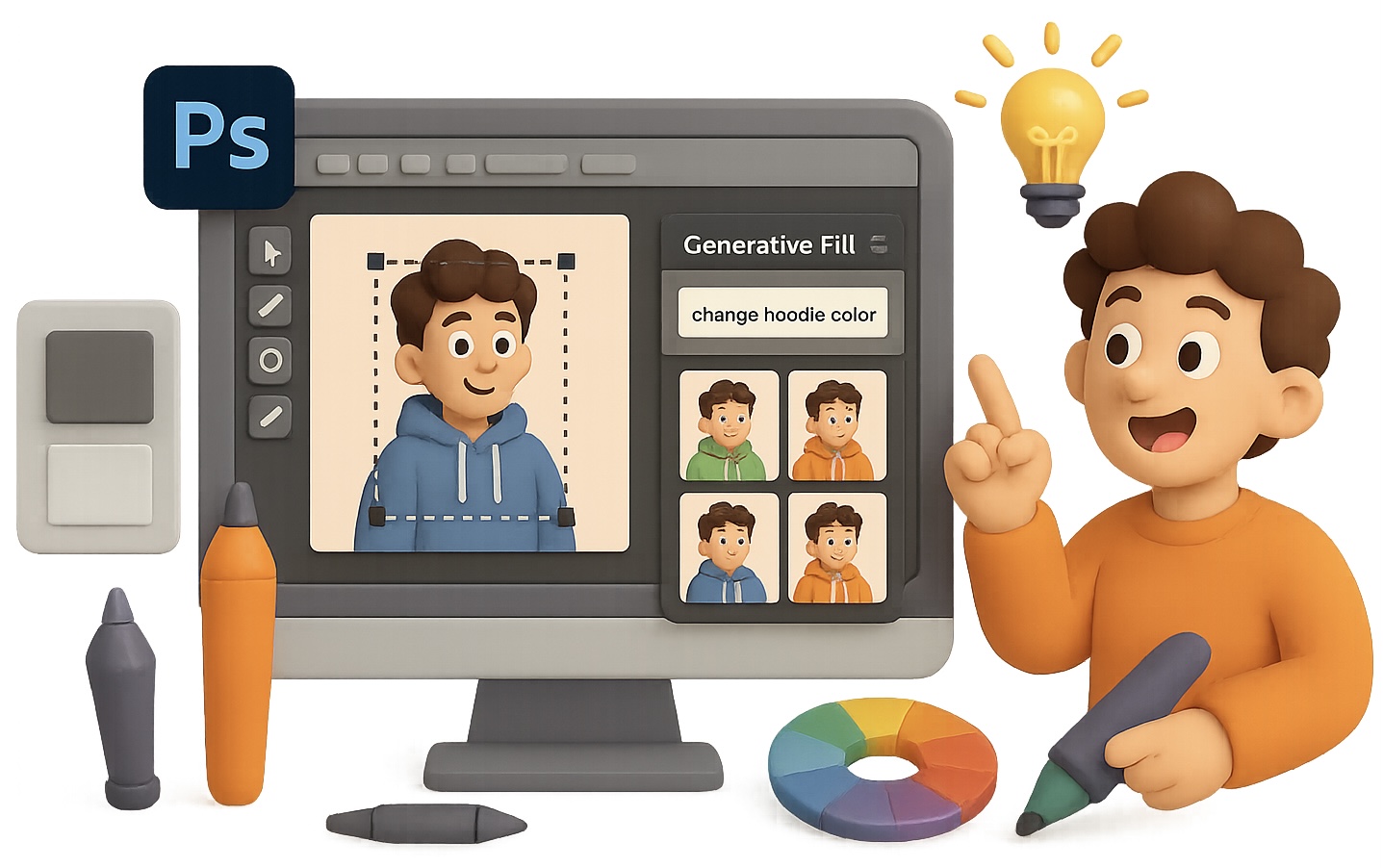
    Adobe’s latest Photoshop update packs built-in access to two generative AI beasts—Firefly and Google’s Imagen 2. No plug-ins, no detours. You draw a selection, type what you want, and boom: changes within the lines, untouched everywhere else.

    Let’s break down what this means for your workflow—and your sanity.


    illustration

    4 wild things you can do now

    1. Nail the look with selective swaps

    Want to turn a cherry-red sports car into matte black? Easy. Change a fabric texture, swap a logo, or redesign artwork without disturbing the rest of your scene.

    • Just select the area, describe the tweak, and Photoshop handles the rest.
    • It all lives on its own editable layer. One undo away from your original.

    You stay in control. No AI chaos here.

    2. Drop-in mockups without the headache

    Need a branded mug in a client pitch—fast?

    • Select the mug, type “add coffee brand logo at angle,” hit Generate.
    • Photoshop recreates shadows and lighting like a product photo shoot.

    Bonus: You keep the layer. Swap the logo? Two clicks.

    3. Quick-edit entire scenes

    Shift a noon cityscape into golden hour. Or turn a breezy summer pic into a fog-soaked moody frame.

    • Type a scene prompt (“late night, rain, reflections”) and it nails it in seconds.
    • Layer-based edits mean full tweakability later.

    Feels like photo magic. But totally grounded.

    4. Style-up wardrobe or product shots

    Want to see how a different shirt or label looks without scheduling another shoot?

    • Highlight the garment, prompt “add denim jacket.”
    • Or select a plain background and try: “abstract pastel gradient.”

    Photoshop delivers studio-level variations—no camera needed.


    illustration

    Get started in 3 simple steps

    This isn’t one of those “16-step tutorials.” Here’s the starter kit:

    1. Update Photoshop

    Fire up the Creative Cloud app. Under “Apps > Photography,” hit Update.

    These AI tools are now in the main version—no beta required.

    2. Make a selection

    Use the Lasso, Marquee, or Brush—it doesn’t have to be pixel-perfect.

    Tighter selections = more precision. But rough edges? Still works like a charm.

    3. Open up Generative Fill

    • Hit Generative Fill from the Contextual Task Bar.
    • Choose your model—Adobe Firefly or Google Imagen 2.
    • Type a clear, visual prompt (“remove graffiti,” “add sunglasses,” “switch wall color to sage green”) and click Generate.

    Done. You’ll see up to three results. Pick one—or try again.


    illustration

    Power tips to level up edits

    Tweak smarter, not harder:

    • Not loving the result? Tighten your selection and re-run.
    • Use the Properties panel to shuffle through the three AI-generated versions.
    • Fine-tune further by editing the layer mask—the usual black/white brush trick still works.
    • Want pro polish? Stack Photoshop’s legacy magic: Curves, Camera Raw Filter, even Liquify.

    This is AI + manual finesse. Not AI versus manual finesse.


    A digital illustration of a person sitting at a computer desk, using Photoshop to edit images. The screen displays various editing tools and layers, with design mockups and graphics scattered around. The person appears focused, holding a checklist and a stylus, showcasing the creative editing process.

    Why it matters: Speed, control, and full-stack creativity

    Let’s be honest: most web-based AI editors look cool but break down under pressure—janky edges, flattened images, no real layer control.

    Photoshop’s update changes the game:

    • Get “that one edit” done in minutes, not days.
    • Keep full control over image quality, selections, and layer integrity.
    • Share PSDs with teammates or clients without sacrificing editability.

    Carlos, a freelance product designer, used these updates to generate four style mockups for a packaging client—in under 15 minutes. “It used to take me a full afternoon,” he says.

    Same skill, smarter tools.


    illustration

    Your next move

    If you’re already in the Adobe ecosystem, you’re two clicks away from saving hours of editing work. No plug-ins. No learning curves.

    Update Photoshop → Make your selection → Describe the change → Hit Generate.

    And for those moments when you want to sharpen your AI skills or discover how these tools tick under the hood, Tixu has your back. It’s an AI learning platform that’s actually made for beginners—short, practical lessons without the fluff.

    Learning curve? Consider it curved in your favor.

    Ready when you are.

  • Master AI Tools in Photoshop in 15 Minutes

    Master AI Tools in Photoshop in 15 Minutes

    Speak Human, Not Code

    Let’s be real—AI isn’t magic.

    You don’t need to speak robot to get stunning results. In fact, the best AI prompts? They sound more like directions to a photographer than code snippets.

    You’re not a programmer here. You’re the director calling the shots.

    In this quick-start guide, you’ll get:

    • The no-fluff formula to writing prompts that actually work
    • A tour of Photoshop’s AI duo
    • Real-world tricks to mock up products, clean up images, and save time

    No jargon. No fluff. Just power-user shortcuts you can start using today.


    illustration

    Break the Code Mentality

    First, a heads-up: a “prompt” isn’t tech-speak. It’s just a clear description of what you want. Think of it like briefing a set designer or handing off a sketch to your assistant.

    Great prompts usually include:

    • Subject – who or what you want to see
    • Descriptors – actions, colors, composition
    • Keywords – mood, style, time of day, lighting

    Start simple. Don’t chase “perfect.” AI responds better when you nudge, test, and build—kind of like… every other creative process.

    Meet Photoshop’s AI Power Tools

    Adobe baked two massive upgrades straight into Photoshop:

    1. Generate Image – creates totally new content from scratch using Adobe Firefly
    2. Generative Fill – edits or replaces parts of an existing image using a selection + prompt

    Both live in the Contextual Task Bar. Which one should you use? Depends if you’re building from nothing or remixing something.


    illustration

    Generate Image: Idea Playground

    This one’s your concept lab.

    Whether you’re building mood boards, jumpstarting an illustration, or trying out a new vibe—Generate Image has tools to back you up.

    Why creatives are all-in:

    • Prompt Inspiration Library – peek at what others wrote and remix their ideas
    • Reference Images – match a pose, style, or composition guide
    • Always three variations – compare, ditch, remix, repeat

    Need a twist on your house style? This is how you nail that.


    illustration

    Generative Fill: Smart Edits, Fast

    Now here’s where the real magic happens on your existing work.

    You can go full-canvas or laser-focused. Select the entire artboard or lasso a single space—it’s your sandbox.

    Want consistent results? Try this formula:

    1. Say what stays – “Keep model’s pose unchanged”
    2. Say what changes – “Swap background for a forest”
    3. Set the style – “Painterly, soft lighting, fall mood”

    Not loving it? Flip from Firefly 1 to Firefly 3. Each model brings different vibes—some sharper, others dreamier.


    illustration

    Bonus Features That Speed Things Up

    Every designer hits admin mode sooner or later. These tools get you back in flow faster:

    • Remove Tool – Zap distractions with one click.
    • Generative Expand – Need a square image to go widescreen? Drag, prompt, done.
    • Generative Upscale – Clean up details before you export. For ultra-sharp results, try Topaz Gigapixel AI—it still wins on edge definition.

    illustration

    Print-Check Before You Press “Send”

    AI art looks slick on screens. But blowing it up to poster size? That’s where things get dicey.

    Even high-res renders can get mushy on fine details when scaled too far. Upscaling helps, but don’t expect miracles.

    Pro tip: Always zoom to 100% before hitting print.


    illustration

    Lightning-Quick Brand Mock-Ups

    Let’s say a client needs to see their logo on a notebook. Normal process? Download a mock-up, mess with layers… it’s a pain.

    Try this instead:

    1. Import the logo (PNG or vector), then rasterize the layer
    2. Select only the logo
    3. Fire up Generative Fill
    4. Type: “Place this red logo on a white notebook, photorealistic”
    5. Run a second prompt: “Reverse logo color to white” for a dark version

    Result? Realistic comps in under a minute. No smart object drama required.


    illustration

    Final Thoughts: Let AI Sweat the Details

    AI in Photoshop isn’t here to replace your talent.

    It’s here to erase the busywork—clipping, masking, endless variations—so you can spend your energy where it counts: the big ideas.

    You’re still the director. You just got a faster crew.

    Want to sharpen your AI skills without the overwhelm? Check out Tixu—a beginner-friendly platform that helps creatives learn AI… without the tech headache.

    Ready when you are.

  • Edit Photos with ChatGPT: 9 Adjustments and 18 Effects

    Edit Photos with ChatGPT: 9 Adjustments and 18 Effects

    Why Having Photoshop Inside ChatGPT Actually Changes the Game

    You’ve got a photo to fine-tune—but opening Photoshop feels like hauling out a leaf blower to clean your keyboard. Sometimes, all you need is a quick black & white pass or a saturation bump. Nothing fancy. Nothing slow.

    Good news: Photoshop now lives inside ChatGPT. Yep, the real-deal edits—made with prompt commands and slider tweaks—happen right there in your browser. Fast, responsive, and ready to roll even on the free ChatGPT tier.

    Let’s break down what you can do, how it works, and a few gotchas before you start firing off bloom effects like a digital Michelangelo.


    illustration

    Connect Photoshop to ChatGPT in 60 Seconds

    No plug-ins. No paid tier. Just this:

    1. Log in at ChatGPT
    2. Click your name (bottom-left) → Settings
    3. Hit the Apps & Connectors tab
    4. Find Adobe Photoshop → Connect → Accept terms
    5. Back in chat, click ➕ → More → Adobe Photoshop

    Boom, you’re in. You’ll see the Photoshop logo under the prompt box—waiting for that first image.


    illustration

    First Edit? Here’s Your Playbook

    1. Click ➕ → Add photos and files
    2. Upload a pic—anything you’ve got
    3. Type a prompt like: Make the background black and white

    ChatGPT adds a real Black & White adjustment layer, with a mask targeting your background. You’ll get:

    • A thumbnail preview
    • An edited version
    • A Download button
    • A Properties icon to tweak the effect

    Yes—it’s editable. Yes—it behaves like desktop Photoshop. No—you haven’t touched your hard drive yet.


    illustration

    Stack Effects Like a Pro

    You can layer multiple effects, dial them in with sliders, and nix anything anytime.

    Try these:

    • Make her glasses blue → Adds a Hue/Saturation layer, isolated to the glasses
    • Add a creative effect → Kicks in a soft Bloom glow
    • Add a halftone effect → Choose dot size, direction, and intensity
    • Apply a duotone effect → Pick shadow/highlight colours with easy swatches

    Want to undo something? Just say Remove the duotone effect. Photoshop-in-ChatGPT is totally non-destructive.


    illustration

    What It Won’t Do (Yet)

    You’re not replacing subjects or generating new backgrounds here. Prompts like: Swap the skateboard for a 1980s boombox
    won’t fly.

    It’s not Generative Fill. Think of it like this: If it lives in Photoshop’s Adjustment Layers menu or standard Effects panel—you’ve got it.

    Photoshop’s generative tools are still safely stashed in the full app. But for fast, human-guided tweaks? You’re covered.


    illustration

    Open in Full Photoshop, If You Need That…

    Let’s say you get partway through and want to retouch blemishes or add text:

    1. Click Open in Photoshop (in the chat)
    2. File launches in a web tab as a full cloud PSD
    3. All adjustment layers and masks are intact
    4. Creative tools are unlocked (unless it’s a paid Generative Fill feature)

    Start fast in ChatGPT. Finish however deep you want inside standard Photoshop’s web version.

    Free, unless you’re diving into premium tools.


    illustration

    Not Sure What It Can Do? Just Ask

    Ask ChatGPT directly:

    • List all adjustments I can apply with the Photoshop app
    • What effects are available?

    As of now, the answers look like this:

    Adjustments (9)

    • Brightness/Contrast
    • Levels
    • Exposure
    • Curves
    • Hue/Saturation
    • Vibrance
    • Colour Balance
    • Black & White
    • Invert

    Effects (18)

    • Bloom
    • Glitch
    • Grain
    • Bokeh
    • Halftone
    • Duotone
    • Vignette
    • Motion Blur
    • Tilt-Shift
    • …and more (the list updates often)

    The catalogue keeps growing—worth doing a refresh every week or two.


    illustration

    Quick Tips to Save You Clicks (and Headaches)

    • Be specific. “Make the background black & white” ≫ “Make it cool”
    • Layer smarter. Do one change at a time if you want to adjust them later
    • Use sliders. Properties panel often gives you better control than re-prompting
    • Download as you go. Keep versions to compare tweaks side by side
    • Stay curious. Adobe keeps sneaking in new filters quietly

    illustration

    Final Take

    This Photoshop + ChatGPT collab just turned everyday image editing into a power move you can pull from a browser window. No loading. No lag. Zero learning curve.

    When pro controls meet prompt-based speed, you get edits done faster—and smarter.

    Want the tools without the headache? Dive deeper into beginner-friendly AI skills over at Tixu—where editing tools and creative prompts are just the start. Ready when you are.

  • Build Real AI Apps: Why Claude Beats No-Code

    Build Real AI Apps: Why Claude Beats No-Code

    One Prompt, One App? Why That Magic Button Might Be Faking It

    You type a sentence. You wait a few seconds. Boom—a full-blown website appears.

    If you’ve tried tools like Lovable, you know the pitch: generate an entire product with a single prompt. Feels like cheating, right?

    But here’s the curveball—they often trade flexibility for flash.

    Before you buy the hype (and a subscription), let’s dig into what’s really happening when you hit that “generate” button—and why handing the reins to a conversational AI like Claude might get you further, faster.

    illustration

    The Instant-App Highs (and Lows)

    Let’s start with Lovable’s flow:

    1. Type a prompt like: “Make a private school-style platform—but for gamers.”
    2. Wait a few minutes.
    3. Get a sleek, animated landing page with sample stats and buttons.

    It’s slick. The UI’s polished. And on the free plan, you get a few build credits to test-drive.

    But once that dopamine hit fades, reality kicks in.

    illustration

    Where the Sparkle Fades

    Here’s where folks hit roadblocks after the big reveal:

    • Template déjà vu
      Let’s be real: everything looks the same. Neon-on-dark layouts. Familiar hero sections. It screams, “AI made me.”
    • Not-so-real data
      Dummy numbers like “123K active players” look snazzy—but doing anything real means piping in your own content, hooking up databases, and setting flows.
    • Minimal customization
      Want that button to pulse instead of slide? Or inject your own component logic? You’ll outgrow the UI fast—and hear the upsell pitch even faster.
    • Price creep
      Those “free” builds vanish quick. Upgrades run $20–$30/month. Go custom or agency-level and you’ll quickly outspend a custom-coded project.
    Illustration of a laptop displaying code and prompts related to AI assistant Claude, accompanied by a coffee cup and task notes.

    Meet Claude: Your Code Whisperer

    Now switch gears.

    Instead of a black-box widget that spits out a half-baked site, you team up with Claude, a conversational large language model by Anthropic that plays the long game.

    Claude isn’t just coloring inside the lines—it lets you draw your own blueprint.

    • Say “Build me a marketing site in Next.js with a testimonials slider.” Claude gives structured, clean code—commented and ready to tweak.
    • Follow-up with prompts like “Swap Tailwind for CSS modules” and Claude edits only what’s needed.
    • Copy-paste errors in, and Claude walks you through debugging like a senior dev.
    • Tune PageSpeed metrics, accessibility, and animations—one prompt at a time.

    And here’s the kicker: you’re still working in your own code editor. Claude doesn’t gatekeep your stack. You own it—end to end.

    illustration

    How to Build Like a Boss with Claude

    Getting started doesn’t require a CS degree or a week off work. Just follow this tune-up plan:

    1. Choose a stack you vibe with (Next.js + Vercel is a solid go-to).
    2. Start a Claude chat and outline the project in plain English.
    3. Ask: “What folders and files do we need?” and get a full breakdown.
    4. Generate each file, paste into your workspace (hello, VS Code), and spin up a local server.
    5. Build in layers. Screenshot issues. Share ideas. Claude adjusts as you go.

    Within the hour, you’ll understand your app inside-out—and it won’t look like copy-paste AI boilerplate.

    illustration

    Real Talk: What You’re Really Getting

    Let’s wrap with the facts:

    • Instant builders are cool demos—but they churn out generic outputs.
    • Claude gives you full creative control, actual learning, and lower long-term costs.
    • The only “manual” lift is copying code into your editor—and that’s a feature, not a bug.
    • Nobody wants to use a site that looks like it came from a template farm. Custom builds stand out.
    illustration

    Pro Mode: Don’t Just Prompt—Partner

    If you’re serious about building apps that feel authentic, scalable, and actually yours, skip the one-click mirage. Work alongside Claude, and keep the wheel in your hands.

    Want to pick it up from zero and learn as you go?
    Check out Tixu—a beginner-friendly AI learning platform that helps you build with tools like Claude without the jargon or overwhelm.

    Ready when you are.