
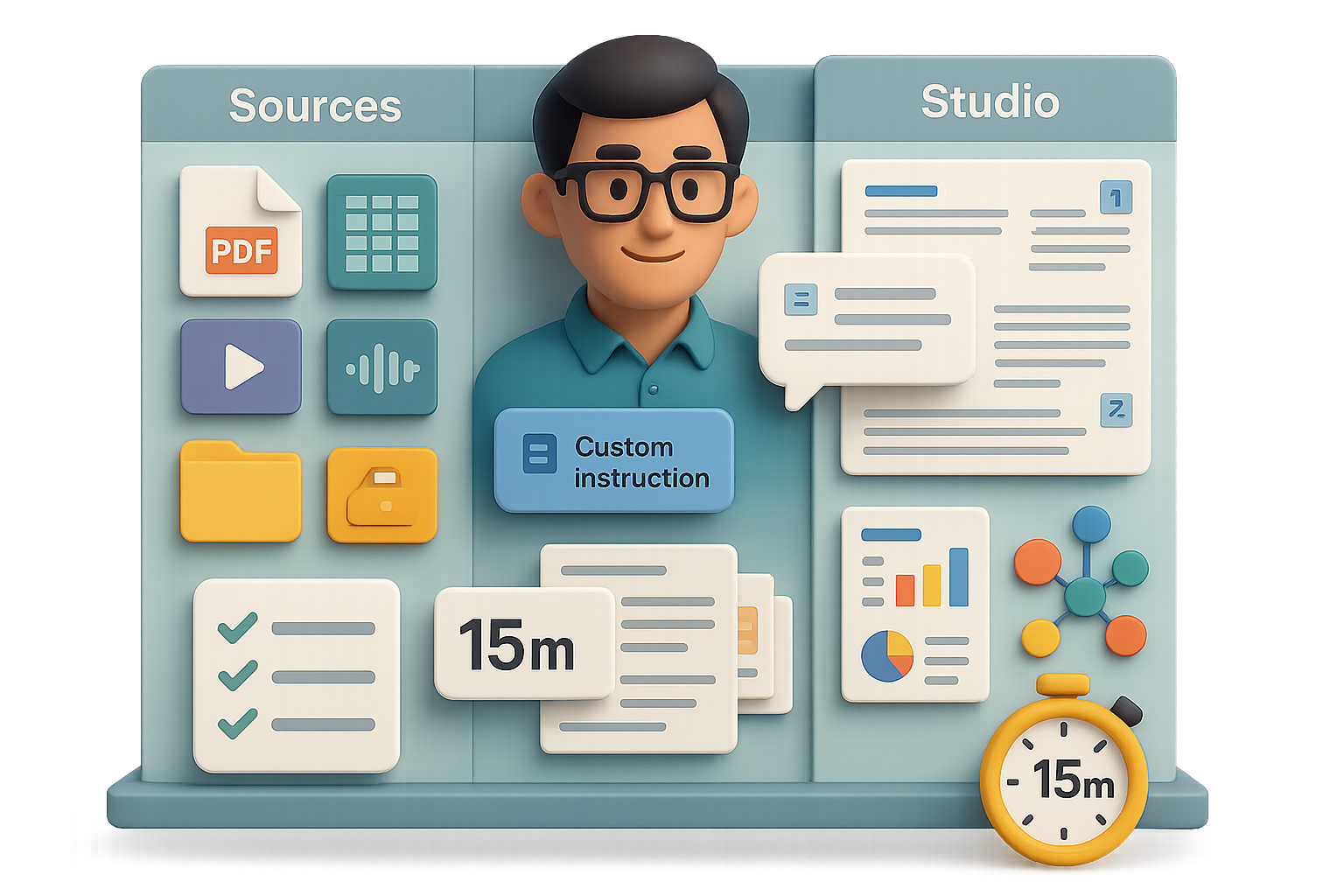
Turn NotebookLM into your PDF-to-deck production studio
You need results, not a thousand tabs and a second job copying content. NotebookLM’s overhaul turns it from a Q&A toy into a production-ready assistant that digests mixed files and spits out client-ready deliverables. Ready when you are.

Automate the grunt work: when NotebookLM wins
NotebookLM shines when three things line up:
- You already own the answers — docs, reports, transcripts, slides.
- The files come in mixed formats — PDFs, Sheets, Slides, audio, video.
- Accuracy matters more than wild creativity — you need citations, not guesses.
NotebookLM doesn’t replace creativity. It replaces busywork. You still steer the vision; NotebookLM cleans the runway.

A 3-panel workflow you’ll use every day
- Sources — Drop everything here.
Drag Google Docs, Drive files, PDFs, YouTube links, or paste cleaned webpages. Use the built-in discover box to pull quick web or Drive research. Pro tips:
- Keep web sources to three. Less noise, better accuracy.
- Drive files sync live; click “refresh” after edits.
- Can’t add a page? Paste cleaned text as “Copied text.”
- Chat — Your source-grounded assistant.
Before you ask, hit Configure chat → Custom instruction and paste a clear brief. Example:“Every response helps me draft a one-page proposal that increases MAUs in APAC.”
Clear the chat when you pivot topics. Save nuggets as Notes or promote them to Sources so future answers stay consistent. - Studio — The big upgrade.
This is where NotebookLM converts answers into finished assets. Reports, Slide Decks, Infographics, Mind Maps — all come out formatted, citation-tight, and ready to tweak.

Tier-1 Studio tools that actually save time
- Reports — Competitive analyses, executive briefings, budget breakdowns. Pick a suggested format or paste a custom prompt. Minutes later you have headings, tables, and citations.
- Slide Decks — Choose Presenter (visual) or Detailed (readable). Exports as image-based PowerPoint so your narrative doesn’t drift in formatting. Want a LinkedIn carousel? Ask for a 9:16 vertical deck — one click.
- Infographics — One-page visuals. Upload a brand guide and add “follow brand colours, fonts and style” to nail the look.
- Mind Maps — Auto-skim your sources and map topics visually. Click a node to open a chat focused on that branch.
Tier-2 tools when you need them
- Data Tables — Pull scattered facts into a sortable sheet and export to Google Sheets.
- Video Overview — Condense long transcripts into a narrated slideshow; cinematic modes add AI animation (Gemini Advanced users). Gemini = Google’s creative model; Claude and ChatGPT fill similar creative gaps.
- Quizzes & Flashcards — Make MCQs or spaced-repetition cards grounded in your docs. Great for training.
- Audio Overview — Turn long newsletters into podcast-style summaries.

Do this next
- Drop 1–3 representative sources into NotebookLM.
- Paste one clear instruction into Custom instruction.
- Pick Studio → Reports or Slides and hit generate.
- Review citations, refresh sources if needed, then export.
Best practices for friction-free outputs
- Write the brief once. A good custom instruction beats endless prompt fiddling.
- Cap web sources at three. Keeps the model honest.
- Use NotebookLM for accuracy; use Gemini/Claude/ChatGPT for creative riffs, then feed those snippets back into NotebookLM as sources.
- Save golden answers as Notes. Promote repeatable templates to Sources.

Everyday ideas you can try this afternoon
- Year-on-year health reports — Auto-highlight metrics that spiked.
- Meeting knowledge base — Drop every transcript and ask, “What did we promise Acme Corp last quarter?”
- Tax season autopilot — Upload statements and ask, “Which deductions apply to a single-member LLC with these expenses?”

Quick checklist before you export
- Sources: relevant and capped at 3 web pages.
- Instruction: clear, outcome-focused, and saved.
- Output: citations verified; brand guide applied if needed.
- Final pass: creative polish in Gemini or ChatGPT if the brief calls for it.
Load the right sources, set one clear instruction, and let NotebookLM produce the deliverable. One-sentence takeaway: use NotebookLM to cut hours of grunt work and keep creative calls where they belong — with you.
New to AI? Learn practical AI fundamentals and quick, hands-on workflows at Tixu — a beginner-friendly learning platform that teaches you how to use tools like NotebookLM effectively.
Happy building.

Leave a Reply