
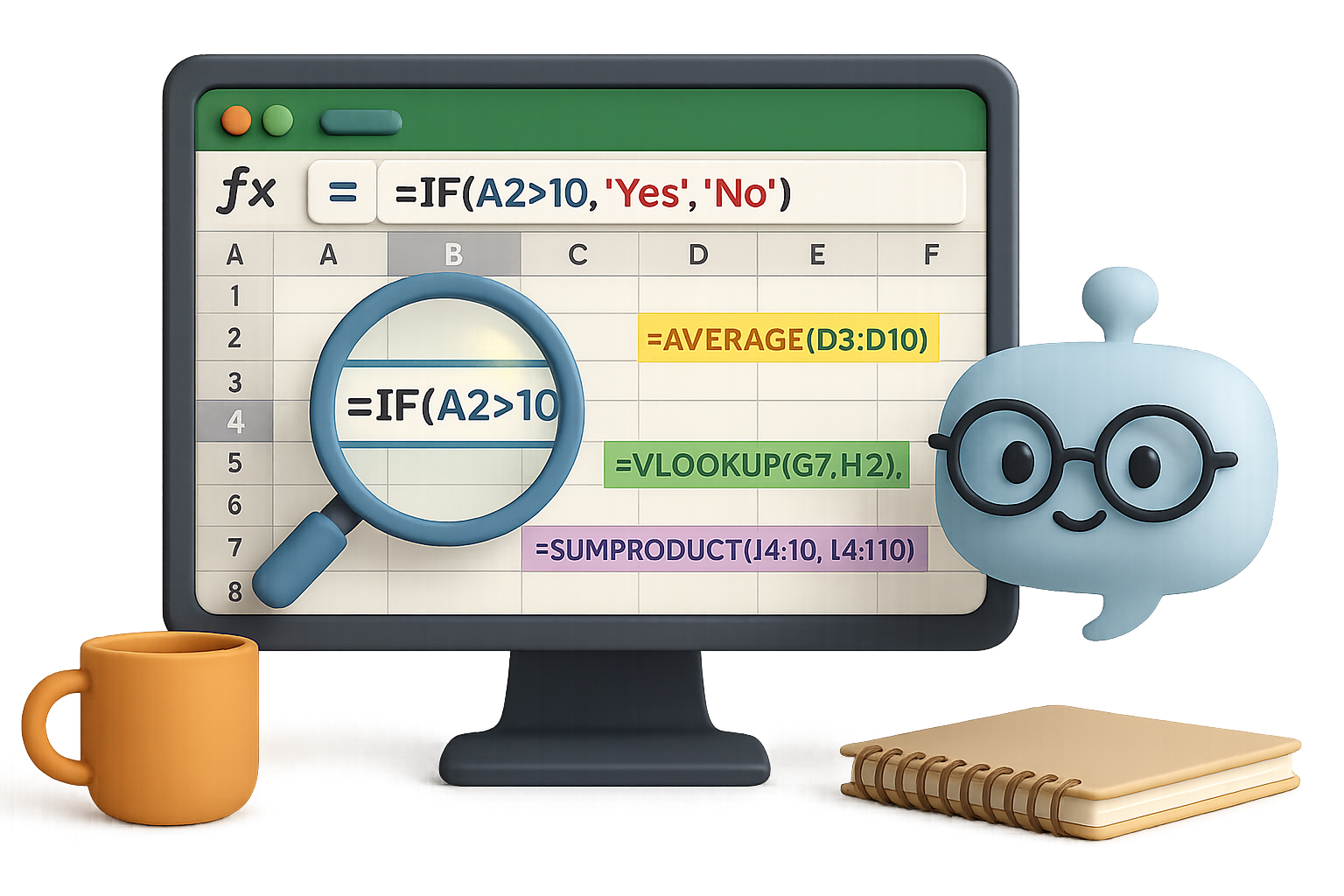
How ChatGPT Can Super-Charge Your Day-to-Day Excel Work
Excel quirks can eat your lunch.
One wrong formula, one nested IF too deep, and suddenly you’re knee-deep in Google searches or old forum threads from 2006. But here’s the flip: AI just became your backstage pass to Excel mastery. ChatGPT turns your plain-English questions into lightning-fast formulas, macros—even troubleshooting advice.
Scroll down and you’ll see real examples where AI shaved hours off real work. If you’ve ever muttered “Why won’t this work?”—this one’s for you.
Ready when you are.

Count Words in a Range—No Macros, No Drama
Let’s say you’re staring at A1:C100 and wondering, “How many words live here?” Skipping the blanks, skipping the VBA.
Classic searches serve you macro soup. ChatGPT served this instead:
=SUMPRODUCT(
     (A1:C100<>"")*
     (LEN(A1:C100) - LEN(SUBSTITUTE(A1:C100," ","")) + 1))
Why it works:
SUBSTITUTEstrips spaces, soLENcan count characters without them.- Subtracting
LENs = number of spaces = number of words (add 1). SUMPRODUCThandles the whole range and skips blanks.
Using Microsoft 365? You’ve got a fancier toolbelt—TEXTSPLIT, COUNTA, etc. But that formula above? Rock solid in older versions too.

Alert on Formulas That Misbehave (Without VBA)
Here’s the riddle:
Cell A2 has =B2+C2. But if B2 + C2 exceeds 10, you want a red flag—literally.
Data validation? Sadly, it only works on user input, not formula outputs.
ChatGPT’s fix? Two great options:
1. Conditional Formatting
- Select A2 (or more).
- Home ➜ Conditional Formatting ➜ New Rule ➜ Formula.
- Enter
=A2>10, set a red fill.
Boom. Red alert when the math breaks the rules.
2. Wrap the formula in an IF:
=IF(B2+C2>10, "Over 10", B2+C2)A text warning right in the cell—no clicks, no color cues, just facts.

Untangle a Gnarled Nested IF
One pilot needed to flag weather types—VFR, MVFR, IFR, LIFR—based on things like ceiling height and visibility. Think deep nested IFs plus multiple AND/OR branches.
ChatGPT nailed 90% in the first try.
The catch? It misordered logic—LIFR conditions needed to be tested before IFR. One follow-up prompt fixed it.
Lesson learned:
- AI drafts fast.
- You still play editor-in-chief on logic.
Give it the hard part. Keep the final say.
Build a PDF Macro—In One Prompt
Here’s the request:
“Read the sheet name in C2, jump to that tab, export as PDF, and save it next to the file.”
ChatGPT kicked out this ready-to-roll VBA macro:
Sub CreatePDF()
    Dim ws As Worksheet
    Dim pdfPath As String

    Set ws = ThisWorkbook.Worksheets(Range("C2").Value)
    pdfPath = ThisWorkbook.Path & "\" & ws.Name & ".pdf"

    ws.ExportAsFixedFormat Type:=xlTypePDF, _
                           Filename:=pdfPath, _
                           Quality:=xlQualityStandard, _
                           IncludeDocProperties:=True, _
                           IgnorePrintAreas:=False

    MsgBox "PDF saved as " & ws.Name & ".pdf in the same location."
End Sub
Paste it into a module, save the workbook as .xlsm, run it via button or shape. That’s your Excel reporting process—automated.

Five Golden Rules for Using ChatGPT with Excel
Want better AI help? Think like a coach, not a spectator.
- Be specific
Include Excel version, formula vs. VBA preference, and any quirks (e.g., compatibility constraints). - Iterate, don’t settle
Ask for tweaks. It’s a conversation, not a vending machine. - Test everything immediately
Paste into dummy files. Edge cases are sneaky. - Expect hallucinations
If ChatGPT tells you about magical Excel functions no one’s heard of, double-check Microsoft Docs. - You’re still the expert
Think of GPT as your hyper-fast intern. You bring the business logic, it brings the syntax.

Recap + Try This
If Excel is your canvas, ChatGPT is the toolkit upgrade you didn’t know you needed. From cleaning cells to writing VBA, it’s not replacing you—it’s making sure you spend less time stuck and more time solving.
Want to learn how to prompt like a pro—even if you’re brand new to AI?
Start here with Tixu — it’s your friendly launchpad into applied AI, no jargon required.
Go build something better.

Leave a Reply