Author: Pavel

  • Build a Profitable AI-Powered Digital Product Business in 7 Steps

    Build a Profitable AI-Powered Digital Product Business in 7 Steps

    How to Build a One-Person Product Empire with Google’s New AI Tools

    Ever feel like you’ve got big ideas—but zero time, budget, or headcount to make them real? Yeah, that stops here. Google’s rolling out a suite of AI tools that solo creators are already using to research faster, market smarter, and even build full-blown web apps without touching a line of code.

    Everything below is 100% free to try and beginner-friendly. You don’t need a dev degree or a design portfolio—just an idea you’re ready to test.

    Let’s turn your “one day” into day one.


    illustration

    Start Smart with Notebook LM—Your New Research Co-Pilot

    This one’s your unfair advantage at Notebook LM. Notebook LM is like the research intern you always wanted—if that intern stayed laser-focused, remembered everything, and answered complex questions without going off on tangents.

    Why Notebook LM is a solo creator’s dream:

    • Context stays controlled. It starts with the content you give it (PDFs, web pages, your own notes). That means fewer hallucinations, more trust.
    • Concrete project plans. Feed it a fuzzy idea like “an investing ebook for beginners” and get back a full checklist, timeline, and promo roadmap.
    • It keeps the thread. Ask, “what’s next?” and get continued suggestions instead of a brand-new response every time.

    Pro move: When you prompt it, be specific. Who’s the audience? What’s your goal? Any deadlines or vibes you’re aiming for? The more you give, the better it returns.


    illustration

    Save Serious Hours: Pair Gemini with Notebook LM

    Gemini’s not just a chatbot anymore. At Gemini, you’ll find two stealthy power-ups that change how you build content.

    The good stuff:

    1. Upload full LM notebooks into Gemini. Now it “gets” your project instantly—with zero re-prompting.
    2. Create your own Gems. These are reusable, specialized assistants you train once, then call up anytime.

    Here’s a fast-track example:

    1. Upload your Notebook LM plan for your digital product.
    2. Create a Gem called “Promo Email Calendar.”
    3. Prompt it: “Act as my launch strategist. Pull from the notebook and create 3 weekly emails (Mon/Wed/Fri) with subject lines + calls-to-action.”
    4. Hit Tools → Canvas and boom—a full calendar view of done-for-you emails.

    That’s your marketing calendar done while you sip your coffee.


    illustration

    Make Scroll-Stopping Creatives with ImageFX

    Head to labs.google.com/flow for access to ImageFX. It’s Google’s latest image-generation playground, powered by Imagen 2.

    What makes it pop:

    • Multi-input magic. Upload a screenshot of an old ad + your product mock-up and tell ImageFX to remix them into something new.
    • High-res output. Export in 1K, 2K, or 4K—ideal for social, email banners, or paid ads.
    • Fast tweaks. Rewrite your prompt and regenerate in seconds—no redownloading Photoshop trial #4.

    Try this prompt after uploading your visuals: “Keep this Facebook ad layout, but swap the spreadsheet image with my attached stock-tracker screenshot. Use a dark blue minimalist theme.”

    Suddenly, you’re not just making ads. You’re crafting campaigns.


    illustration

    Auto-Build Social Content with Pomelli.ai

    Pomelli is the low-key MVP of on-brand social content.

    How it works, step by step:

    1. Paste your website URL. Pomelli scans your brand’s fonts, colors, slogans—like a vibe-check that knows CSS.
    2. Pick your campaign focus (launch, discount, evergreen).
    3. Boom! You get pre-made visuals for stories, reels, and posts.
    4. Hit Animate anytime and get eye-catching motion clips—scrolls, blinks, moving text—custom to your brand.

    Forget stock templates. These are made just for you, not pulled from someone else’s Canva shelf.


    illustration

    Want a Web App? Google AI Studio Can Build One for You

    No, seriously. You don’t even need to know what “React” is.

    At ai.google.dev, click “Try Google AI Studio,” and you’re three minutes away from something real.

    A (real) example:

    Prompt: “Create a white-and-blue web app called ‘Stock Tax Estimator’ where users enter their annual gains, number of trades, and holding period. Return estimated taxes with a bar chart breakdown.”

    What you get:

    • HTML + CSS + JavaScript
    • Functional UI + dynamic charts
    • Ready to paste into your site

    Why bother with an app?

    • SEO goldmine. Useful tools naturally get backlinks and shares.
    • Add value fast. Visitors stay for the calculator, stick around for the premium product.
    • Built-in upsells. You can follow up with “Want the full tax worksheet? Download it here.”

    That’s a lead magnet and thought leadership in one.


    illustration

    Your Five-Tool Solo Stack

    With just these free tools, here’s what you can pull off:

    • Shape and validate your idea → Notebook LM
    • Generate all launch content → Gemini Gems
    • Design thumb-stopping visuals → ImageFX
    • Auto-create animated posts → Pomelli
    • Ship a companion tool → Google AI Studio

    Not bad for one person—especially when you don’t pay a dime.


    illustration

    Do This Next

    • Set aside 60 minutes this week.
    • Pick the one idea that’s been sitting in Google Docs for way too long.
    • Walk it through this five-tool workflow.
    • Launch fast, learn faster.

    You don’t need a marketing team or a custom dev shop to make something real. Just smart tools, a good idea, and a willingness to hit “publish” before you feel ready.

    And if AI still feels like a black box? Don’t worry, Tixu’s got your back. Learn the ropes fast with hands-on, beginner-proof tutorials—from your first prompt to your first launch.

    👉 Get started at Tixu

  • Build a One-Person AI Store That Sells Itself

    Build a One-Person AI Store That Sells Itself

    The Tiny-Yet-Mighty AI-Powered Clothing Store

    Running an online store used to mean late-night inventory panic and customer complaints over lost packages. These days? You can run an entire Etsy shop—designs, marketing, fulfillment, and all—from your laptop over coffee. No team. No tech stress. Just a smart setup and a few AI tools doing the heavy lifting.

    This post walks you through the real-life workflow behind a one-person, 100% automated print-on-demand (POD) shop. We’re talking zero employees, near-zero overhead, and income that can grow on autopilot.

    Oh, and everything below is either free or comes with a 30-day trial. Ready when you are.


    illustration

    1. Watch the Cash Flow

    In under 60 seconds, here’s how the whole system works:

    1. Design – AI generates art and catchy slogans.
    2. Product – Printify or Printful slaps those onto tees, hoodies, mugs—your pick.
    3. Listing – AI helps with SEO titles, descriptions, and tags that actually convert.
    4. Fulfillment – POD partner prints, packs, and ships every order.
    5. Profit – You keep the markup. Just show up for customer messages (maybe).

    Total daily time: 15–20 minutes.


    illustration

    2. Find Designs That Actually Sell

    Spot hot trends with Gemini

    Open Google’s Gemini, flip on “Advanced Research,” and paste a viral product URL—say, a TikTok-famous shirt featuring a sad raccoon.

    Then ask: “What sub-niches love this theme? And give me five visual styles that worked with it.”

    Gemini sifts Reddit, TikTok, Pinterest, and drops you a niche goldmine: frog parents, dark academia fans, cottagecore lovers. Pure, print-on-demand signal.

    Extract keywords with Perplexity

    No need for hours of SEO guesswork.

    Open Perplexity.ai and run: Analyze bestselling Etsy shirts in [niche]. Export their main keywords.”

    Boom. You get an instant CSV packed with actual revenue-generating terms. Save it—you’ll need this for listings.


    illustration

    3. Brainstorm + Generate Designs in Minutes

    1. ChatGPT (GPT-4o) – Feed it your niche spreadsheet and a few product screenshots. Prompt for catchy slogans and fresh design ideas. (Think: “Frogs doing yoga” or “Too tired for world domination.”)
    2. Imagen in Gemini – Google’s AI image tool kicks out clean, transparent art that’s tailor-made for shirts, mugs, or tote bags.
      • Try:“Dramatic hedgehog in sunglasses, neon vaporwave style, transparent background.”
      • Want edits? Say, “Make the shades bigger” or “Try Sailor Moon colors.”

    No design degree needed—you’re just the creative director calling the shots.


    illustration

    4. Polish It Up in Canva Pro

    AI gives you the raw clay. Canva makes it print-ready.

    • Upload & Crop – Center characters, trim dead space.
    • AI Upscale – “Magic Resize” ensures sharp print quality.
    • Auto Adjust – One click = vibrant, balanced colors.
    • Text Layers – Add killer slogans with drag-n-drop fonts.
    • Export Settings – PNG, transparent background, 300 DPI. Print-shop perfect.

    You’ll feel like a creative wizard. No wand required.


    illustration

    5. Win the Algorithm Game: SEO + GEO

    We’re playing chess on two boards: search engines (SEO) and AI discoverability (GEO).

    Here’s how to win both:

    1. Perplexity – Pull converters: top keywords Etsy buyers are already typing.
    2. ChatGPT – Give it your image and keyword list. Ask for three optimized sets of titles, descriptions, and tags.
    3. Claude 3 – Use Claude to rewrite your listing text in a natural, human tone—without losing keyword impact.

    Result? Your product pops in classic Etsy search—and in the new ChatGPT shopping feed.

    Bonus: Early adopters of GEO optimization have seen up to 42% more daily store visits.


    illustration

    6. Automate the Strategy Layer

    Don’t just automate the busywork. Let AI help you think bigger.

    Predict your sales with Gemini

    • Upload your monthly revenue file.
    • Then prompt: “Forecast next year’s demand. Compare to industry growth trends.”

    You get projected highs and lows—plus suggestions for niches worth branching into.

    Make your own AI Assistant in Notebook LM

    This beast imports your data or Gemini’s reports, then:

    • Generates visuals → think dashboards and at-a-glance metrics.
    • Builds you a chatbot that answers questions about your own business.
    • Converts your data into a podcast-style breakdown you can stream while running errands.

    You’re no longer just the founder—you’re the strategist, on speed-dial with your own AI analyst.


    illustration

    7. Your 15-Minute Daily Routine

    Want consistency without burnout? Here’s the playbook:

    • Check new messages.
    • Review Gemini + Notebook LM dashboard.
    • Ask ChatGPT for one new slogan or trend spin.
    • Generate design → Canva touch-ups → upload to Etsy.
    • Done and done.

    It’s not passive income—it’s leveraged income.


    illustration

    Recap + Next Step

    You don’t need a design degree or warehouse lease to launch a standout Etsy shop. Just a smart AI stack and a few sips of coffee a day.

    Want a head start? Check out Tixu—a beginner-friendly platform to learn AI without drowning in tech jargon. You’ll be automating like a pro by the end of week one.

  • Quit Your 9-to-5 with a $7 Digital Product

    Quit Your 9-to-5 with a $7 Digital Product

    The $7 Template That Launched a Six-Figure Side Hustle

    Ever feel like your 9-to-5 is draining the life out of you? You’re not alone—and you’re not stuck.

    One Saturday morning, fueled by coffee and a 2-hour window before brunch, someone opened Canva, whipped up a digital planner, popped it on Etsy for $7, and forgot about it. A few days later? That first sale was more than a payday—it was a portal.

    Fast-forward: that $7 product turned into a thriving six-figure business. No paid ads. No fancy tech stack. Just scrappy execution and smart pivots.

    Here’s how it happened—and how you can duplicate (or course-correct) your digital product hustle.


    illustration

    From “Dream Job” to Burnout Mode

    LinkedIn tells one version of the story. The truth? Whole different vibe.

    Behind the polished profile: solid pay, steady promotions, and a London zip code came with crushing anxiety and burnout. The real wake-up call? A panic attack mid-Tube ride to a client meeting. And if your first thought after fainting is “Did someone send the slides?”—yeah, it’s time for a change.

    illustration

    Where Side Hustles Went to Die

    Plenty of trial. Even more error.

    • Dropshipping: Facebook ad money, gone. Orders? Zero.
    • Amazon FBA: supplier nightmares and warehouse purgatory.
    • Fiverr, forex trading, even a hair-extensions brand—all flops.

    The hard truth? Low-startup doesn’t mean low-effort. If your hustle burns resources faster than it builds results, it’s not the one.

    illustration

    Why Digital Products Just Work

    Here’s why digital goods hit the sweet spot:

    1. No shipping. No stockroom.
    2. Near-zero overhead (Canva Pro = ~$10/month).
    3. Delivery’s instant and automated.
    4. Global reach from day one.

    So when Etsy came on the radar, it felt like alignment. The platform’s built-in traffic meant potential eyeballs without learning SEO from scratch.

    Then came the crash course.

    First Flop, First Win

    Test #1: downloadable wall art. Weeks of effort, six months live, zero traction.

    Test #2: a self-care planner designed specifically for women. Boom—first sale. Confidence grew. Variations came next. Sales followed—$17k in four months, to be exact.

    One niche. One shift. Total trajectory change.

    illustration

    Etsy’s “Oops, All Algorithms” Problem

    The good:

    • Existing shoppers = faster validation
    • Easy storefront setup

    The ugly:

    • Copycats clone listings pixel-for-pixel overnight
    • Race-to-the-bottom pricing wars
    • Algorithm shifts nuke rankings without warning

    When a $22 planner was undercut to $0.99 by copycats, it became very clear: Etsy growth hits a ceiling fast.

    illustration

    Taking Control: Shopify for the Win

    Moving operations to a Shopify site flipped the switch:

    • Full pricing control
    • Own your customer email list (goldmine)
    • Total freedom over brand voice, upsells, and product bundles

    The new marketing mix? Less reliant on viral trends, more focused on sustainable channels.

    • TikTok Lives worked—but drained energy.
    • Pinterest, on the other hand, delivered consistent traffic—no dancing required.

    Three steady months of pinning = higher sales than the old paycheck.

    illustration

    Redundancy, But Make It A Promotion

    Just as the shop’s revenue passed “day-job salary” levels, HR came knocking with a restructuring offer. Translation: take the redundancy package or stay on sinking sand.

    Spoiler: the package won.

    Seven months later? The digital product biz crossed an $18,000 month—no commute, no manager pings, no Sunday Scaries.

    illustration

    Real-Life Upgrades > Fancy Metrics

    The wins weren’t just financial:

    • No more desk on Fridays—three-day weekends are default now.
    • Bye-bye begging HR for time off.
    • Creativity feels fun again, not forced.
    • Customer emails come with photos: weddings planned, businesses launched, therapy goals tracked using the planners.

    That’s ROI you can feel.


    illustration

    5 Stealable Lessons You Can Use Now

    1. Niche beats broad.
      You’re not building for “everyone.” Go specific—think teachers with ADHD, new parents balancing freelance gigs, or wedding planners who hate spreadsheets.
    2. Own your platform.
      Etsy is for testing. Shopify (or Podia, or Gumroad) is for scaling how you want.
    3. Multiply your traffic.
      Pinterest + TikTok is a killer combo, but you only need two platforms to move the needle. Don’t go wide—go deep.
    4. Speed wins.
      That $7 template was whipped up in under two hours. Don’t over-edit. Post it. Use buyer feedback to improve v2.
    5. Automate revenue.
      Set up email flows, bundles, lead magnets. Tools like ConvertKit or Flowdesk + basic AI chatbots = 24/7 selling machine without constant handholding.

    Your 10-Minute Starter Plan

    Want to follow the playbook? Here’s your quick-start checklist:

    • Jot down one clear, real-life problem someone would pay ~$5–10 to fix
    • Open Canva, grab a template, and personalize it (colors, fonts, vibe)
    • Export a high-res PDF. Upload to Etsy and write a pain-point-packed description
    • Price low to test. Use wins to justify leveling up
    • Meanwhile, start building a Shopify or Squarespace store
    • Set up a Pinterest account, batch-create 5–10 pins, and schedule them out
    • Collect every buyer email. Use them to educate, upsell, and nurture superfans

    illustration

    Final Take

    The biggest shifts don’t always look dramatic. Sometimes they sound like a $7 sale notification.

    If you’ve ever wondered if digital products could change your life—you’ve got your answer. They can. You just have to start.

    Want a beginner-friendly way to learn the AI tools that can turbocharge your digital product hustle? Try Tixu — a hands-on platform for leveling up with AI, even if you’re starting from zero. Ready when you are.

  • Turn Research into Dashboards in 2 Minutes Free

    Turn Research into Dashboards in 2 Minutes Free

    From Wall of Text to Eye-Popping Dashboard in 5 Minutes Flat

    You don’t have time to wrestle with formatting or design tools every time you need a slick report.

    Whether it’s for a client, a classroom, or your team’s next big pitch, sitting there squinting at a block of text is not it.

    Here’s your shortcut: combine the brains of Perplexity.ai with the visual superpowers of Google Gemini Canvas—and turn raw data into interactive dashboards faster than your French press can finish.

    Let’s get into it.


    illustration

    The Why: Insights in, Magic Out

    AI isn’t replacing your workflow—it’s becoming the best coworker you’ve ever had.

    Here’s what each tool brings to the table:

    • Perplexity.ai gives fast, cited answers that actually make sense (goodbye, ChatGPT guesswork).
    • Gemini Canvas transforms any wall of text into a polished web page, infographic, quiz, or even an audio explainer.
    • Both tools are free to start—so budget isn’t your blocker.

    Got 5 minutes? You’ve got a dashboard.


    illustration

    What You’ll Need

    Minimal gear. No coding. Just:

    1. A free account on Perplexity.ai
    2. A Google account to access Gemini at gemini.google.com
    3. 3–5 minutes of curiosity and a mouse that works

    illustration

    Step-by-Step: Dashboard in Minutes

    1. Pull Sharp Data from Perplexity

    Start with a prompt that demands clarity and numbers. Try this one:

    Analyze Tesla’s role in the global EV market through 2025.
    Include revenue trends, vehicle deliveries, market share, main competitors, and key growth regions.
    Focus on numbers, percentages, and concise insights suitable for a report.
    

    You’ll get a response with stats, bullet points, and citations. Copy the whole thing—even the sources.

    2. Activate Canvas Mode in Gemini

    • Open Gemini, scroll to Tools, and flip the switch on Canvas.
    • Skip the tutorial about describing bananas. You’re about to do something far cooler.

    3. Paste It In, Let Gemini Flex

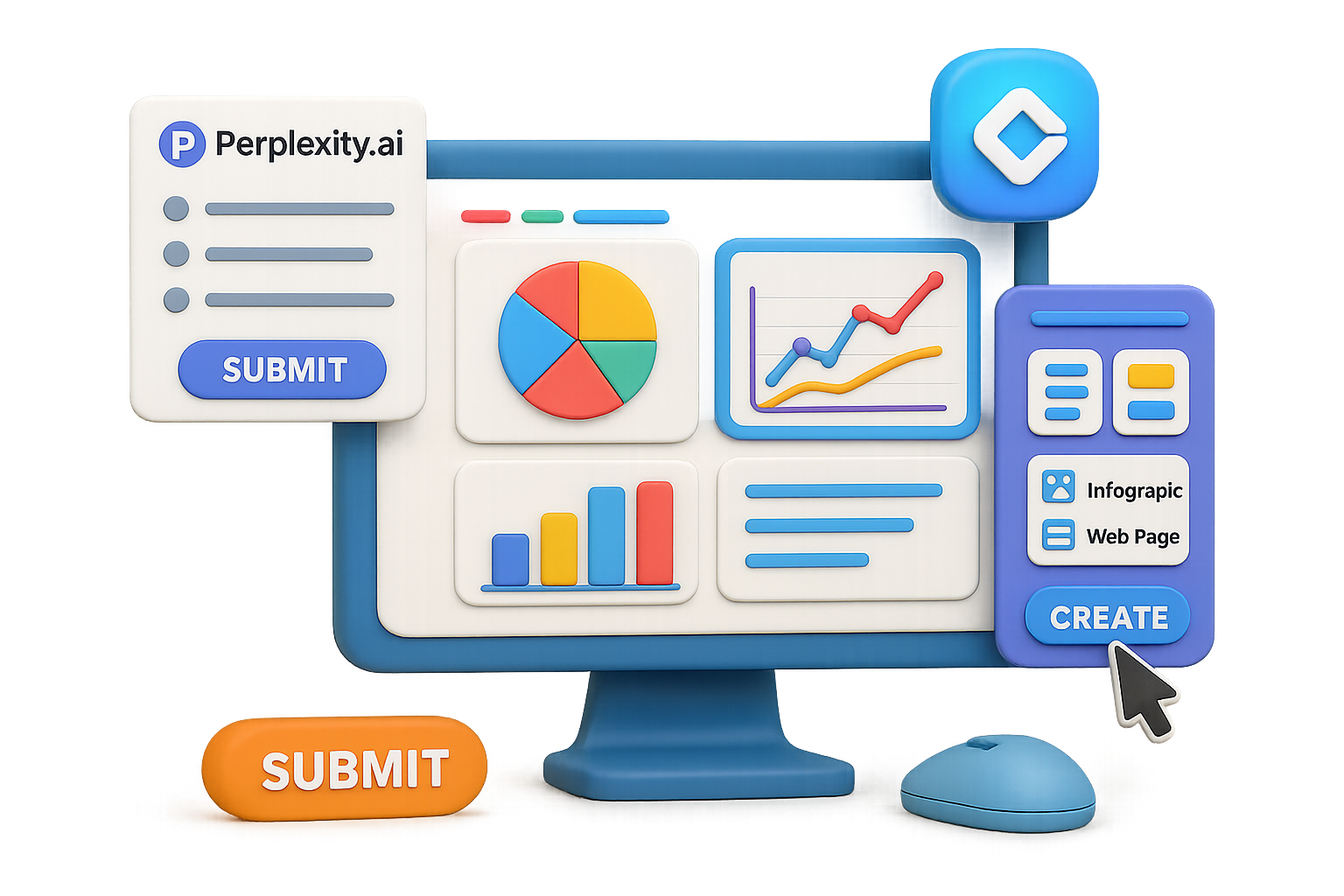
    Drop your entire Perplexity response into Gemini’s chat. Hit Submit.

    On the right, a “canvas” appears mirroring your content. That’s your workspace—now editable, transformable, and ready for magic.

    4. Generate the Visualization You Need

    Click Create below the canvas and choose your weapon:

    • Web page – Ready-to-go HTML for blog posts or reports
    • Infographic – One-pager gold for presentations or LinkedIn
    • Quiz / flashcards / audio – Learning-and-development goldmine

    In about a minute, Gemini rolls out a formatted, color-coded, media-rich layout. No drag-and-drop nightmares. Just done.

    5. Refine with Prompts

    Want to zoom in on the competition? Say:

    Rebuild the web page, emphasising Tesla vs. major EV rivals.
    Add a three-bullet takeaway summary at the top.
    

    Gemini reshuffles the content like it’s no big deal (because it’s not, for an LLM).

    Iterate until it sings.

    6. Share or Ship It

    • Hit Share for a live link you can drop in Slack, email, or Twitter.
    • Use Code View to copy raw HTML/CSS for dev handoff.
    • Snag charts/images directly from the Canvas view for slide decks.

    Bonus Moves: Prompt Recipes

    Need to tweak your dashboard even more? Try these prompt add-ons:

    • “Highlight YoY growth in bold.” – Makes metrics pop for skimmers.
    • “Add a heat map of Asia-Pacific EV adoption.” – Go regional fast.
    • “Insert a 150-word executive summary at the top.” – Cue the applause from decision-makers.
    • “Create a quiz to test this knowledge.” – Turn learning into action.

    illustration

    Best Use Cases? Basically Anything

    If you’re working with data-heavy content, this workflow is pure gold. Perfect for:

    • Quarterly market updates
    • Stakeholder reports
    • Lit reviews for academic projects
    • Research for YouTube scripts
    • Company knowledge bases or onboarding docs

    illustration

    Wrap-Up: From Info to Impact—Fast

    Let’s face it—printers, slide decks, and PDF walls aren’t cutting it anymore. Interactive content wins attention, and speed wins projects.

    Using Perplexity to grab smart, sourced insights and Gemini to instantly dress them up?

    You just found your new power combo.

    Want more beginner-friendly ways to get ahead with AI—without drowning in jargon? Tixu.ai is built for you. Bite-sized lessons, real-world use cases, and zero fluff.

    Ready when you are.

  • Master Gemini 3 Pro in 9 Minutes Flat

    Master Gemini 3 Pro in 9 Minutes Flat

    Stop Treating Gemini Like a Toy – Here’s the Workflow That Unlocks Its Real Power

    You’ve probably asked Gemini a quick question, skimmed the answer, and closed the tab. No judgment—we’ve all done it. But that scroll-and-bounce habit leaves 90% of Gemini’s real muscle just sitting there, untapped.

    This guide flips the script. Instead of casual Q&A, you’ll use Gemini Advanced (that’s Gemini 1.5 Pro under the hood) to run research, synthesize insights, and generate visuals—all in one chat window. Yep, your all-in-one growth partner is already in your browser. Time to let it work.


    illustration

    Automate the Grunt Work: Research on Steroids

    Let’s start where great strategy always begins—intel. Gemini’s not just spitballing answers. With the right prompts and settings, it turns into a live-research engine and a timestamped video analyst.

    1. Switch to the right model

    • Go to gemini.google.com
    • Click the dropdown up top
    • Choose Advanced (thinking) instead of “Fast”—you want brains over speed here

    2. Turn on Deep Research

    Head to the toolbar:
    → Click Tools
    → Choose Deep Research

    This unlocks real-time web crawling and source-matching. Translation: It reads the internet like a researcher with caffeine and a deadline.

    Prompt example:

    “Research the top three lead-generation tactics used by B2B SaaS companies in AI automation during the past 60 days. Include conversion rates and cost-per-lead data where available.”

    Gemini returns a structured report—complete with citations and links. Work that used to take hours? Done while you refill your coffee.

    3. Reverse-engineer competitor videos

    Gemini eats YouTube links for breakfast. Paste a video URL and ask:

    “Deconstruct this video’s first 30 seconds: hooks, pain points, and CTA flow. List the three most engaging moments.”

    You’ll get a breakdown—timestamps included—that saves you the watch time and gives you swipe-worthy ideas.


    Illustration of a laptop displaying 'Deep Research Summary' from Google Drive, surrounded by icons representing Gmail, documents, and data trends.

    Build Smarter: Fuse External + Internal Knowledge

    Now that you’ve got external insights, it’s time to join forces with what you already know.

    1. Export Deep Research to Docs

    Click the three dots at the bottom of the research panel → Export to Docs.
    It drops a clean write-up into your Drive—no copy-pasting needed.

    2. Activate Google Workspace Extensions

    Settings & Help → Connected Apps → flip Google Workspace ON.

    Now Gemini can access your Drive, Gmail, Docs, Sheets—the works (only with your permission, of course).

    3. Retrieve your old stuff, on command

    Start typing @workspace, then say something like:

    “Search my Drive for last year’s campaign reports plus the new research doc.”

    Boom. Instant access to your archives—no more folder spelunking.

    4. Ask smarter synthesis questions

    Now combine the old and new intel. Try:

    “Given our past email open rates and today’s lead-gen trends, what’s the best magnet to attract AI automation buyers?”

    Gemini cross-references both data sets and gives you a specific, evidence-backed answer.


    illustration

    Go Big: Load the 1M-Token Context Window

    Here’s the part no one’s using—and it’s pure magic.

    Gemini Advanced has a massive memory. It can handle about 750,000 words at once. That’s like 1,000 Google Docs-worth of room. So drop it all in.

    Upload via the little “+” icon:

    • Product specs
    • Pricing table
    • Analytics reports
    • Objection-handling scripts
    • Past campaign decks

    Now prompt it with strategic requests like:

    “Create a 90-day content campaign using video and a free audit lead magnet. Emphasize efficiency, highlight past wins, and avoid the PPC pitfalls we hit last time.”

    You’re not getting generic advice. Gemini responds with tailored strategy—because it has your full picture loaded.


    illustration

    Create On-Brand Visuals Without a Designer

    Need images with the same context and polish? Gemini’s got you.

    The ImageFX engine is now baked into its Create Images tool. And yep, it listens to everything that came before it in chat.

    Prompt example:

    “Design a landing page hero image: theme is automation + simplicity, brand colors #0D3B66 / #FAA916, headline ‘Free Workflow Audit.’”

    Then:
    → Tools → Create Images
    Wait ~40 seconds.

    Now you’ve got branded, on-message visuals without opening Canva or pinging design.


    Recap: The Real Gemini Workflow

    Let’s wrap it:

    • Switch models: “Fast” gives you trivia. “Advanced” gives you strategy.
    • Use Deep Research: Skip the Google rabbit hole for legit market reports.
    • Sync your workspace: Pull your best work into the chat—automatically.
    • Front-load the context window: Upload everything. No more chunking or prompting blind.
    • Design with context: Generate visuals that are on-brand and in sync with your strategy.

    With this workflow, Gemini isn’t just answering questions—it’s thinking, analyzing, and building with you.

    Want help stepping into the AI game? Tixu.ai makes it dead simple for beginners to learn, test, and apply Gemini and other tools—with zero fluff. Try it out and unlock workflows like this one, fast.

  • Cut AI Hallucinations by 80% with These Tactics

    Cut AI Hallucinations by 80% with These Tactics

    Slash AI Hallucinations with This 5-Step Fix Kit

    You know the moment—you ask ChatGPT a smart-sounding question, and it fires back with total confidence. Impressive… until you realize it just made things up.

    This isn’t a fluke. Whether it’s ChatGPT, Gemini, Claude, or Grok, today’s AI models all suffer from the same Achilles’ heel: hallucinations.

    But that doesn’t mean you’re stuck fact-checking your chatbot for life. With a few smart moves, you can train your AI wingman to stay accurate, cite sources, and call its own bluff.

    Let’s break it down—fast, practical, and fluff-free.


    illustration

    Get Why Hallucinations Happen

    Most folks assume AI is searching a database or “looking things up.” Nope.

    Large Language Models (LLMs) are basically next-word guessers. They map patterns from massive amounts of text and predict what probably comes next.

    That’s great for storytelling. Risky for facts.

    The fix? Feed the model trustworthy data before it writes, and give it tools to critique itself afterward.


    illustration

    Do This First: Ground the Model with RAG

    Retrieval-Augmented Generation (RAG) means you’re giving your AI a cheat sheet. It pulls context directly from real sources—not just memory.

    Tool tip: Try Google’s free tool NotebookLM. No code, big results.

    Here’s how to use it:

    • Upload PDFs, web pages, or YouTube transcripts
    • Let NotebookLM pull reputable articles via “Discover sources”
    • Get up to 50 sources per notebook
    • Every answer comes with inline citations—click to check the exact source

    Pro move: Add these three prompt layers to audit quality:

    1. Contradictions check
      “Using only the documents in this notebook, list any areas where the sources disagree.”
    2. Gap finder
      “What key subtopics are missing or barely covered? Don’t invent—just report what’s absent.”
    3. Missing perspectives
      “Suggest contrarian or less-known viewpoints likely missing, and what type of sources might surface them.”

    These quick prompts uncover bias, holes, and weak spots in seconds.

    Want more tactical prompts? HubSpot’s free Advanced Prompt Engineering Playbook has 7 days’ worth of plug-and-play templates.


    illustration

    Chatting on the Fly? Use These Quick Fixes

    Not every task deserves a full RAG setup. When you’re riffing in ChatGPT or Gemini, make these micro-tweaks:

    • Force search: “Use up-to-date search to answer this question.”
    • Bring your own docs: Upload PDFs or paste source text directly.
    • Narrow it down: Vague asks invite BS. “Summarize these 3 complaints” beats “Explain the product.”
    • Say ‘I don’t know’ is OK: Add “If not in source, say ‘I don’t know.’”
    • Ask for confidence tags: Append “(High/Medium/Low confidence)” after each claim.

    Models default to bluff mode. These tricks break their poker face.


    illustration

    Separate Writing from Verifying (Chain-of-Verification)

    Multi-fact prompts like “Compare AI’s water use to agriculture” are hallucination magnets.

    Use this 4-step check:

    1. First draft – Ask your model the question.
    2. Extract claims – Turn every fact into a specific question: “How many litres?” “In what year?”
    3. Fresh chat – Prompt a new model: “Use only web search. Cite every answer.” Paste the questions in.
    4. Final response – Paste the verified facts back into a prompt: “Answer the original question using only these verified facts.”

    Now the model can’t sneak in fluff.


    illustration

    Audit Logic, Not Just Facts

    Even with verified data, reasoning can wobble. Two tactics keep it sharp:

    1. The Auditor

    Use a second model to critique your answer: “Critically evaluate the reasoning in the following response. Flag assumptions, logical gaps, and missing context.”

    LLMs are surprisingly great at calling each other out.

    2. Self-Consistency Check

    Run the same prompt 5+ times. Or spread it across tools (ChatGPT vs Claude vs Gemini). If they agree? Safe ground. If not? Something’s fuzzy.

    Bonus: Use open-source tools like Andrej Karpathy’s “LLM Council.” It automates peer-review across multiple models and gives you a chairman-approved, consensus answer.


    illustration

    Match the Fix to the Job

    No need to throw the kitchen sink at every prompt. Here’s your ladder of rigor:

    SituationRecommended Stack
    Quick triviaUse search or upload source + allow “I don’t know.”
    Important reportNotebookLM + contradiction check + confidence tags
    Complex reasoningAdd Chain-of-Verification + Auditor
    High-stakes decisionsFull stack: RAG + Verification + LLM Council

    Sure, hallucinations will never vanish 100%. But when you stack these layers, you shrink the error rate—and make any slip-up easy to catch before it trips you up.


    illustration

    Hallucinations Aren’t Hopeless

    • Models fake it when they lack context—so give them ground truth.
    • Ask for receipts and enforce honesty (confidence tags, contradiction checks, verification chains).
    • Match your approach to the stakes—not every prompt needs a science-fair project.
    • Tools like NotebookLM, prompt audits, and LLM peer review make this simple even for beginners.

    Want a dead-simple way to learn all this without feeling like you need a PhD in AI?

    Check out Tixu.ai — the beginner-friendly learning hub where you’ll go from “What’s a prompt?” to wielding AI like a pro.

    Ready when you are.

  • Build SEO-Optimized Blog Posts in 5 Easy Steps

    Build SEO-Optimized Blog Posts in 5 Easy Steps

    Want to Rank with Blog Content (Without Sounding Like a Robot)?

    You’re not alone. Maybe you’ve tried publishing before and ended up with a wall of AI-generated fluff no one reads—not even your team. Or you’re staring at a blank doc thinking, “There’s gotta be a better way.”

    There is. Below is a dead-simple blog SEO workflow that mixes real-friend energy with proven on-page tactics. No keyword stuffing. No soulless templates. Just clear steps to create content that ranks, converts, and still sounds like you.

    illustration

    Start with a keyword that’s begging for a sale

    Here’s the truth: not all traffic is worth your effort.

    To win with blog SEO, choose a keyword that hints someone’s ready to buy. Skip the trivia (“what is churn?”) and target action-ready phrases like:

    • “subscription cancellation flow”
    • “SaaS onboarding checklist”
    • “best email tools for solopreneurs”

    These suggest intent. As in, “I need this now” intent. Tools like Ahrefs, Ubersuggest, or even Google’s autocomplete can help you hunt these down. Bonus tip? The “People also ask” box is a goldmine.

    illustration

    Peek behind the curtain of top-ranking posts

    You don’t need to guess what ranks. Search your keyword and open the top three organic results.

    1. Copy each article’s content (just for research)
    2. Paste it all into ChatGPT
    3. Ask for a 3-sentence summary of each page

    Now you’re holding Google’s cheat sheet—clear insights on what works. Doesn’t mean you copy. It means you now write from a position of power.

    illustration

    Make your title a thumb-stopper

    Your headline is your handshake. Most blog titles? Weak grip.

    Don’t write:
    “Churn Management Strategies”

    Do write:
    “Churn Management Strategies: Repeatable Systems Top SaaS Teams Use to Slash Customer Loss”

    That’s a headline with a hook and a promise.

    Need help standing out? Paste the SERP into ChatGPT and say, “Give me 3 title options that pop off the page but still contain the keyword.” Polish from there until it feels like something you would click.

    illustration

    Build an outline that walks and talks like a winner

    Steal the structure (not the content).

    Here’s the workflow:

    • Use a browser extension like Detailed SEO to grab H2s and H3s from each of the top three posts
    • Combine and trim until you’ve got the essential beats
    • Feed that outline to ChatGPT and prompt: “Write a conversational draft that explains each point clearly”

    Boom. One draft done—and it’s got the bones of what search engines already love.

    illustration

    Now humanize it (AI gets you ~70% there)

    Open ChatGPT > Settings > Custom Instructions. Paste in: “Write like a smart human explaining to a curious friend. No buzzwords, no jargon. Keep it punchy and clear. No em-dashes.”

    Then:

    • Cut robotic phrases (“leverage,” “unlock,” “delve”)
    • Fix weird facts or made-up tools
    • Add your voice: stories, visuals, personality
    • Replace anything that reads like it was written by LinkedInGPT

    A human edit is the difference between ranking and converting. Or just… existing and being ignored.

    illustration

    Lead with a TL;DR

    This tiny block at the top? Huge.

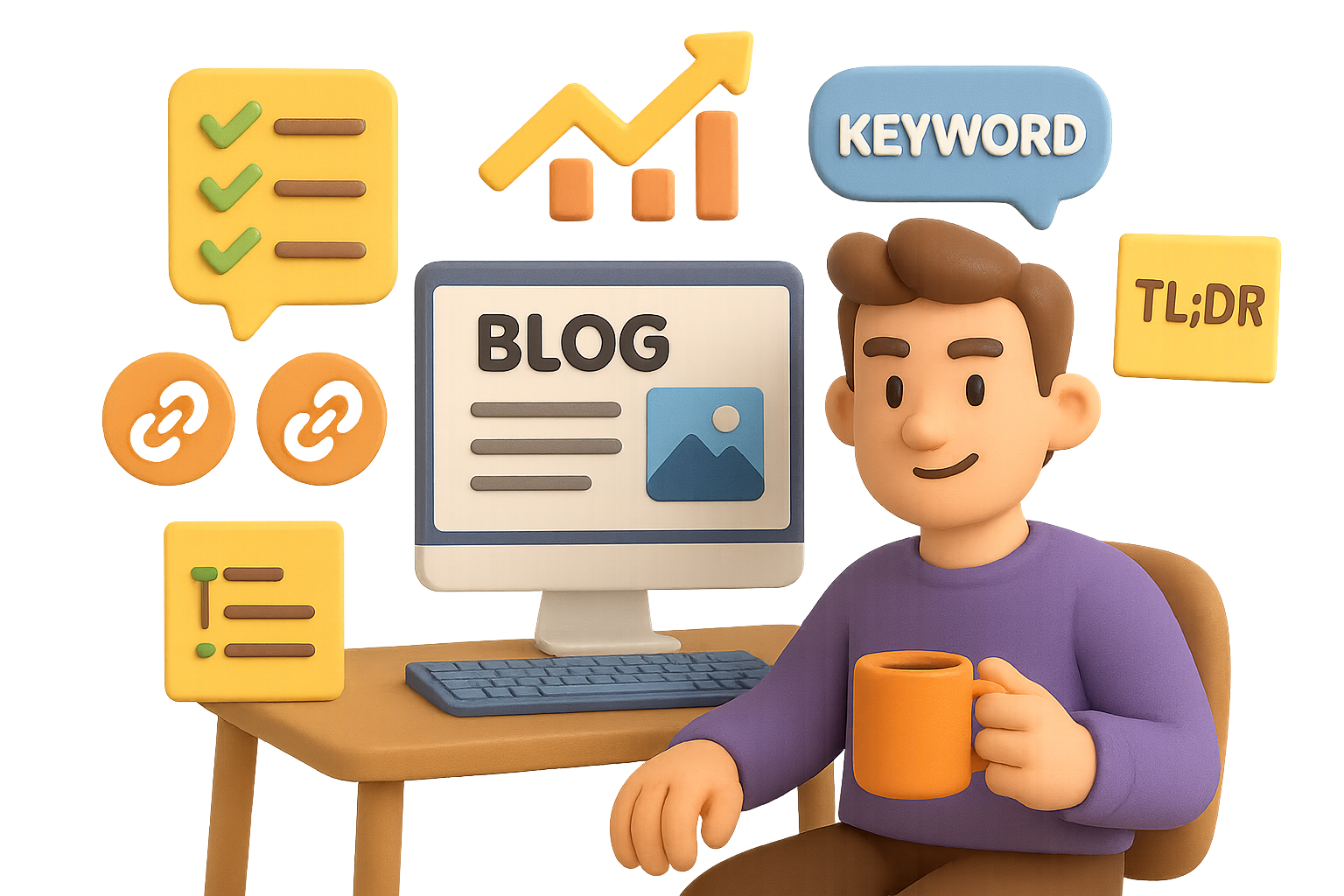
    After your draft is final, ask ChatGPT: “Summarize this blog post in 2 punchy sentences for a TL;DR block.”

    Paste that right under the H1. Sites that use TL;DRs report up to double the time on page. Skimmers stay longer. Buyers stick around.

    Win-win.

    illustration

    Strengthen your site from within: add internal links

    Before you hit publish, link back to your new post from 1–3 older articles.

    Use anchor text that’s close to your main keyword. Example: if your keyword is “checkout optimization tools,” an internal link might say: “These checkout optimization tools boosted revenue by 15%.”

    That boost? Real. Internal links spread SEO juice and keep readers on your turf.

    illustration

    Publish with pride (and your voice intact)

    The whole workflow probably took you an afternoon, tops. But there’s zero need to sound like another blogbot.

    Throw in:

    • Screenshots of your work
    • Insights from your experience
    • A line or two that sounds like you in real life

    You’ll create content that drives traffic and sounds like your brand—not a Frankenstein’d ChatGPT clone.

    Recap + Next Steps

    Here’s your cheat sheet:

    • Pick a keyword with buying intent
    • Study the top three posts—not to copy, but to beat
    • Nail the title (benefit + keyword = gold)
    • Use AI to draft—but always humanize
    • Drop a TL;DR and sprinkle internal links
    • Hit publish—and sound like yourself

    Want to learn more ways to build real-world skills with AI?
    Head over to Tixu.ai—your beginner-friendly launchpad to practical, career-ready AI skills.

    Ready when you are.

  • Automate Any Task with ChatGPT Skills

    Automate Any Task with ChatGPT Skills

    OpenAI Adds Agent Skills – Here’s Why That Matters for You

    You blinked and OpenAI dropped a power feature into its dev toolbox: Agent Skills.

    No capes, no keynote—just real capability. If you’ve ever hacked together prompt libraries, spaghetti shell commands, or cobbled workflows with copy-paste sorcery, this one’s for you.

    Because now, those clunky hacks? They’re reusable, scalable, and just got an upgrade.

    Let’s break it down.


    illustration

    Build Once, Use Anywhere: What “Skills” Actually Do

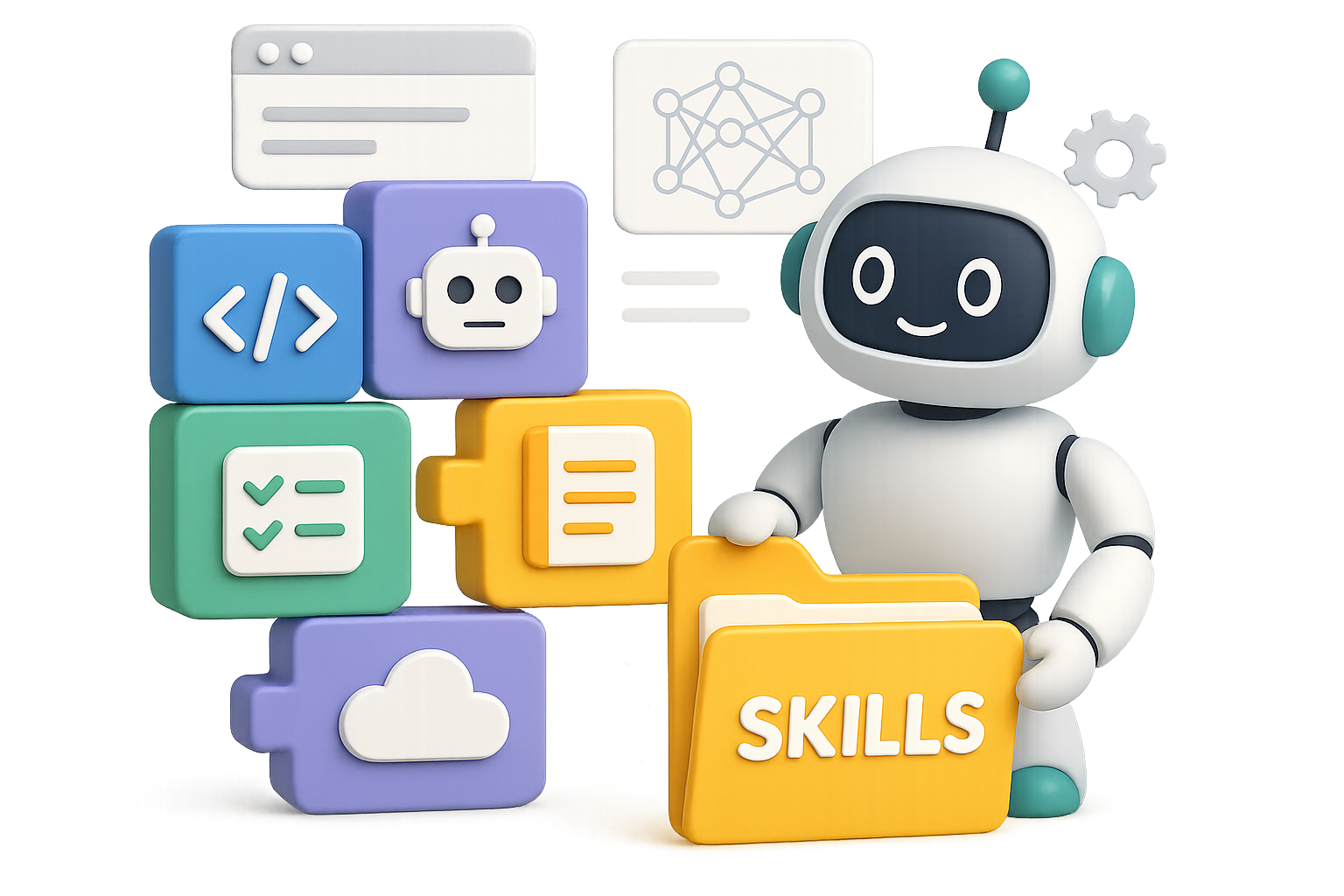
    A Skill is basically a plug-and-play recipe.

    • A markdown file with instructions + some optional script files
    • Lives in a folder
    • Can be called by ChatGPT or Agents via .skill-name

    That’s it. But here’s the kicker: It means your best prompts now live as modular LEGO bricks—easy to clip into any workflow, anytime.

    Think repeatable magic. Your launch checklists, bug-squashing scripts, AI-copilot starter kits—everything can live as a skill.


    What Can Skills Actually Unlock?

    You’re not just saving time here. You’re systemizing brilliance.

    Use Skills to:

    • Auto-generate dev-ready code from product specs in Notion
    • Fix CI failures on GitHub without touching your keyboard
    • Sync your Git merges with Linear issues like it’s 2030
    • Package expert workflows (legal handling, data pipelines) for the whole team

    It’s the difference between showing up every day—or building a teammate that never sleeps.


    illustration

    Skills, Sub-Agents, MCPs: A 30-Second Decoder Ring

    Still sorting terms? Here’s the cheat sheet:

    → Skill
    One filed guide. One agent. Reusable task outcome.
    Like a trusted checklist, just… smarter.

    → Sub-Agent
    Mini versions of your main agent, each on a different job—code review, testing, documentation cleanup. Parallel power.

    → MCP (Multi-Capability Plug-in)
    The bridge to external APIs, databases, and SaaS. Your agent’s external muscle.

    Put all three together?
    You get a workflow engine that plans, codes, and ships—no babysitting required.

    Early adopters are already eyeing “Skill-as-a-Service” stores, IDE plugins, and domain kits. Expect the landscape to light up in 2026.


    illustration

    Wildcard Trend: Face Yoga Is Hot

    Every so often, a niche goes boom. Right now? It’s face yoga.

    • >100,000 searches/month
    • Low ad competition
    • Rabid fan communities

    Translation for you:

    • Build a guided-exercise app with short videos & tracking
    • Monetize with a $5/month pro tier or in-app upgrades
    • Upsell tools—resistance bands, gua-sha stones, skin-tech

    If Calm and Peloton can go vertical, what’s stopping a cheekbone-toning version?


    illustration

    App Pick: Things by Cultured Code

    Productivity fads will come and go. Things doesn’t flinch.

    • Cleanest UI across macOS/iOS/watchOS
    • One-time purchase. No subscriptions, ever.
    • Natural language scheduling + keyboard-first design = flow unlocked.

    Sure, it could use a touch of AI. But if you want no-drama task management, this is the one.


    illustration

    Startup Spark: Fix That Last-Hurdle Dev Block

    You know the pain. You build 80% of a killer tool with Cursor, Replit, or some no-code magic. Then… boom. Edge-case bug. Game over?

    Not anymore. Meet: Last 20

    Here’s the flow:

    1. Upload your codebase, tag your blocker
    2. Platform matches you with someone who’s solved the same deal
    3. 15-minute call, headache gone

    Revenue model fits like a glove:

    • $15–$50 per fix, platform takes 10–15%
    • Annual packages for agencies (no more stalled clients)
    • Start super-niche (e.g. “CursorBounties.com”), expand with momentum

    This solves a very real “valley of death” moment. Build this, and you’re not just helping—you’re finishing stories.


    illustration

    Six-Step Playbook for Launching a Mobile App That Actually Hits

    Trying to get an app to stick? Copy this validation loop:

    1. Warm up social—Follow, comment, and engage in-niche before posting. Avoid the algorithm cold-shoulder.
    2. Design the idea—One clean visual, a 3-word hook, and promise to solve a real insecurity.
    3. Build MVP in 72 hours—Use FlutterFlow, Rive, or React Native. Three screens. That’s it.
    4. Post daily for 30 days—Try new angles. One will hit.
    5. Capture demand—Discord, WhatsApp, or newsletter. Keep the tribe close.
    6. Launch with a hard paywall—Superwall or Lemon Squeezy = frictionless monetization.

    Don’t overthink it. Just ship. If one step takes off, ride it. Nail all six? That’s your engine for 2026 hustles and beyond.


    illustration

    Recap: Skills = Leverage. Use Them or Trail Behind.

    OpenAI’s Agent Skills aren’t just a shiny feature—they’re the start of AI-powered workflows you’ll actually reuse.

    Treat them like your app’s cheat codes. Or your own team of mini-bots. Just don’t sleep on them.

    Try crafting your first skill this week—then plug it in and watch the dominoes fall.

    Want help learning how these AI tools connect? Tixu is built for that.
    Beginner-friendly, no jargon, and zero gatekeeping. Ready when you are.

  • Master ChatGPT’s New Image Model in Minutes

    Master ChatGPT’s New Image Model in Minutes

    Getting Started with ChatGPT’s New Image Model

    Let’s be real—AI image tools used to feel more like a gamble than a game plan. You’d type a prompt, cross your fingers, and hope the result looked less Frankenstein and more functional.

    Those days? Pretty much over.

    OpenAI quietly dropped a big upgrade inside ChatGPT: an overhauled image-generation engine. Think DALL·E 3, but tuned for speed, accuracy, and actual usefulness. Whether you’re mocking up a plush toy or building creatives for an ad campaign, this tool’s ready to work.

    Here’s how to get started—and why this one deserves a spot in your builder’s toolkit.


    illustration

    Skip the Prompt Puzzle: Style Presets Do the Work

    Inside any ChatGPT chat, hit that ➕ icon. A new “Image” button pops up, opening a carousel of ready-made styles: 3D Glam Doll, Ornament, Sketch, Plushie, Bobblehead, Doodle—you name it.

    When you click a style, the system:

    1. Offers to upload a photo (helpful, but optional).
    2. Auto-generates a tuned prompt under the hood.
    3. Sends everything off for image generation—or editing.

    Translation: no guessing, no prompt-engineering gymnastics. You pick the vibe, and it handles the details.


    illustration

    First Impressions: Presets That Actually Deliver

    Here’s what hits the mark:

    • Plushie – Upload a portrait, get a cuddly toy version in seconds—right down to stitching and fuzz. It looks handmade. Ideal for testing product concepts without hiring a 3D artist.
    • Sketch – Gets that graphite-drawn look that feels authentically human. Great for slide decks, social posts, or those viral “here’s how it works” diagrams.
    • Bobblehead – Turns a selfie into a cheeky figurine. Want a hoodie or camera in-hand? Say the word—it listens. No redraws needed.

    These aren’t just fun—they’re functional assets for creative work.


    illustration

    Real-Time Feedback that Works

    Remember when AI just straight-up ignored your edits?

    “Remove the notebook.”
    System adds three more notebooks.
    Tragic.

    This upgrade changes the game. Now, the model actually listens. Want to subtract something, tweak layout, or clean up artifacts? It does it—all while preserving the good parts from the previous version.

    No brute-forcing new prompts. No headaches.


    A cartoon-style character holding a tablet and clipboard in a workspace filled with colorful toy merchandise, including boxes labeled 'TOY', 'NEW', and 'KID', with a bulletin board in the background featuring toy illustrations.

    Why You Should Care (Especially If You Build or Sell)

    If you’re a marketer, founder, or product dev, here’s where this gets powerful:

    • Mock before you make – Test product visuals (toys, merch, packaging) before you shell out for samples.
    • Scroll-stopping visuals – Hand-drawn-style explanations outperform sterile vectors. Post it on LinkedIn or IG and watch engagement jump.
    • Fast-turn ad creatives – Run 5–10 hero image variants, A/B test instantly, and skip the design queue.

    This isn’t lab tech—it’s launch-day-ready.


    illustration

    Better Than the Rest? It’s Getting Close

    I’ve been leaning on Google’s Imagen 2 lately. It was the MVP for tweaks and realism.

    But this ChatGPT update narrows the gap—and, in a few key spots, jumps ahead:

    • Multi-step instruction following
    • Readable, real human text in images
    • Solid style consistency across revisions

    It’s not flawless—Imagen 2 still wins at raw photorealism in weird edge cases. But honestly? Keep both in your arsenal. Smart money’s on flexibility.


    Pro Moves: How to Get the Best Output

    • Use default styles first – They’re packed with optimized prompts that do way more than “look cute.”
    • Think like a director, not a coder – Give layered feedback. Treat revisions like takes on a film set.
    • Be clear with the “nos” – The model handles negative prompts now. Use them, just don’t flood it.
    • Describe layout precisely – Need grid spacing, text zones, or symmetry? Spell it out.

    Small tweaks = big payoffs.


    illustration

    Turn Pixels into Products

    Got a mockup you love? Take it live:

    • Export HD PNGs from ChatGPT.
    • Edit in Figma or Photoshop if needed.
    • Ship to Printful, Gelato, or Budsies to get physical samples.
    • Launch a Shopify store with embedded visuals.

    The gap between “idea” and “inventory” just got way smaller.


    illustration

    Quick Recap

    ChatGPT’s new image model skips the prompt panic, takes your feedback seriously, and spits out polished visual content you can use today. Whether you’re prototyping, storytelling, or shipping merch, it’s a real-deal productivity tool—not just a novelty.

    Want more AI tools that cut the fluff and teach you fast?

    👉 Start building with Tixu—a beginner-friendly platform that shows you what AI can actually do.

  • Master GPT Image 1.5: Create Stunning Edits Faster

    Master GPT Image 1.5: Create Stunning Edits Faster

    OpenAI’s New Image Model Changes the Game (Without Breaking the Budget)

    You blinked—and boom—OpenAI dropped a new image model right into ChatGPT.

    It’s called “Image 1.5,” and if that sounds like a quiet upgrade… don’t be fooled. This thing’s faster, cheaper, and way sharper. Whether you’re designing hero banners, avatars, or pitch visuals, it just made your job easier (and your boss a little happier).

    Let’s break down what’s new, what it changes for you, and how to get the most out of it—without writing a novel-length prompt.


    illustration

    What’s new under the hood (and why it matters to you)

    Image 1.5 now powers all image generation in ChatGPT—including the free tier.

    Here’s what’s leveled up:

    • 4× faster image generation
      You’ll spend less time waiting and more time creating.
    • ~20% lower API prices
      Both image inputs and outputs now cost less to process.
    • Precision just got an upgrade
      Realistic edits, consistent styles, sharper text. More on this in a sec.

    And the interface? That got a glow-up too:

    • New Images tab in ChatGPT with one-click style filters (think: Pop Art, Inkwork, Sugar Cookie).
    • Likeness upload—teach ChatGPT what you look like once, and re-use across image generations.
    • “Trending Ideas” carousel to kickstart inspiration—from holiday cards to vintage album covers.

    A character sitting at a desk, examining a sheet of paper with a grid of item names. Behind them is a corkboard displaying four illustrated images labeled 'Snowy Morning,' '15 Years Later,' 'Oil,' and 'Cinematic.' To the side, there are profile illustrations labeled 'Renaissance' and '1900s.' A laptop shows data charts, and shelves display photography-related items.

    What it actually feels like to use (hands-on tests)

    We pitted OpenAI’s new model against Google’s Gemini. Here’s where Image 1.5 shined—and where Gemini still punches back.

    1. Precision editing—that finally behaves

    Need to delete two people from a photo without wrecking the lighting, outfit, or hairline? Image 1.5 nails it. Multi-step edits stay grounded too—no more forgetting step one when you’re on step five.

    Test: Snowy morning ➜ everyone aged 15 years ➜ turn into oil painting ➜ move to mountain cabin
    Result: Coherent, beautiful, repeatable.

    2. Smarter with spatial instructions

    Tried a mock magazine layout with specific items in each cell. Gemini and Image 1.5 both miscounted (formatting is hard), but OpenAI placed the right objects in the right spots more consistently.

    3. Actual readable text in images

    Prompt: “Laptop mock-up with pricing table, footnotes and fine print.” Image 1.5? Super crisp legalese. Useful enough to paste into Figma. Gemini’s attempt looked like a 2× zoom on a lo-res logo.

    4. More consistent style and identity

    Take ONE selfie. Now turn it into:

    • A Renaissance oil portrait
    • A hazy 1980s studio shot
    • A moody cinematic still

    OpenAI kept the pose and vibe across all of them. Gemini blurred the identities together—think AI face mashup, not a clean style shift.

    5. Real faces, real crowds, real brand assets

    Festival crowd? No more identical NPC clones. Logos now stay put across signs, merchandise, and even packaging. That’s a game-changer if you’re branding mock-ups—or pitching them.


    When Gemini still wins

    OpenAI’s model occasionally gets… ambitious.

    Ask it to tweak a lamp, and it might redecorate the whole room. Gemini tends to focus solely on the object you mentioned, so if precision edits are your deal (think: product shots), that’s still your go-to.


    How to start using Image 1.5 like a pro

    You’re three clicks away from better visuals. Here’s how to skip the struggle:

    • Use the Images tab first
      Preset styles are visual shortcuts—they teach the model’s vocabulary faster than fine-tuning 300 words of prompt.
    • Upload your likeness early
      Running a campaign? Want consistent avatars or video stills? This sets you up for continuity across all your content.
    • Stack your prompts
      The new model queues up edits. So instead of wait-generate-wait-generate, do this: “Add rim light ➜ change background ➜ try plush toy style.”
      Fire off three ideas, get three polished results.

    illustration

    Why this is a bigger deal than it seems

    It’s not just about prettier pictures.

    This update streamlines everyday content creation:

    • Slide decks with matching visuals? Easy.
    • Newsletter hero shots? Done.
    • Product mock-ups with branded assets? Go wild.

    And for devs building on the API: low latency and lower costs mean media-powered features in your app won’t torch your margins.


    illustration

    Bottom line: Should you care?

    Image 1.5 doesn’t wipe the floor with Gemini—but it does close the gap. If Gemini’s better at surgical edits, OpenAI now rules at:

    • Multi-step consistency
    • Face and pose retention
    • Clean, legible in-image text

    For content creators, startups, even solo founders? This model hits the sweet spot of reliable output without the AI fiddling under the hood.

    And hey—now both leading models are public and affordable. That means more choice, sharper tools, and wilder results ahead.


    Want to get better at using tools like this—and fast?

    Head over to Tixu, the beginner-friendly AI learning platform that cuts through the overwhelm. Learn in minutes, apply in hours—no fluff, just what works.

    Ready when you are.