Author: Pavel

  • Master Every AI Skill in Just 25 Minutes

    Master Every AI Skill in Just 25 Minutes

    The Essential AI Skills Stack for 2025

    You’ve seen it: AI headlines everywhere. Feels like it’s either taking over the world or just writing soulless emails. The truth? Somewhere in between—but there’s real upside if you’ve got the right skill stack.

    Whether you’re shipping product, writing copy, or leading a small team, the right AI moves can save you hours, unlock creativity, and future-proof your career. This post walks you through the essential skills, tools, and mindsets to thrive in the AI-powered world of 2025.

    Let’s dive in. No hype—just what works.


    illustration

    Learn the AI Lingo (You’ll Thank Yourself Later)

    You don’t need to be an ML engineer. But knowing your GPTs from your Geminis? That’s table stakes now.

    Here’s what actually matters:

    • Artificial Intelligence (AI): Software that mimics human tasks. Think writing, analyzing, planning.
    • Generative AI (GenAI): AI that creates stuff—text, images, code, audio.
    • Large Language Models (LLMs): GenAI trained on huge text datasets that can talk, write, and reason. GPT-4o, Claude 3, and Gemini 1.5 Pro are frontrunners.
    • Multimodal Models: These handle mixed inputs and outputs like text + images + audio. It’s like Siri, but smarter…and with receipts.

    Learning the vocab isn’t about impressing anyone—it’s about not getting lost in docs or product demos. More importantly, it sets the stage for the power skills.


    illustration

    Prompt Like a Pro: High ROI, Low Stress

    Prompting = telling AI what you want. That’s it. And yes, most people are… not great at it. But you? You’ve got two handy frameworks.

    1. TCR-EI (Tiny Crabs Ride Enormous Iguanas )

    Use this for solid results:

    • Task – Be direct. “Write a caption for Instagram” beats “Be creative.”
    • Context – Brand tone, audience, timing—give the AI something to work with.
    • Resources – Link your style guide, past posts, even spreadsheets.
    • Evaluate – Gut check: Is this actually useful?
    • Iterate – “Make it funnier and shorter”—small nudges drive better drafts.

    2. RSTI (Ramen Saves Tragic Individuals)

    Still not clicking? Do this:

    • Revisit – Are your instructions contradictory?
    • Split – Break monster prompts into snackable pieces.
    • Try Alternatives – Rephrase like you’re talking to a friend.
    • Introduce Constraints – Add length, tone, or format limits. Makes things pop.

    Prompting’s the gateway skill. Nail this, and everything else gets easier.


    illustration

    Turn Chat Into Action: Meet AI Agents

    AI isn’t just answering questions—it’s taking action.

    Imagine a bot that updates a CRM, answers emails, and books meetings while you sleep. That’s an AI agent. And they’re coming fast.

    Here’s what powers them:

    1. Model – The brain behind it all (GPT-4o, Claude 3, Gemini, etc.)
    2. Tools – APIs and databases it can call to get stuff done
    3. Memory – Long-term recall, private docs, interactions
    4. Voice I/O – Useful for support, onboarding, and accessibility
    5. Guardrails – Your AI should behave (no rogue emails, please)
    6. Orchestration – How it all runs, scales, and evolves

    You don’t need to write raw code (unless you want to). Builders like LangChain, Gumloop, and Retool’s agent platform make it drag-and-drop simple.

    For devs: explore OpenAI’s Agent SDK or Google’s ADK. Bonus: multi-agent systems are starting to cooperate like tiny AI startup teams. Modular plug-ins are gaining ground too—think USB-style tools with wildcard flexibility.


    illustration

    Vibe Coding: LLMs as Your Coding Co-Pilot

    You describe the idea. The AI scaffolds the code. That’s “vibe coding.”

    Coined by Andrej Karpathy, it’s a collab where you focus on vision while the model handles boilerplate.

    Here’s your survival guide: TF-CDC — Tiny Ferrets Carry Dangerous Code

    1. Thinking – Start with a mini spec (product goal, users, tech stack).
    2. Frameworks – Tell it what tech to use (React, Three.js, etc.). Unsure? Ask the AI.
    3. Checkpoints – Commits every ~30 minutes. Trust us.
    4. Debugging – Expect bugs. Feed the model exact errors + screenshots.
    5. Context – More input = smarter output. Share wireframes or sample data.

    Tool picks by skill level:

    • Zero-code: V0.dev, Lovable, BoltAI
    • Beginner+: Replit (shows you what it’s doing)
    • Intermediate: Firebase Studio (toggle between prompt + IDE)
    • Advanced: Cursor, WindSurf (AI-native code editors)
    • Power: GPT-CLI, Claude-Code (for terminal wizards)

    This isn’t about replacing devs. It’s about building faster—with fewer facepalms.


    Colorful icons representing various productivity tools like Gmail, Notion, Excel, and a robot interacting with a CRM system.

    Three Macro Shifts Worth Watching

    Want to stay ahead of the curve? Keep your eyes on these:

    1. Deep Integration
      LLMs are sliding into everyday tools. Gmail, Notion, Excel, Figma—everything’s going low-key “assistant mode.”
    2. Dev Productivity Explodes
      Command-line copilots + AI-driven IDEs = serious time savings. Learning prompt-first coding now gives you an edge.
    3. Agent Startups Everywhere
      For every SaaS app today, a leaner AI agent version is coming. Cheaper, faster, always-on. Understanding agent anatomy isn’t optional—it’s your future competitive advantage.

    illustration

    Your Playbook: Learn, Build, Repeat

    Here’s the recap:

    • Master prompting with TCR-EI + RSTI
    • Explore AI agents and how they act for you
    • Try vibe coding to supercharge side projects
    • Keep an eye on tools morphing into smart collaborators

    You don’t need to do everything at once. Pick one area, get your reps in, then level up.

    Want a friendly place to learn, experiment, and build with others?
    Check out Tixu.ai — a beginner-friendly AI learning hub to sharpen your skills and ship cool stuff.

    Ready when you are. 🚀
  • Spot AI-Generated Writing in 5 Easy Steps

    Spot AI-Generated Writing in 5 Easy Steps

    How to Spot AI-Generated Writing in 2025 (Without Fancy Tools)

    You’ve probably read AI-generated text this week—maybe even today. And you didn’t flinch. That’s how slick it’s gotten. But here’s the thing: even the best bots leave breadcrumbs. If you know what to look for, you’ll start seeing patterns faster than ChatGPT can say “Let me explain.”

    Welcome to your updated field guide for spotting robot prose in the wild.

    Ready when you are.


    illustration

    Know the Tell: Em Dashes Gone Wild

    The em dash (—) is a beautiful bit of punctuation. But here’s a quirky truth: most people don’t know how to actually type it.

    Robots? They can’t get enough.

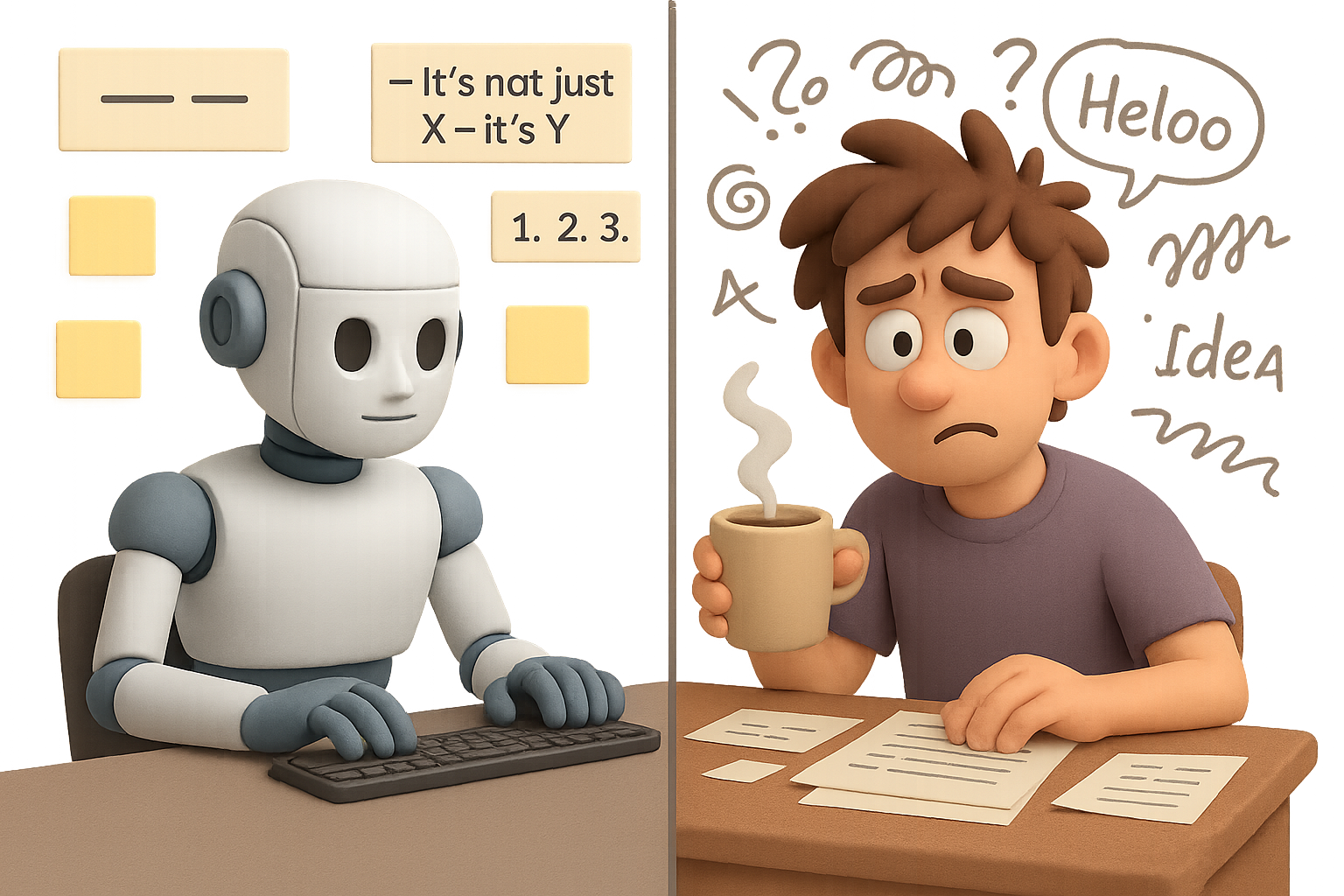
    So when you see a sudden flurry of em dashes—especially in places you’d least expect, like TikTok captions or half-baked email pitches—that’s your first flag. One dash is fine. Six in a paragraph? Mm-hmm.


    illustration

    Pattern Alert: The “It’s Not Just X — It’s Y” Formula

    Robotic writers love a setup with drama:

    “It’s not just X — it’s Y.”

    Examples:

    • “It’s not just style — it’s personal branding.”
    • “It’s not just a newsletter — it’s a movement.”

    Human? Maybe. But AI? Definitely had this in its training data sandwich.

    Watch for this structure. If you see it paired with other patterns, the scales tip bot-ward.


    illustration

    Spot the Rule of Three (or Five)

    Humans dig odd-numbered lists. Copywriters exploit this. LLMs? They cling to it like a safety net.

    So when you spot:

    • Three benefits in perfect symmetry
    • Five emojis, one per bullet
    • Lists that fit just a little too neatly?

    Ask yourself who had the time (or lacked the humanity) to craft it.


    That Vibe: Hollowness in High-Def

    Ever read something that makes sense but leaves you… empty? Like eating air-puffed chips that promise spice but taste like cardboard?

    You’re not crazy. You’ve likely just brushed up against AI-speak. Here’s what to watch for:

    • Buzzwords strung together with zero detail (“innovative solutions,” “seamless integration”)
    • Broad claims + zero receipts (“More jobs! Better lives! The future is now!”)
    • Smooth grammar, no soul

    If it feels like plastic fruit—shiny but tasteless—you’re onto something.


    illustration

    Lightning Round: 3 Smaller Red Flags

    1. Excessive praise
      “Your post is absolutely phenomenal and an inspiration to mankind.” Thanks… I think?
    2. Bizarre analogies
      “Reading AI text is like sipping tea brewed by electrons in a thunderstorm.” What now?
    3. History lessons no one asked for
      Ask for one fact, get six paragraphs of background. Cheers for the info overload, Skynet.

    A digital illustration featuring a speech bubble with the text 'As a northerner...', an open book, a spilled cup, and icons representing writing tools and ingredients.

    What Real Human Writing Looks Like

    Here’s how to spot the true-blue stuff:

    Context. Quirks. Chaos.

    Maybe it’s a tangent about grandma’s soup in the middle of a tech thread. Or a typo that’s too specific to fake. Or a regional phrase you haven’t heard since 2008.

    Like this gem:

    “As a northerner I’d never tried jellied eels; honestly, the vinegar was the only thing that saved me.”

    Could an AI generate that? Possibly. Would it? Probably not—it’s messy, personal, and a little weird.

    And that’s the secret sauce.


    A digital illustration depicting a laptop with an open notebook, surrounded by various question marks, a maze-like line, and icons representing a person, a robot, a compass, and a bottle, highlighting themes of inquiry and confusion.

    Humans Wander. Bots March.

    One big giveaway? Flow.

    You ramble. You escalate, then sidetrack, then circle back. Welcome to the spaghetti logic of real thinking.

    AI likes crisp intro–middle–end paths. Humans zig-zag, overshare, and forget where we started, mid-sentence. That organic messiness is weirdly tough to fake.

    Let it be your compass.


    Quick-Scan Cheat Sheet

    Looking to make a snap call on a piece of text? Here’s your back-pocket reference:

    Probable Bot

    • Em dashes in every paragraph
    • “It’s not just X — it’s Y” phrasing
    • Lists of exactly three or five points
    • Fluffy praise + zero substance
    • Surreal similes or over-contextualized replies

    Probably Human

    • Tangents, small contradictions, or cultural flavor
    • Specifics over slogans
    • A typo or two (bless them)
    • Anything that makes you laugh uncomfortably or go “Oof, me too”

    illustration

    Final Takeaway

    Yes, AI is getting better. Yes, the lines will blur. But here’s your edge: bots still fake nuance, connection, and imperfection. Your lived experience—the way you fold in memory, side-eye, slang, and ADHD tangents—is still hard to mimic.

    So next time you get that uncanny valley feeling, pause.

    Then run the dashes, formulas, and filler through your internal vibe-check.

    Odds are, you’re spot-on.


    Want to sharpen your radar—and gain some friendly skills in beginner-friendly AI? Check out Tixu – a practical, zero-fluff way to get AI-literate without drowning in jargon.

  • Master SEO in the AI Era: 5 Steps to Win Today

    Master SEO in the AI Era: 5 Steps to Win Today

    SEO in 2025: Master the Fundamentals, Embrace the Tools, Ride the Wave

    Big shake-up in search? You bet. But guess what hasn’t changed?

    The core principles still matter. Whether Google’s rolling out another massive algorithm update or AI’s flooding the web with new content every second, the basics of SEO still win. People search. Search engines crawl. Pages rank. You’re here because you want to rank too—and stay ranked.

    So let’s get one thing straight: SEO isn’t dead. It’s evolved. You just need to play smarter, not louder.

    Here’s how to stay one step ahead—without losing your mind or your traffic.


    illustration

    Nail the Basics, Before You Chase the Trends

    Yes, AI is rewriting the content game. Yes, SERPs (search engine results pages) look different every week. And yes, some sites have tanked overnight.

    But the bedrock of SEO? Still rock solid:

    • People type (or speak) questions.
    • Search engines crawl, index, and try to understand pages.
    • Quality backlinks shout, “This is legit.”

    Master these first. Before chasing shiny tools or new hacks, make sure your site is crawlable, fast, and valuable. It’s not flashy—it just works.

    illustration

    Stop Writing for Algorithms—Write for Real People

    Back in the day, SEO writing was a formula: copy top-ranking posts, add an extra heading, sneak in more keywords… boom, done.

    Now? AI can do exactly that—in seconds.

    Which is why Google’s raising the bar. It’s surfacing real answers to real problems—not just another list of five tips you’ve seen thirty times.

    So flip the question. Don’t ask, “How do I rank?”

    Ask: “Who needs this info, and how can I blow their socks off?”

    Let’s say someone searches “how to start a YouTube channel.” It’s a wide net.

    • One reader wants a checklist of gear.
    • Another’s still figuring out their niche.
    • A third’s worried about lighting or editing.

    Speak to the person behind the query. Be useful, not just searchable. That’s how you win rankings—and trust.

    illustration

    Use AI Like a Teammate, Not a Crutch

    You’ve got access to tools like ChatGPT or Gemini now. They’re fast, tireless, and incredibly helpful—if you’re the one steering.

    Here’s a workflow that actually works:

    1. Kick off with your own keyword + audience research.
    2. Write a short brief: what info you’re targeting, who it’s for, and how it should sound.
    3. Feed that to your AI tool; tweak the output—it’ll save hours.
    4. Layer in the magic only you have: stories, stats, lessons, tone.
    5. Run a quick AI-powered audit to find content or link gaps.

    Used well, AI is like a co-writer who handles the grunt work. But the originality, empathy, and voice? That’s all you.

    illustration

    Search Traffic Is a Gift—Don’t Rely on Just One Engine

    Organic traffic can feel like striking gold—you publish, and poof, eyeballs show up every day.

    Until they don’t.

    Algorithm updates, penalties, or a small tweak in SERP layout can wreck your numbers. Overnight.

    That’s why diversifying your SEO footprint is a smart move:

    • YouTube: Think like a search engine—optimize video titles, tags, and chapters.
    • Pinterest: Rich pins act like mini visual snippets. Optimize them like you would blog posts.
    • Reddit & Quora: Threads and titles matter—treat them like your H1s.
    • Amazon or Etsy: Keywords in listings, bullets, and reviews behave just like SEO factors.

    Good SEO habits—like answering intent, structuring clearly, earning links—all carry over across platforms. The skill set is portable.

    illustration

    Your 2025 SEO Starter Kit

    Want a plan that still works next year? Here it is:

    1. Get the fundamentals right—crawlability, internal linking, mobile speed, metadata.
    2. Understand searcher intent—keywords are clues, not strategy.
    3. Let AI support, not lead—use it for speed, not substance.
    4. Build actual authority—original data, real voices, trust signals.
    5. Spread out across platforms—Google, YouTube, marketplaces, forums. Don’t be a one-trick pony.
    illustration

    Know This and You’re Already Ahead

    Search in 2025 is still about one thing: being worth finding. Not tricking the system. Not gaming the bots. Just showing up with better answers than the rest—and doing that consistently.

    AI won’t replace your role. But someone using AI smarter might.

    So be that person.

    Do this next → Grab the course over at Tixu—it’s built for beginners, packed with practical exercises, and walks you through the process step by step.

    Ready when you are.

  • Automate 1,000+ Lead Emails in Under an Hour

    Automate 1,000+ Lead Emails in Under an Hour

    How to Generate Thousands of High-Quality Leads Using ChatGPT, Google & Make.com

    If you’re still paying for pricey email scraping tools or grinding through DMs one by one—stop. There’s a smarter way to find laser-targeted leads and hit inboxes while you sleep.

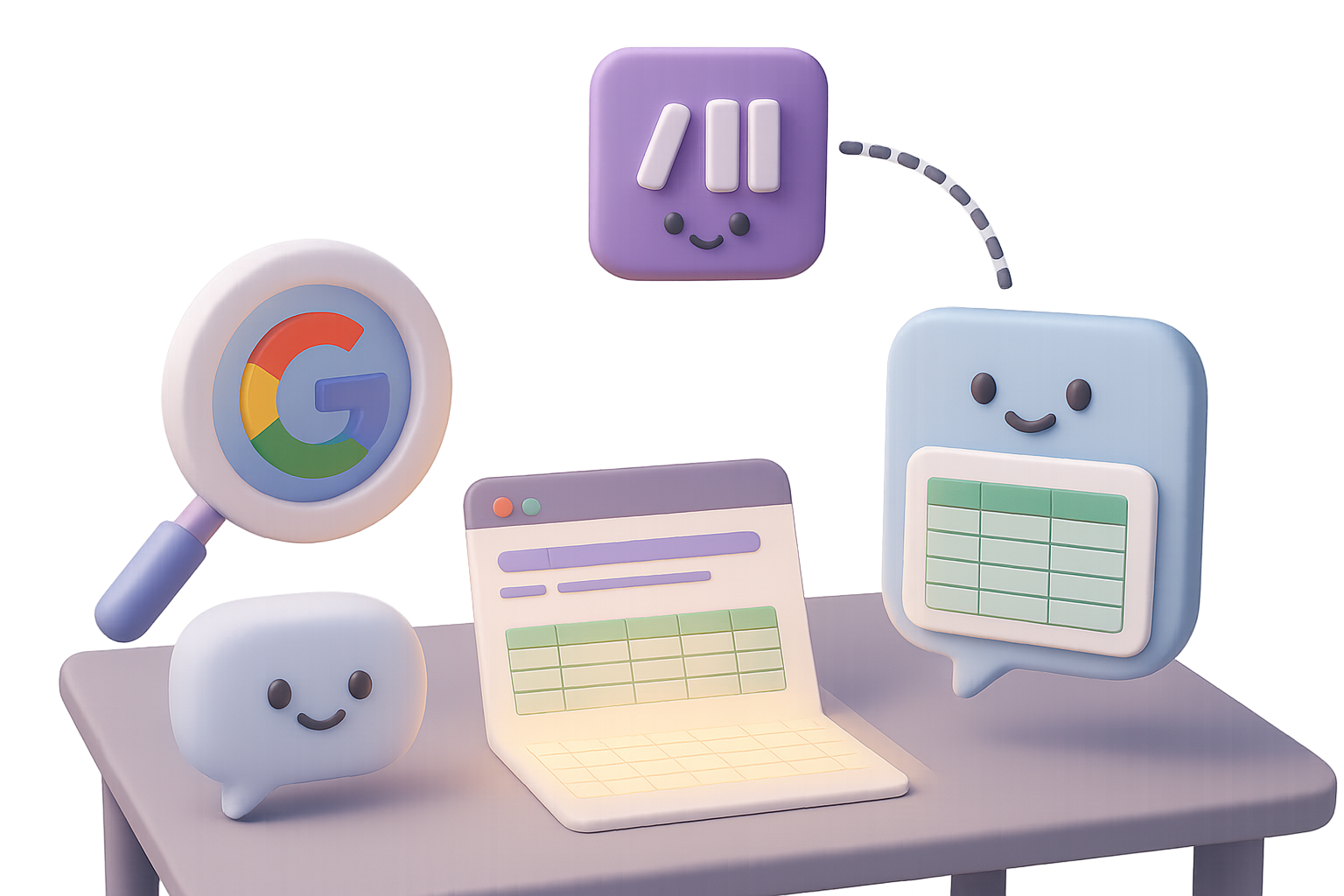
    All you need? Google, ChatGPT, and Make.com. Three tools you already use. One system you probably haven’t set up—yet.

    By the end of this post, you’ll have an always-on outreach engine built with free tools, no coding required. Ready when you are.


    illustration

    Find Thousands of Leads with a Single Google Search

    You don’t need a paid database when Google already has the goods. With one well-crafted search query, you can surface real people—with real emails—right on their public profiles.

    Here’s how.

    Use this format:

    site:platform.com “your niche” (“@gmail.com” OR “@outlook.com” OR “@yahoo.com” OR “@company.com”)

    Two quick examples:

    • For life coaches on Instagram:

      site:instagram.com “life coach” (“@gmail.com” OR “@icloud.com” OR “@outlook.com”)
    • For surgeons on LinkedIn:

      site:linkedin.com “surgeon” (“@gmail.com” OR “@hospital.org”)

    Drop those into Google and comb through:

    • Public profiles from your ideal platform
    • People using the niche keyword
    • Emails right there, no scraping needed

    That trick alone saves you $99/month on tools like Hunter.io or GetProspect. More budget for coffee. Or tacos. Your call.


    illustration

    Use ChatGPT to Clean and Format in Seconds

    Now that you’ve got a goldmine of search results, let ChatGPT turn the chaos into clarity.

    Here’s your move:

    1. On Google’s results page, hit Ctrl + A (or Cmd + A), then Copy.
    2. Open ChatGPT and prompt:
      Format the data below into a table with these columns:  
      Full Name | Company | Profile URL | Email | Phone
    3. Paste the messy text. Let GPT do the rest.

    You’ll get a clean, tidy table that’s actually usable. Feels like magic. Costs nothing.


    illustration

    Save to Google Sheets

    Pop open a fresh Google Sheet titled something like “Lead Outreach List.”

    Paste ChatGPT’s table right in. Make sure your columns match:

    • Full Name
    • Company
    • Profile URL
    • Email
    • Phone

    Each batch of leads = new rows. No need to mess with formatting. Clean in, clean out.


    illustration

    Automate Outreach with Make.com (No Code Needed)

    Let’s make those leads work for you—on autopilot.

    Make.com (formerly Integromat) connects your Google Sheet to Gmail and does the sending for you.

    Here’s the play-by-play:

    1. Create a new Scenario
    2. Module 1 – Google Sheets › Watch Rows
      • Link your Lead Outreach List
      • Trigger: New Row
      • Limit: 1 (send one email per run)
      • Schedule: every 1 hour to keep things spam-safe
    3. Module 2 – Gmail › Send Email
      • Connect your Gmail account
      • To: map the Email column
      • Subject: Question about {{Company}}
      • Body:
        Hi {{Full Name}},
        Are you still taking new clients?
        I run an AI automation agency that typically boosts conversions by 60% in 90 days.
        Mind if I send you a quick report?
        – Your Name
    4. Turn the Scenario ON and go live.

    Now, while you’re working—or literally sleeping—outbound emails keep rolling.


    illustration

    Lift Your Reply Rates with a Few Simple Tweaks

    Want better conversions? Don’t just automate—optimize.

    Here’s what works:

    • Use names – Personalize subjects like “Quick Q for {{Full Name}}”
    • Short + sharp wins – 2–3 sentence cold emails outperform long-form pitches
    • Warm up Gmail – Don’t drop 200 cold emails on day one. Ease into it.
    • Send slow, stay safe – That 1-per-hour trick keeps you out of spam folders
    • Follow-ups matter – A nudge 3–4 days later doubles your chances of a reply

    illustration

    Recap: You’ve Got a Fully Automated Lead Funnel

    You just built a scalable outbound engine using tools you already know:

    • Google finds the prospects
    • ChatGPT formats them cleanly
    • Google Sheets keeps it all organized
    • Make.com sends targeted emails—for you

    No code, no scraping tools, no stress. Swap in new niches or keywords anytime. Your spreadsheet keeps growing. So does your opportunity.

    Want to sharpen your AI automation game even more?
    👉 Check out Tixu.ai — the AI learning platform made for beginners who want real results, fast.

  • 10 Game-Changing ChatGPT Features to Boost Productivity

    10 Game-Changing ChatGPT Features to Boost Productivity

    10 Fresh ChatGPT Features (and How to Actually Use Them)

    If the last time you poked around ChatGPT it still felt like a fancy text box, brace yourself—things have leveled up. It now draws like an illustrator, talks like a podcast host, and automates like your tech-savvy coworker (you know the one). The best part? No prompt wizardry or coding chops required.

    Here’s your front-row tour of the 10 newest ChatGPT features—plus one bonus—that’ll save time, spark ideas, and make you look like a productivity pro.


    illustration

    1. Create Slick Images in Seconds

    No Photoshop? No problem. The built-in DALL·E 3 model now cranks out professional visuals on command.

    Drop a selfie and try:

    • “Turn this into a professional headshot.”
    • “Make me look like a ‘90s tech tutorial host—mullet and all.”

    Tweak results instantly: change the suit, adjust lighting, swap backgrounds. Perfect for quick visuals—social posts, e-book covers, product mockups—you name it.


    illustration

    2. Plug ChatGPT into 6,000+ Apps via Zapier

    Yes, ChatGPT plays well with others. Through Zapier, you can stitch workflows across Gmail, Slack, Notion, and more—no coding needed.

    Think big:

    • Auto-respond to client emails and ping your team on Discord.
    • Clean up Google Sheets data while you’re at lunch.
    • Generate Trello cards based on your daily standup notes.

    Just start your Zap with: “When X happens, ask ChatGPT to…”
    Zapier fills in the blanks.


    illustration

    3. Put Repetitive Work on a Schedule

    In the model dropdown, look for “GPT-4o (Scheduled Tasks).” This turns ChatGPT into your reliable (and tireless) assistant.

    Try this:

    • Daily industry news in your inbox at 7 AM.
    • Weekly status reports delivered every Friday.
    • Monthly birthday reminders, complete with heartfelt messages.

    Manage it all from the slick new “Tasks” tab—top right under your profile pic.


    illustration

    4. Build Your Own Custom GPT

    Here’s where things get personal. Custom GPTs let you design your own AI sidekick—preloaded with knowledge, rules, and even a personality.

    Here’s how:

    1. Click “Explore GPTs” → “Create.”
    2. Add a name, avatar, and bio.
    3. Drop in set rules (like “Speak like a friendly HR manager”).
    4. Upload your content—PDFs, FAQs, brand docs.
    5. Toggle tools you want: web search, code interpreter, image creation, etc.
    6. (Optional) Connect an API to live data.

    You can share your GPT or keep it as your secret sauce.


    A digital workspace illustration featuring a monitor with folders, a character holding a device, and text labels indicating 'Audience: CMOs' and 'Word Limit: 500.'

    5. Stay Sorted with Projects

    Tired of repeating the same context every time you return to a chat? Say hello to Projects.

    Launch one from the sidebar ➞ “+” and group everything for that gig in one tidy workspace:

    • Separate chat threads just for brainstorming
    • Upload docs and assets (slides, briefs, notes)
    • Add specific rules like “Assume audience = CMOs” or “Keep it under 500 words”

    When you open that project later, GPT picks up right where you left off.


    illustration

    6. Talk Instead of Type

    Want to use ChatGPT while walking the dog or cooking dinner? Hit the mic icon—desktop or mobile—and speak your mind.

    It talks back in a surprisingly lifelike voice, ideal for:

    • Capturing thoughts on the go
    • Language practice
    • Multitasking in motion

    Bonus: you get a full transcript afterward.


    A stylized computer monitor displays a scene with two cartoon robots in a desert landscape, one planting a flower. Surrounding the monitor are various multimedia icons, popcorn, a notebook, and a cup of coffee, indicating a creative text-to-video tool named Sora.

    7. Turn Text Prompts into Short Films

    Cue the popcorn. Sora is OpenAI’s shiny new text-to-video model, now in early release for Plus and Pro users in the U.S.

    Type something like:

    • “A desert planet where robots grow flowers”

    Sora replies with a cinematic clip, ready to download. Wider access coming soon—and it’s worth the wait.


    illustration

    8. Let GPT Browse the Web for You

    No time to click through 25 tabs? Operator’s got your back (Pro tier + U.S. only, for now).

    It can:

    • Compare the latest laptop deals under $1,000
    • Scrape university contact info
    • Book your flight (and fill out the forms)

    It’s like handing your mouse and keyboard to someone who never tires. Yes, it’s still beta—but the future is typing itself.


    illustration

    9. Speed Things Up with Keyboard Shortcuts

    Want to fly through tasks? Type less, click smarter.

    Hit Ctrl / ⌘ + / to see the full cheat sheet. A few favorites:

    • Ctrl + K → new chat
    • Ctrl + Shift + Up/Down → cycle through past prompts
    • Ctrl + Shift + \ → toggle dark mode (because vibes)

    Small shortcuts, big time-savers.


    illustration

    10. A Chatbot That Remembers You

    Head to Settings → Personalisation → “Memory.” Flip it on, and ChatGPT remembers who you are.

    That means:

    • No re-explaining your tone of voice or job title
    • Smarter, more tailored suggestions
    • A smoother back-and-forth experience that just feels…smarter

    Want to see what it knows? Ask: “What do you remember about me?”

    Wipe its memory anytime. Total control, no awkward breakups.


    illustration

    Bonus: Drag-and-Drop File Uploads

    Drop almost anything—PDFs, Excel files, images—into the chat and ask away.

    Examples:

    • “Summarise this contract in bullet points.”
    • “Spot issues in column C.”
    • “Pick the best thumbnail for my YouTube video.”

    GPT pulls exact info from your file, cites it, and helps you act fast.


    illustration

    Wrap-Up: What’s Next?

    ChatGPT isn’t just a chatbot anymore—it’s a creative partner, data analyst, scheduling tool, and visual maker all rolled into one.

    Pick just one of the upgrades above, fold it into how you already work, and see what happens. Fewer tabs, less grunt work, and a calendar that doesn’t make you cry? Yes, please.

    Want to sharpen your AI skills without the overwhelm?
    👉 Try free lessons on AI tools at Tixu—the beginner-friendly platform that makes learning fun and useful.

  • Earn $11K/Month with AI Podcast Channels

    Earn $11K/Month with AI Podcast Channels

    Stop Scrolling—AI Podcasts Are the Next Untapped Gold Mine

    You’ve seen the faceless YouTube channels. The lo-fi beats, the slideshow stories, the calming narrators racking up millions of views while you’re still deciding on a niche. But here’s what most people aren’t doing yet: AI-generated podcasts.

    Yep—entire podcast episodes, created with AI, that sound like two humans chatting at a coffee shop… and in some cases, earning $11k+ per month. No camera. No script-writing marathons. Just smart tools and a little creative spark.

    This post breaks down exactly how to launch your own AI podcast channel, step-by-step. Tools, templates, voice settings—the whole blueprint. You’ll walk away with a full build that’s ready to publish.


    illustration

    Why AI Podcasts Win Listeners (and Cash)

    Let’s clear something up. These aren’t clunky robo-voices reading Wikipedia pages.

    Done right, they feel like real conversations:

    • Laid-back banter beats stiff narration.
    • They make perfect “second-screen” listens—while driving, lifting, or folding laundry.
    • Niches are wide open: productivity hacks, NBA recaps, tech gossip, meditation, you name it.

    Translation? You don’t need 10 years of radio experience. Just a perspective—and a process.


    illustration

    Generate a Script That Listens Like Real Talk

    Tool: Wondercraft AI

    Start with smart scripting and natural cadence. Here’s how:

    1. Create a free Wondercraft account and test the “mini podcast” demo.
    2. Upgrade to Creator once you’re serious—it unlocks full exports.
    3. In the Audio Studio, flip on Combo Mode. Hosts can interrupt, overlap, even chuckle organically. Feels spooky real.
    4. Use the “Podcast (Convo)” template. Fill out:
      • Your niche or topic
      • Episode length
      • Host names
      • Interruption setting (choose “allowed”—trust me)
    5. Want extra depth? Upload studies, articles, or PDFs—Wondercraft weaves them into the convo.

    Pro tip: Summarize long reads in ChatGPT, convert to PDF, then feed that into Wondercraft. Boom—instant ammo for your AI hosts.


    illustration

    Choose Voices That Build Trust

    Still inside Wondercraft? Time to cast your show:

    • Tap each speaker slot, filter by accent, tone, gender—whatever fits your vibe.
    • Preview voices until they click.
    • You get 2 free re-generations per take. Tweak pacing, swap voice combos, mix until it flows.
    • Locked in? Export your high-quality MP3 or WAV file.

    No awkward mic checks. No post-editing rabbit holes. You’re halfway done.


    A 3D illustration of a desktop computer displaying a podcast interface with a subscribe button, a character holding a phone, and various icons for design tools, along with a coffee cup and tablet on the desk.

    Design a Visual That Pops (Without Filming)

    Tools: Canva + Leonardo AI (or similar image generator)

    YouTube’s a visual medium. Even podcasts need good thumbnails. Here’s the no-camera way to design yours:

    1. In Canva, open a 1920×1080 template.
    2. Add a gradient background that matches your show’s tone.
    3. Drop in a rounded rectangle, type your title, style it with Canva’s text galleries.
    4. Add a “subscribe” button right below—yep, these tiny things boost CTR.
    5. Insert two rounded Frames for host pics.
    6. Over to Leonardo.ai. Prompt stylish, photorealistic images of your fictional hosts.
    7. Drop the downloads into Canva, adjust spacing, add borders if you like.
    8. Export as PNG. Done.

    The result? A podcast cover that looks pro, even if your studio is your bedroom.


    illustration

    Fuse Audio + Visual for a YouTube Upload

    Tool: Clipchamp (Microsoft’s free video editor)

    Now let’s wrap everything together.

    1. Create a Clipchamp project. Upload your Canva artwork and podcast audio.
    2. Drag both into the timeline.
    3. Stretch the image to match your episode’s length.
    4. In Clipchamp → Visuals → Overlays, choose Audio Visualizer.
    5. Recolor and resize the waveform. Place it bottom-center like a real podcast layout.
    6. Export in 1080p.

    Boom. You now have a crisp, “face-free” podcast video—ready to upload.


    illustration

    How Much Can This Actually Earn?

    Let the numbers do the talking. In less than a year, some AI podcast YouTube channels have hit:

    • 450k+ subscribers
    • 10M+ total views
    • $4,000–$11,000 monthly from AdSense

    And when you add in partnerships, brand deals, affiliate links, and Apple/Spotify syndication?

    You start seeing five-figure months becoming the floor, not the ceiling.


    illustration

    Quick Success Checklist

    • Script built in Wondercraft Combo Mode
    • Polished, expressive AI voices selected
    • Canva + AI-generated host images = pro visuals
    • Clipchamp output with audio waveform overlay
    • SEO-optimized YouTube title, tags, description
    • Weekly upload schedule locked and loaded

    Consistency beats intensity. Drop 1–2 per week and build momentum.


    illustration

    Final Thoughts

    AI podcasting is still early. That’s your edge. With low competition, easy tools, and scalable workflows, you’re just a few clicks away from building something that earns attention—and income—while you sleep.

    Want to sharpen your AI skills before jumping in?

    Check out Tixu.ai—a friendly, hands-on platform that helps beginners learn how to use AI for real-world results.

  • 12 ChatGPT Power Tips to Boost Productivity Fast

    12 ChatGPT Power Tips to Boost Productivity Fast

    12 Power Prompts (and Features) to Level Up ChatGPT

    Let’s be real: generic prompts get generic results.

    You ask ChatGPT for help and get… beige. A reply that’s kind of helpful but kind of not. Meanwhile, someone else sparks business ideas, builds lesson plans, even regenerates marketing photos, all in minutes.

    What gives?

    Here’s the kicker: ChatGPT isn’t just about what you ask. It’s how you ask—and which features you actually use.

    This post gives you 12 simple ways to go from “meh” to maxed-out magic. Whether you’re on the free plan or Plus, these quick wins make ChatGPT work harder (and smarter) for you.

    Ready when you are.


    illustration

    Ask for Prompt Help

    Before giving up on a weak answer, try this:

    🗣 “Improve my previous prompt. What info would help you write a sharper reply to a customer asking about our workout leggings?”

    ChatGPT will analyze your ask and come back with helpful extras like:

    • Audience details
    • Style or tone hints
    • Product specs
    • Call-to-action ideas
    • Even recommended word count

    Tweak your original with these additions and boom—better results, every time. Also? You’re learning the art of prompting in the process.


    Drop an Image, Get Insights

    One picture = 1,000 prompts.

    Upload a photo or chart (GPT-4o supports this on both free and paid plans). Then ask:

    • “Explain this dashboard.”
    • “What can I make for dinner with these ingredients?”
    • “Write ad copy for this sneaker shot.”

    The model breaks it down step-by-step. It even drafts social captions, study notes or SEO blurbs based on what it sees.


    illustration

    Personalize With Custom Instructions

    Navigate to:
    Settings → Personalization → Custom instructions

    Answer two key prompts:

    1. What should ChatGPT know about you? (Industry, writing style, current projects)
    2. How do you want it to reply? (Keep it brief, friendly tone, always include takeaways)

    Toggle “Enable for new chats” and Save. Now every future convo starts with your context baked in. No more reintroducing yourself every time.


    Pick the Right Model for the Task

    A fast way to boost output: choose smarter defaults.

    On the Free plan:

    • GPT-4o handles complex tasks, images, and files
    • GPT-3.5 kicks in after your usage cap—best for quick Q&As

    On the Plus plan:

    • GPT-4o: your all-purpose power tool
    • GPT-4o-mini: great for boilerplate text or brainstorming at speed

    ⚡️ Quick guide:

    • Strategy doc, sales pitch, nuanced tone → GPT-4o
    • Outline, listicle, or basic fix-it task → GPT-3.5 or GPT-4o-mini

    Draft Directly in Canvas

    Tired of toggling between ChatGPT and Google Docs? Use Canvas.

    Click the three dots below your prompt box → select Canvas.

    You’ll get:

    • Chat on the left
    • Rich-text editor on the right
    • Fancy tools below: reading level adjuster, length toggles, polish button, emoji helper 🙌

    Free and Plus users can access Canvas with GPT-4o.


    illustration

    Use—or Build—Custom GPTs

    Left sidebar → Explore GPTs.

    Think of it like the App Store for AI. Some favs:

    • “Logo Creator” → Brand mock-ups in minutes
    • “Excel Analyst” → Formula help made easy
    • “Lesson Planner” → Educator power-up

    On the Plus plan? Tap the “+” icon and you can build your own specialty GPT in under 5 minutes. It remembers workflows, lexicon, and internal lingo.


    illustration

    Save Reusable Prompts in Memory

    Got a prompt you use a lot? Make it permanent.

    “Please add the following to memory…” → then paste your reusable template.

    Find or manage saved prompts in:
    Settings → Memory

    Next time you start a task, ChatGPT already knows what you’re trying to do—no need to repeat yourself.


    illustration

    Refresh Product Photos With AI Scenes

    Upload your original product pic. Then say: “Keep the exact bottle shape, label, and colors. Place it on a rustic table next to oatmeal and fresh berries.”

    ChatGPT creates stylish, fresh versions of your product image—perfect for A/B testing or seasonal updates. No Photoshop skills needed.


    illustration

    Schedule Auto-Summaries and Task Reminders

    Example: “Every weekday at 8 AM, send me a one-paragraph recap of the latest AI news.”

    ChatGPT sets a scheduled task (Plus plan only). It’ll give you a clean summary—unless there’s nothing big, in which case: “No major updates today.”

    Track or update at:
    Settings → Scheduled Tasks

    Pro tip: Ask, “What else could I automate?” ChatGPT will audit your usage and suggest smart routines.


    illustration

    Put the Mobile App to Work

    Your phone + ChatGPT = total game changer.

    • Voice chat: Have a back-and-forth convo while walking
    • Transcription: Snap a photo of whiteboards or presentations → get organized bullet points instantly

    It’s like having your own on-the-go assistant. All the power of desktop, plus your camera and mic.


    illustration

    Use Temporary Chat for Sensitive Sessions

    Click the dotted-circle “Temporary Chat” icon at the top-right.

    None of that convo is saved or used for training. Ideal for exploring early-stage ideas or client-sensitive work.

    Need to save the chat content, but keep it private?
    Go to Settings → Data controls and toggle off “Improve the model for everyone.” You can still revisit it—just not train the model on it.


    illustration

    Rename Your Chats and Use Search

    We’ve all lost the good one.

    Spare yourself 20 minutes of scrolling. Every time a convo wraps, rename the thread:

    • “Client Pitch Rebuttals”
    • “Landing Page NLP Hooks”

    Later, search finds it instantly.

    No more “conversation with assistant (57)” chaos.


    illustration

    Here’s Your Game Plan

    Try even 2–3 of these upgrades today and you’ll feel the difference: faster workflows, clearer answers, and an AI buddy who finally “gets” you.

    ChatGPT’s just a tool. These moves turn it into leverage.

    Ready to take it further? Start sharpening your AI superpowers with free tutorials and beginner-friendly tools at Tixu.ai.

  • Build a High-Impact Brand with AI in 30 Minutes

    Build a High-Impact Brand with AI in 30 Minutes

    Build Your Brand Identity in 30 Minutes Flat—with a Little Help from AI

    Why spend weeks agonizing over logos and color palettes when you can get 80% of the way there before your coffee’s even cooled? With the right prompts and the right tools, branding doesn’t have to be a slow grind. Enter: the Mood Board Method—a fast, beginner-friendly workflow that pulls serious weight using ChatGPT and image-generation models.

    Whether you’re launching a new project or trying to wow a client on the first call, this workflow helps you craft a full visual identity—fast.

    You’ll walk away with:

    • Crystal-clear brand vibes in writing
    • AI-generated mood boards tailored to your style
    • Polished guidelines you can hand off (or use yourself)
    • A repeatable system for future assets

    Let’s get into it.


    illustration

    The Broken Branding Process (and How AI Flips It)

    Old-school branding? Long Pinterest sessions, rounds with pricey designers, and still landing on a logo that “doesn’t feel right.”

    It kills momentum and eats your budget alive.

    Here’s the flip: by combining ChatGPT’s copy chops with today’s visual models (like OpenAI’s Sora), you can turn vague ideas into crystal-clear brand kits—without hiring a design agency or chasing five mood boards into the void.

    This is a creative shortcut, not a compromise. It accelerates good taste.


    illustration

    The Mood Board Method in 4 Simple Moves

    Here’s how pros are doing it (and how you can, too).

    1. Craft Your Brand Vibe Report

    Open a fresh ChatGPT thread. Start with one clear prompt:
    “Describe the feeling my brand should evoke.”

    Skip the hex codes and nitty-gritty for now. Focus on:

    • Emotions (confident, cheeky, serene)
    • Audience aspirations (“young wellness creators,” “busy tech buyers”)
    • Overall aesthetic themes (“solar punk minimalism,” “elevated streetwear”)

    Refining? Easy. Just ask follow-up prompts until it feels right.

    Your goal: a short, punchy doc that reads like a love letter to your audience.

    2. Generate 3–5 Mood Boards

    Now, let’s visualize that vibe. Ask ChatGPT (or an image tool like Sora) to create 3–5 mood boards based on your report.

    Each should feature:

    • Typography samples
    • Color palettes
    • Sample imagery or textures

    Didn’t nail it on the first try? No worries. Variants are free, and faster than a latte order.

    3. Translate Visuals into Written Guidelines

    Got a favorite board? Great.

    Drop the image link back into ChatGPT and prompt: “Analyze this image and write brand guidelines as if briefing a designer.”

    You’ll get:

    • Fonts and color values
    • Tone and texture descriptions
    • Preferred icon and layout styles

    It’s PDF-ready stuff—no freelance wrangling needed.

    4. Save Everything Inside a ChatGPT Project

    (Pro users only, but totally worth it.)

    Upload:

    • The Brand Vibe Report
    • Your chosen mood board(s)
    • The generated guidelines

    Now, any future task—website copy, podcast cover, paid ad variant—happens inside the same source of truth. Game-changer.


    illustration

    From Mood Board to Ready-to-Use Assets

    Once ChatGPT “gets” your brand, it’s off to the races.

    Use prompts like these to extend your look:

    • Background Textures: “Extract 3 high-res background patterns from our mood board.”
    • YouTube Thumbnails: “Design five thumbnails using our brand fonts and colors. Bold headline zones.”
    • Social Media Templates: Ask for square, vertical, and carousel layouts—done in one go.
    • Logo Variations: Need a sub-brand or podcast spin-off? ChatGPT’s got you.
    • Custom Stock Photos: Feed Sora a paragraph with brand style + image idea. Get unique, on-brand shots.
    • Custom Icons: Compile AI-generated ideas with polished icon libraries like The Noun Project.

    Pro tip: Always request layered files (SVG, PSD, PNG). They save hours down the line.


    illustration

    Why Teams (and Clients) Love This

    Let’s count the wins:

    • Faster alignment – Mock-ups kill vague vibe debates on Day 1.
    • Cost-effective – Designers spend less time on back-and-forth. Clients get quicker wins.
    • Momentum-friendly – Waiting kills ideas. Quick visuals? You’ve got buy-in within the hour.
    • Scalable – Store multiple brands or projects in ChatGPT and toggle like light switches.

    This isn’t about replacing creative pros—it’s about getting to “yes” faster.


    Power Tips for Smoother Rides

    • Use specific, sensory adjectives (“sun-bleached terracotta” > “orange”).
    • Keep a swipe file of winning prompts inside your Projects.
    • Do “creative play” sessions—some of the best ideas show up after dark.
    • Don’t fully automate the final polish. Art direction still matters. Keep the human spark.

    illustration

    Your Turn: Try It Today

    Set aside 30 focused minutes.

    1. Fire up ChatGPT.
    2. Write your Brand Vibe Report.
    3. Watch your visual identity come to life.

    Whether you’re reviving a stale brand, launching your side hustle, or just messing around—it’s fast, flexible, and even fun.

    Creativity just went compounding. Ready when you are.

    Want a step-by-step AI learning companion without tech head-scratching?
    Check out Tixu—a beginner-friendly AI playground that meets you exactly where you are.

  • Build High-Converting UGC Ads with AI in 1 Hour

    Build High-Converting UGC Ads with AI in 1 Hour

    How to Make UGC-Style Ads with AI (for Less Than a Latte)

    Sick of shelling out $200–$500 for a single UGC video—then waiting two weeks for it to drop? You’re not alone.

    Here’s the flip: with the right AI toolkit, you can crank out a polished, conversion-ready ad in under an hour… for less than the price of your oat milk flat white.

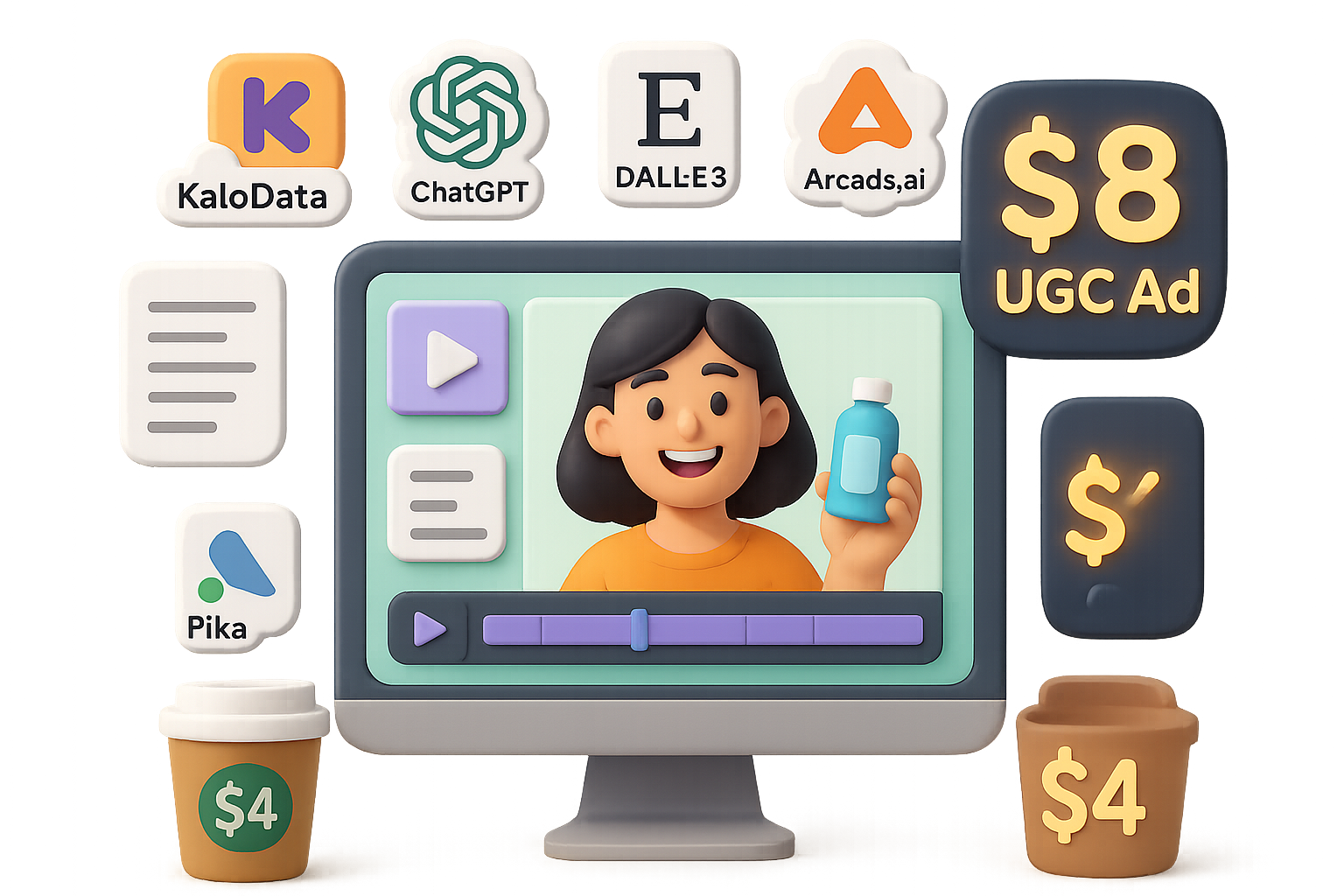
    We’ll walk through a 6-step workflow using free or low-cost tools: Kalodata, ChatGPT + DALL·E 3, Arcads.ai, and video models like Pika Labs or Kling. You’ll get visuals that look real, move naturally, and sell like a charm.

    illustration

    Why Bother with AI-Generated UGC?

    Because authentic, scrappy ads still crush it—especially on TikTok, Reels, and Shorts. But the old way is slow, pricey, and hard to scale.

    By taking this into your own hands:

    • You cut production cost by up to 98% — think ~$8 vs. $400.
    • You keep creative control (no more awkward edits from fiverr).
    • You move at the speed of the scroll — test five angles this week, not five next month.
    illustration

    Step 1 – Find a product that already sells

    No sense advertising a dud. If you run an e-comm brand, use your own product. For everyone else, Kalodata is your shortcut to TikTok Shop winners.

    Here’s how:

    1. Pop into Kalodata (7-day free trial).
    2. Head to Products → “High-Potential Affiliate & Rapid Sales Growth.”
    3. Sort by revenue or daily sales.
    4. Click any product to browse its top-performing organic and paid videos.
    5. Save a few as creative inspo—these will guide your B-roll later.
    illustration

    Step 2 – Choose your AI actor

    Now you’ll grab your face-to-camera talent—without DMing strangers or paying per hour. Arcads.ai gives you ready-made human-like avatars styled as real people.

    Here’s what to do:

    • Log in and start a new project.
    • Browse the actor library—think “beauty influencer Heather” or “lifestyle dad Tom.”
    • Match one to your audience.
    • Snap 3–4 reference images: straight face, smiling, slightly turned. You’ll use these next.

    Step 3 – Generate a hero still with ChatGPT + DALL·E 3

    This AI tag-team nails the look:

    1. Send the avatar reference shots (from Step 2) and a crisp product photo to ChatGPT (with Vision enabled).
    2. Use a prompt like:

    “Generate a hyper-realistic image of {ActorName}, lips closed and smiling softly, holding {ProductName} at chest height in a bright TikTok-style setting. Keep hands natural, no extra fingers. 4:5 aspect ratio.”

    1. Tweak until the pose, hands, face, and product look clean. Save the winner.

    Pro tip: Avoid open mouths—lip sync gets wild fast.

    illustration

    Step 4 – Animate the image with Pika Labs or Kling

    Welcome to the magic part. Use one of these AI tools to bring your still to life:

    • Drop in the image from Step 3.
    • Add a short prompt like:

    Positive:
    “A silent TikTok influencer shows the product to camera, subtle hand movement, soft lighting, 3-second clip.”

    Negative:
    “lip movement, talking, blurry, distorted, overexposed.”

    • Generate 2–3 versions and pick the smoothest one.

    Now your avatar actually moves—but doesn’t yet speak.

    illustration

    Step 5 – Add voiceover & lip sync (Arcads.ai again)

    This is where it clicks.

    • Grab a short benefit-driven script (if writing’s not your jam, prompt ChatGPT to write one).
    • Paste it into Arcads.ai.
    • Pick a voice (accent, gender, tone—it’s all adjustable).
    • Set pacing/emotion sliders until it feels real.
    • Preview, tweak, then render out your synced talking-head.

    Done right, this feels like a real person selling your stuff. Zero script memos needed.

    illustration

    Step 6 – Stitch it into a scroll-stopper ad

    Open your editor—CapCut, Premiere, Final Cut, DaVinci, you choose.

    1. Start with your animated TikTok-style avatar clip up front.
    2. Remove the background if you want that bright studio-pop style.
    3. Add B-roll clips of the product in use (from Kalodata or stock libraries).
    4. Pop in captions, pricing, and a sharp CTA close.
    5. Export for vertical (1080×1920) or square (1080×1080) formats.

    You now have a 15–30 second UGC-style ad primed for TikTok, Meta, and YouTube Shorts.

    Oh—and the cost? Well under $10.

    illustration

    Want Better ROAS? Here’s How.

    Keep iterating. Because you can make these in bulk, test multiple variations each week.

    Here are a few quick wins:

    • Use real product photos if you can. AI bottles = weird reflections.
    • Try different actors and outfits—Arcads lets you mix/match fast.
    • Keep ads short. Under 30 seconds outperforms long vids on most platforms.
    • Add a flash of social proof. A quick five-star review screenshot between hook and pitch boosts trust.
    • Batch create. Aim for 5–10 ads each week. Let the algorithm choose its favorite.
    illustration

    Wrap It Up

    You just built a high-converting UGC ad using nothing but a few sharp tools and some hustle—not a camera in sight.

    Here’s what you used:

    • Kalodata to pick a product that already sells.
    • ChatGPT + DALL·E 3 to craft your star image.
    • Kling or Pika Labs to make it move.
    • Arcads.ai to give it voice and swagger.

    No freelancers. No FedEx boxes. No waiting.

    Want more cheat codes like this for launching smarter with AI? Head over to Tixu — the beginner-friendly AI learning platform where creators go pro, fast.

    Ready when you are.

  • Build Best-Selling T-Shirt Designs with AI in Minutes

    Build Best-Selling T-Shirt Designs with AI in Minutes

    GPT-4o T-Shirt Designs: Turn Prompts Into Profit

    Let’s be real: staring at a blank canvas is rough. You’ve got ideas—but turning them into pro-level T-shirt graphics? Used to take time, talent, and software skills.

    Not anymore.

    With OpenAI’s latest GPT-4o, anyone who can describe a design can generate one. We’re talking from niche idea to polished graphic in minutes—even if your drawing skills peaked at stick figures.

    In this guide, you’ll get:

    • A fast workflow to find shirt ideas that actually sell
    • Three prompt techniques for unique, print-safe art
    • Tools to make your graphics shop-ready
    • Pro tips to scale one idea into a whole catalog

    Let’s get you selling.


    illustration

    Find What’s Already Selling—Then Spin It

    Before you prompt your masterpiece, you’re gonna want proof it’s worth making.

    Here’s how to find it:

    1. Search on Etsy or Amazon using broad niche keywords (like “plant shirt” or “funny gamer tee”).
    2. Open top listings—compare them to the rest of their shop, not just the search results.
    3. A winner that’s outperforming its siblings? That’s a strong signal.

    Bonus move: use a tool like ListingView. Plug in a shop’s URL and instantly see which shirts are crushing. A product earning 10× a shop’s average? That’s your goldmine.

    If people are already handing over cash for “ghosts who love gardening,” you don’t need to guess if it works. You just need to remix it.


    illustration

    Prompt Smarter, Not Harder: 3 AI Techniques for Killer Graphics

    Ground rule: Be inspired, don’t plagiarize. Copying someone’s art = fast track to takedown city. But reimagining a theme with new style, characters, and flair? That’s the game.

    1) Describe From Scratch

    • Study the vibe of winning designs—color, style, composition.
    • Prompt GPT-4o with all the juicy details: “cute ghost gardening under a full moon, cartoon style, pastel colors.”
    • Set it to transparent background. Boom: original and print-safe.

    2) Add an Image, Guide the Style

    • Upload a reference along with your prompt.
    • GPT-4o will echo the feel—without copying the content.
    • Then tweak: “Add a purple bucket hat,” or “Make the ghost hold a cactus.”

    Pro trick: Ask GPT “How can this be more unique?” and follow its lead.

    3) Reverse Prompting (a fan favorite)

    • Upload an image and ask GPT-4o: “What prompt would generate something like this?”
    • Copy that prompt into a clean chat (with no image this time).
    • Net result: inspired visuals with zero direct copy.

    No matter your method, use those follow-up prompts to iterate:

    • “Add snow.”
    • “Make text retro 80s style.”
    • “Use a vintage texture.”

    GPT-4o doesn’t just one-and-done—it’s your on-call art director.


    illustration

    Make Your Design Print-Perfect

    AI-generated images look sharp on screen. On a shirt? Not so much—unless you upscale.

    Here’s how:

    • Use Recraft AI
      • Drag and drop your file.
      • For detailed prints: choose “Crisp Upscale.”
      • For flat art: select “Vectorize” for infinite-resolution SVGs.

    This makes sure your art won’t pixelate—even jumbo-sized on a hoodie.


    illustration

    Words Still Work—A Lot

    You don’t need a picture to make bank.

    Scroll through Etsy’s top-selling tees and you’ll see this clear: simple, all-text designs still hit.

    Sure, you can have GPT-4o suggest catchy slogans.
    But pairing that with your own font finesse in Canva or Figma gives you full control—especially when spacing, styling, and layout make the difference between meh and must-have.


    illustration

    Go From Idea to Collection

    Once you find a design that hits, don’t stop at one listing. Multiply it:

    • Change the visual style: pastel → grunge → metallic chrome
    • Swap the theme core: ghost → raccoon → possum (yes, people love chaotic animals)
    • Match the season: summer beach → Halloween spice → winter wonderland

    You can even reuse the same slogan with new characters or context. Your catalog grows, your odds of finding a hit skyrocket.


    illustration

    List Like a Pro

    Top sellers on Etsy often have 500+ listings. That’s not luck—it’s workflow.

    Here’s how to keep up:

    1. Stay data-smart. Track trending terms daily. Hop on rising keywords before they peak.
    2. Automate uploads. Tools like PreLists batch-upload to Printify or Printful, saving mega-hours.

    Build batches, test fast, double down on winners. That’s how you scale without burning out.


    illustration

    Your Next Step

    AI just made design faster, but the winning formula hasn’t changed:
    Find what buyers want. Add your unique spin. Repeat.

    With GPT-4o and a bit of strategy, you’re not just keeping up—you’re setting the pace.

    Want a deeper dive into AI tools that beginners can actually use?
    Check out Tixu—a no-fluff platform built for creators learning AI from the ground up.

    Ready when you are.