Category: General

  • Build a Million-Dollar AI Business in 45 Days

    Build a Million-Dollar AI Business in 45 Days

    A Million-Dollar Goal, One Pair of Hands (and a Lot of AI Agents)

    What if you could scale a business to $1 million in revenue—with no team and no tech stack—just AI?

    That wild question kicked off our year. And spoiler alert: the answer is yes. One login. A swarm of AI agents. $983,217 in the first five weeks. No ads. No public launch. Just word-of-mouth and one very busy operating system.

    Now let’s show you how—and why—you should care.


    illustration

    Promise: You’ll learn how to think (and build) like an AI Architect

    illustration

    Roadmap:

    • Why single-task AI tools won’t get you to seven figures
    • The mindset shift from “operator” to AI Architect
    • How solo founders are pulling off big-league launches—and how you can too

    illustration

    Ditch Frankenstein Mode: Why an OS Beats Point Tools

    Most AI tools try to fix one tiny problem. Write content. Clean up your calendar. Edit a YouTube short. Useful? Sure. But soon you’re juggling 10 tabs and copy-pasting like it’s 2011.

    Real scale doesn’t come from cute hacks. It comes from orchestration.

    Here’s what we built instead:

    • One login
    • Specialized agents that cooperate—copy, design, targeting, funnels, even support
    • A feedback loop that learns and adapts to real-time market data

    It’s not just “a better tool.” It’s a new operating model for founders.

    Let’s break down what shaped it.


    illustration

    Build for Seven Figures—Not Just Speed

    You’re not after “efficiency.” You’re after revenue. Big difference.

    So we reverse-engineered growth from $0 to $1 million, across industries—and dropped an AI agent at each inflection point:

    • Market Discovery
    • Offer Design
    • Funnel Creation
    • Traffic + Testing
    • Acquisition + Support

    The result? Agents that don’t just respond—they build. Copy, ads, landing pages, emails—done while you sip your coffee.

    Carlos, one of our early users, used these agents to build and test three offers in 10 days. One stuck—he closed $23,000 in the first month.


    illustration

    Flip the Role: You’re Not the Operator. You’re the Architect.

    Say goodbye to being the bottleneck. You don’t need to press every button or write every ad.

    You’re the AI Architect now.

    Your job?

    • See market truth
    • Point agents in the right direction
    • Assemble feedback, iterate fast

    That’s the new entrepreneurial identity.

    And it’s not some niche idea—it’s emerging fast.


    illustration

    The AI Arms Race Isn’t Just for Big Players

    Governments and VCs are pouring over $300 billion into AI infrastructure: chips, data, GPUs, energy.

    Why should you care?

    Because that’s the tide you get to surf as a solo founder—with tools that used to take entire departments (and fortunes) to replicate.

    Translation: You’ve got Fortune 500 leverage without the payroll.


    illustration

    From Consulting to Productized Intelligence

    We started in boutique consulting, helping agencies scale to $100k+ months. It worked—but it didn’t scale us.

    Then came something wild.

    One 16-year-old client took our frameworks, bundled a voice-agent into a growth offer, and went from $1,000 to a $12,000 price point. He hit his first $100k month in five months.

    That wasn’t hustle. That was codified knowledge inside a bot.

    Reality check: when automation outperforms consultants, the game changes.


    illustration

    Enter GPTs and Your Personal “Truth Engine”

    Forget playing marketing roulette. The “Truth Engine” does what no guru course or playbook can:

    • Scans what’s currently working—ads, funnels, copy, positions
    • Pulls live patterns from real markets
    • Feeds winners to agents who build full funnel assets (in minutes)

    All behind one chat-based interface. All synchronized.

    No guessing, no fluff, no “let’s try something random.”

    Just receipts, then execution.


    illustration

    How to Start Thinking Like an AI Architect

    You don’t need a MBA or coding skills. You need a shift in posture:

    1. Stay curious—follow the data, not old playbooks
    2. Stay courageous—act on what’s working now, not what worked before
    3. Be a conductor—let the agents play the instruments

    Big wins start when you stop micromanaging, and start orchestrating.


    What This Means for You

    Skip the overwhelm and get to traction faster.

    • No more duct-taping gurus, VAs, and overpriced freelancers
    • No more one-dimensional tools that miss the big picture
    • Build the whole go-to-market engine in under an hour

    You bring the insight. Let AI carry the heavy stuff.


    illustration

    Recap: You Don’t Need a Big Team. You Need a Big System.

    The wall between solo founder and seven-figure business is crumbling. With the right stack, it’s you vs. the world—and you’ve got the bots.

    Takeaway: Architect the system, don’t operate every piece.

    Ready to geek out on this kind of AI leverage—and build your own agent stack? Check out Tixu, a beginner-friendly platform built to help future AI Architects get in the game.

  • Earn Passive Income with These 7 AI Tools in 2026

    Earn Passive Income with These 7 AI Tools in 2026

    AI Tools That Are Printing Money in 2026

    Let’s be real. AI isn’t coming for your job—it’s coming for your to-do list.

    And the folks who figure out how to partner with it now? They’re already stacking passive income, automating the grunt work, and scaling faster than a VA fueled by espresso. In this post, you’ll get the inside scoop on 7 AI platforms that are cash machines disguised as software—and a five-step game plan to start making them work for you today.

    Ready when you are.


    illustration

    1. OpusClip – Turn Long Videos into Viral Shorts

    Sitting on hours of content that no one watches? OpusClip turns that into pure content gold.

    • Finds the juiciest moments from any long-form video
    • Auto-adds captions, zooms, and pro-style edits
    • Outputs ready-to-post vertical clips in minutes

    How you cash in:

    • Sell short-form editing on Fiverr or Upwork
    • Run faceless TikTok / Reels channels
    • Repurpose webinars or podcasts for clients

    Quick stat: Short-form video content drives up to 2x higher engagement than long-form. With CPMs climbing, one day in OpusClip can fund your next month.


    illustration

    2. HeyGen – The “Instant Presenter” Video Studio

    Hate being on camera? Don’t be. HeyGen lets an AI avatar do the talking.

    • Lip-synced avatars speak your script in 40+ languages
    • Choose voices, accents, and styles—you’re the director here
    • No cameras, no crew, no awkward lighting setups

    Where the money flows:

    • YouTube automation → niche storytelling with zero face-time
    • Sales videos for SaaS startups
    • Course content and onboarding guides

    On-camera talent can cost hundreds per clip. HeyGen costs less than lunch and scales like crazy.


    A laptop displaying a Notion dashboard with a weekly planner, habit tracker, and business metrics, alongside a coffee mug, sticky note, money bag, and printed landing pages.

    3. Notion AI – Digital Products on Autopilot

    Templates that used to take days now take hours—or less.

    • Populates Notion pages with ready-to-sell dashboards
    • Helps draft landing page copy and workflows with prompts
    • Plays nice with your existing productivity stack

    Profit plays:

    • Sell Notion templates on Gumroad or Etsy
    • Package up “second brain” systems for freelancers
    • Offer setup services to overwhelmed solopreneurs

    One seller added $3.5k in passive income by launching three templates. This ain’t vaporware—it’s compounding.


    illustration

    4. Midjourney – Art That Sells Itself

    Design isn’t dead—it just mutates into text prompts.

    • Generates stunning art, logos, and assets from a sentence
    • Outputs social-ready designs in minutes
    • Think: print-on-demand, brand kits, thumbnail art

    Creative cash routes:

    • Launch a merch store with original designs
    • Sell custom branding kits to agencies
    • Create thumbnail packs for YouTubers

    You don’t need to draw. Just feed it an idea. Some creators are clearing $1k+/month doing exactly that.


    illustration

    5. ChatGPT – The Universal Writing Engine

    Yep, still the MVP. ChatGPT is your all-in-one brainstorm, editor, and ghostwriter.

    • Drafts emails, ad copy, blog posts, and more
    • Creates no-code automations (“Write a Zapier script to…”)
    • Unblocks the blank page faster than coffee

    How folks turn it into income:

    • Content retainers or ghostwriting gigs
    • SEO article bundles for niche sites
    • Social media posts + planner services

    ChatGPT supercharges just about every task in this list—and then some.


    illustration

    6. Pictory – Script-to-Video, Start to Finish

    Got a script? You’ve basically got a video.

    • Auto-matches your words with pro-grade stock footage
    • Adds captions and voice-overs
    • Outputs both horizontal and vertical formats

    Ways to profit:

    • Run faceless YouTube channels
    • Turn blog posts into videos for brands
    • Build courses and explainer content fast

    With tools like this, batching a month of video content becomes a Tuesday afternoon job.


    illustration

    7. Zapier – The Glue That Builds AI Empires

    Boring? Maybe. Essential? Absolutely.

    • Connects 5,000+ apps without code
    • Automates your whole stack (think: “If order → send invoice + email + Slack ping”)
    • Turns scattered hustle into streamlined business

    Money-makers:

    • Build automations for other people = high-ticket service
    • Run hands-off dropshipping or merch stores
    • Cut your own ops time in half

    Pro tip: What used to take five manual clicks can now be one Zap. That adds up.


    illustration

    Here’s Your Five-Step Action Plan

    You don’t need to be a coder. You don’t need a 6-figure ad budget. You just need a system—and a little consistency.

    1. Pick your lane.
      Faceless content, digital templates, automation consulting—choose what gets you pumped.
    2. Select 2–3 tools from above.
      Example: Launch a faceless video channel → ChatGPT (script) → HeyGen (presenter) → Pictory (edit).
    3. Build a repeatable workflow.
      Sketch out your steps in Notion or on paper so every moving part has a job.
    4. Publish consistently.
      AI removes the grunt work. Consistency becomes your edge.
    5. Automate + scale.
      Once the cash drips in, automate repeat tasks (with Zapier) or outsource low-stakes steps.

    You’re not late to the AI party—you’re early. Learning to wield these tools now is like buying beachfront digital property before the skyline shows up.

    Want a shortcut to master tools like these fast, even as a total beginner? Head to Tixu—an AI learning platform built for solo creators, freelancers, and future-proofers like you.

  • Build Faster with Codeex: OpenAI’s Game-Changing Dev Tool

    Build Faster with Codeex: OpenAI’s Game-Changing Dev Tool

    Why Codeex Replaced My IDE (and Maybe Yours Next)

    You’ve got your dev stack dialed. VS Code, a sleek terminal, maybe an AI assistant to lend a hand. Feels efficient… until it doesn’t.

    Then along came Codeex—and suddenly my whole routine leveled up.

    After two intense weeks of shipping real features with Codeex as my AI co-pilot, I’m brushing dust off my once-beloved editor. This isn’t just another ChatGPT-in-a-shell. It’s a workflow upgrade. Here’s what clicking run on that reality felt like.


    Build With AI Like You Mean It

    Codeex flips the script: it’s not an editor with AI sprinkled in—it’s an AI agent platform with built-in dev tools.

    Here’s the quick layout:

    • Command Line Interface – trigger intelligent tasks from any folder. Just like OpenAI’s old CLI, but smarter and synced.
    • Desktop App (macOS) – sleek UI shares full history with the CLI. No context lost between environments.
    • Cloud Runs – bring the heat when you need power or fan silence. AI agents run in managed containers, overwrite-free.
    • Skills System – agents can deploy to Cloudflare, update Linear, generate assets, even tweak DBs… on command.

    Everything syncs. Start on your terminal, review on the desktop, bump to the cloud. All without losing your thread.

    That used to be the blocker for long, multi-part dev tasks. Not anymore.


    Why This Works (When Others Didn’t)

    Parallel Threads That Don’t Tangle

    You don’t just ask Codeex to build something—you spin up threads. Each one is a living context. Flip between frontend refactoring and API tweaking like you’re switching Slack channels.

    Git That Plays Nice

    Commit flow’s baked in:

    • Auto-generates commit messages if you leave ‘em blank.
    • One-click diff viewer or launch into your custom editor.
    • The “Yeet” skill stages, commits, and opens a PR in seconds.

    Smart Work Trees, Sans Pain

    Codeex ditches Git’s usual detached-HEAD juggle. When you branch into a new task, it clones a clean linked repo. Stay in sync, merge back seamlessly. No “wait which commit am I on?” drama.

    UI Upgrade That Saves Juice

    Early versions? Memory hogs. The latest build is slick, fast, and light. Enough that I scrapped my half-finished Electron rewrite.


    A digital illustration showing a workflow for software development, featuring sections for planning, pull requests, deployment, and project management.

    A Day with Codeex Looks Like This

    1. Spin up a new thread
      “When a user clicks a timestamp comment, seek the video to that frame.”
      Tap Enter. The AI agent crawls the codebase, drafts a plan.
    2. Jump to another branch in parallel
      Restructure your blog folders. Hit Commit → Create PR. That thread’s done, no friction.
    3. Need oomph? Go cloud.
      Select the environment, and Codeex spins up a compute-friendly container. Patch deployed. PR opened. Laptop untouched.
    4. Automate your mornings
      Set a rule: every day at 9 a.m., scan the last 72 hours of commits across two repos. Alert on potential regressions. Results drop into a thread, code plan included.
    5. Smart gets smarter with skills
      The built-in skill library already handles:

      • Cloudflare deploys

      • Mongo Atlas schema nudges

      • Screenshot regression tests

      • Generating game sprites on demand

      You just drop in the prompt. It picks the skill. Done.


    illustration

    Where I Still Reach for the Old Tools

    Let’s be real: not every edge case is covered yet.

    • Quick shell tweaks & dotfile edits – still faster in Claude or plaintext.
    • Big frontend styling – nope, I haven’t trained my fingers to do CSS polish via agent (yet).

    But every backend tweak, service config, PR-worthy test suite? That’s all Codeex now.


    illustration

    Wishlist

    1. Env var handling in cloud runs – Secret management is still too manual.
    2. Smarter work tree merges – Want to PR straight from a branched thread without hopping back to main.
    3. Cross-platform desktop apps – macOS-only for now. Windows/Linux folks, their time is coming (soon, hopefully).

    illustration

    Agents Over Editors

    If you’ve tried AI-powered dev and bounced—laggy tools, weird Git hacks, too much “meh”—Codeex reopens that door wide.

    In just two weeks, I’ve shipped production patches, spun up smart bots, and felt zero urge to reopen my IDE. It’s not just a cool tool. It’s where the work flows now.

    Want to get hands-on with stuff like this?

    👉 Start learning AI for dev without drowning in jargon at tixu.ai

    Ready when you are.

  • Transform Your Workflow with 5 Game-Changing Google AI Tools

    Transform Your Workflow with 5 Game-Changing Google AI Tools

    Your Shortcut to Google’s AI Power-Tools

    Overwhelmed by Google’s AI buffet? You’re not alone. I spent two weeks neck-deep in over 30 of their experimental and pro-level tools. Some are jaw-droppers. Many are just… loud. But five? Five of them actually earn a spot in your daily rotation.

    In this post, we’ll cut through the noise. You’ll get a tight rundown of Google’s top AI tools you can use right now to:

    • Do smarter research
    • Build visuals and videos in minutes, not hours
    • Automate grunt work with zero code

    Ready to skip the AI chaos and grab the tools that save you time, not waste it? Let’s go.


    illustration

    The Five That Actually Matter

    1. Gemini: Your research brain with a photographic memory

    Forget tweaking prompts in yet another chatbot. Gemini is different.

    With a 2 million-token memory (that’s about 1,500 pages), you can drop your entire codebase, project notes, or PDF dump into one chat—and not lose the plot.

    Why it’s a keeper:

    • Synthesizes content from multiple sources into a clean, fully-cited report
    • Multimodal input—text, images, spreadsheets, even video
    • Lives natively inside Gmail, Docs, Slides, and Sheets

    Pro tip: The sharper your prompt, the better Gemini performs. Spend 30 seconds writing a focused ask, and you’ll save three hours playing “Ctrl+F detective” later.


    2. Notebook LM: Your hallucination-free research assistant

    You load docs. It reads. It answers based only on the material you gave it. No made-up citations. No mystery ideas. Just grounded research.

    Where it delivers:

    • Auto-generates flashcards, quizzes, and visual mind maps
    • Converts articles into podcast-style audio summaries
    • Builds briefings when you need to present fast

    Use it when your project reads like a Wikipedia rabbit hole. It organizes chaos better than you ever could.


    3. Imagen 2: Polished images, zero AI weirdness

    Clients notice when fingers look like noodles or shadows go the wrong way. Imagen 2—DeepMind’s new image model—avoids the usual glitches and gets the light, skin tones, and text crisp.

    Shines at:

    • Marketing mockups or social-ready visuals
    • Brand consistency—feed it past designs, and it mirrors your style
    • Product shots that don’t look… AI-generated

    It’s quietly creeping up on Midjourney, but with less artsy chaos and more “looks real enough to ship.”


    4. Veo (3.1): Video magic from one sentence

    Yes, you can now animate a product demo or tease a feature with nothing but a paragraph of text. Google’s Veo creates legit-looking 1080p video with synced audio and natural motion.

    What you can do:

    • Turn static images into motion-first reveals
    • Build multi-scene explainer videos—no camera needed
    • Export MP4s you can edit, not just GIFs for show-and-tell

    Heads-up: Use a tool like Higgsfield AI to juggle between Veo, Runway, Pika, and the rest without setting up five subscriptions.


    5. AppSheet + Duet AI: No-code automations that actually work

    Want leads from a form to self-sort into your CRM, trigger emails, and update a report? Just describe the logic in plain English—AppSheet builds it for you.

    Perfect for:

    • Internal request forms and approval flows
    • Early-stage product prototypes
    • Lead funnels without Zapier

    It’s built right into Google Workspace. If your org already lives in Docs and Sheets, this is free efficiency sitting on the table.


    illustration

    Worth a Peek (But Not Worth Your Time—Yet)

    Some Google AI tools have potential… just not today.

    Honorable Mentions:

    • Google AI Studio – solid for testing prompts across models (Gemma, Gemini, etc.), best for devs
    • Lens – ideal for travelers or DIYers snapping obscure items and asking, “What is this?”
    • Mixboard – AI moodboards are cool, but Pinterest still wins your moodboard battles
    • Project Astra & Gemma – stripped-down models for embedded hardware; devs only

    Skip (For Now):

    • Disco – browser history into dashboards sounds smart, but feels like digital clutter
    • Whisk, Music AI Sandbox – creative spark, yes; production-ready, no
    • Anti-Gravity, Jules, Stitch – coding assistants still stuck in the shadow of Copilot and Cursor

    illustration

    Put It All Together: A Lean, Mean Google AI Stack

    Forget trying all. These five tools build a powerful, practical workflow:

    • Gemini → research & writes inside Docs/Sheets
    • Notebook LM → keeps your sources straight, no AI hallucinations
    • Imagen 2 → pro-grade visuals in one prompt
    • Veo → fast video with editing flexibility
    • AppSheet → no-code systems that scale your time

    With that combo, you can:

    • Brainstorm, fact-check and write in one workspace
    • Generate scroll-stopping images and video in minutes
    • Trigger personalized emails and update reports while you sleep

    Call it your AI power-stack—clean, compact, and saves hours each week.


    One Last Shortcut…

    If you’re just getting started with AI or want to level up without drowning in jargon, Tixu has you covered.

    It’s a beginner-friendly platform built to teach you real-world AI skills. Jump into bite-sized lessons, interactive demos, and build-your-own-tool challenges.

    No fluff, just forward momentum: tixu.ai

  • 7 AI Image Hustles Earning $1K+ Per Day

    7 AI Image Hustles Earning $1K+ Per Day

    7 Gemini-Powered Side Hustles You Can Start This Week

    You’ve seen the AI-generated art, the viral posts, and the side hustlers cashing in. But what if you could turn Google’s Gemini into your own creative engine—and your next income stream?

    Good news: you can.

    Whether you’ve got five free hours a week or you’re eyeing a full-on business, these seven micro-hustles are built around Gemini’s built-in image creator. No Photoshop mastery. No fancy gear. Just smart prompts, fast iterations, and the right pitch.

    We’ve ranked the ideas from quick wins to bigger, scalable playbooks—so you can start where you are and grow from there.


    illustration

    1. Design YouTube Thumbnails That Get Clicks (and Cash)

    Let’s be real: great thumbnails make or break YouTube videos. Creators know it—so much so that top channels pay $15–$40 per thumb. Some even hire full-time designers.

    Drop-dead simple workflow:

    • Study thumbnails in your target niche (hint: think bold text, big faces, easy contrast).
    • Ask Gemini:“Create a 1280 × 720 thumbnail of [creator name] holding an empty wallet, space on the right for text.”
    • Regenerate a few options, grab the cleanest one, and finish it off in Canva or Photoshop.

    Money angle
    Even five clients at $15 each, posting four videos a week = ~$1,200/month recurring. Start on Fiverr or Upwork, then pitch a flat monthly package to keep the cash (and sanity) flowing.


    illustration

    2. Offer Lightning-Fast Photo Edits

    You know those tedious edits—removing photo bombers, fixing lighting, swapping dull backgrounds? Gemini does them in a blink now.

    Offer bite-sized edit packages:

    • Object/person removal
    • Background replacement
    • Color enhancement
    • Lighting fixes
    • Virtual staging (real estate folks love this)

    Money math:
    At $20 per quick job, five a day means ~$2,000/month. Want more? Offer premium edits (like home staging) at $30–$40.

    Low lift. Fast cash.


    illustration

    3. Sell Realistic Product Lifestyle Photos

    Actual product photoshoots are expensive—$1,000+ for a half-decent batch. But most brands just need 5–10 pro-level photos to stand out.

    That’s where you come in.

    How it works:

    1. Get a product photo on a white background.
    2. Tell Gemini: “Place a stainless-steel Yeti bottle on a mossy trail at sunrise with soft cinematic lighting.”
    3. Generate a few scenes, edit if needed, and deliver.

    Charge per bundle: $150–$300. Just four gigs a month = ~$2,400–$3,000/month. Bonus: you don’t need a studio or actual moss.


    illustration

    4. Create AI-Generated UGC

    User-Generated Content (UGC) isn’t just for influencers. Brands love authentic-looking photos of real people using their stuff—especially if you can deliver it without a photo shoot.

    Gemini hack:

    • Drop the product image into Gemini (non-image mode) and ask for an image prompt in JSON format.
    • Use that prompt to generate lifestyle shots with people + products.
    • Want to stand out even more? Animate the scenes with Gemini’s “motion” feature.

    Package five branded images at $75–$100. Reach out to DTC brands that already lean on UGC—they’ll get it.


    illustration

    5. Launch a Print-On-Demand Merch Store

    Design once, sell on autopilot. Welcome to T-shirt heaven.

    How to build your niche:

    1. Stalk Etsy: search for “[niche] + funny” and filter by high sales + low competition.
    2. Prompt Gemini:“Retro-style line art of a pizza slice riding a motorcycle, in 70s color palette.”
    3. Upload to Printify. Stick to proven shirts like Comfort Colors 1717 or Bella+Canvas 3001.
    4. Repeat weekly. 5–10 new designs = long-term momentum.

    Patience pays:

    • Month 1: ~$20–$50
    • Month 6: ~$500+
    • Month 12: $2,000+ of recurring income

    Not flashy. Just steady growing snowball.


    illustration

    6. Publish Kids’ Books on Amazon KDP

    AI just made children’s book publishing… stupid easy. And with Amazon handling the printing and shipping, all you do is create.

    Winning formats:

    • Coloring books (50 pages of cute outlines)
    • Learn-to-draw guides (Gemini can do step-by-step line art)
    • Illustrated storybooks

    KDP money breakdown:

    • Price: $7.99
    • Amazon royalty: $4.79
    • Print cost: $2.50
    • Your cut: ~$2.29 per sale

    Even five books, selling once per day = ~$345/month. Make 30? Now you’re knocking on the $5k door.


    illustration

    7. Build & Sell Digital Planners for iPad Apps

    Here’s the most passive play on the board. People spend real dollars on PDF planners—for productivity, weddings, habit tracking, ADHD, finances, you name it.

    Top sellers on Etsy? They’re raking in $30k–$50k a month.

    Get in the game:

    1. Choose a niche (wellness? budgeting? neurodivergent routines?)
    2. Use Gemini to make a visual set: covers, dividers, sticker sheets
    3. Assemble in Canva, Keynote, or even InDesign (bonus if you hyperlink all internal pages)
    4. Dress it up in a sleek iPad mockup

    Sell each planner at $15. Just one sale a day = $450/month. Grow your store to 20–50 planners and you’re in serious earnings territory.


    illustration

    Quick Comparison: Time, Effort & Payoff

    Side HustleTime to First SaleEffort per OrderPassive Potential
    YouTube Thumbnails1–3 daysLowLow
    Photo Editing2–5 daysLowLow
    Product Photos1–2 weeksMediumMedium
    UGC1–2 weeksMediumMedium
    Print-on-Demand1–2 monthsLow (after setup)High
    KDP Books1–3 monthsMedium (one-off)High
    Digital Planners2–4 monthsHigh (one-off)Very High

    illustration

    Final Moves to Maximize Earnings

    1. Systemize everything. Save prompts, create templates, and reuse your best Gemini inputs.
    2. Blow them away on order #1. Overdelivering fuels word-of-mouth and repeat gigs.
    3. Turn client work into marketing. Record your process once, post it everywhere.
    4. Charge for results, not hours. AI speeds things up—don’t let clients discount your value.
    5. Stay curious. Each Gemini update = new income stream you’re first to ride.

    You’re one prompt away from your next paycheck. Pick a hustle, sketch a quick plan, and let Gemini do the grunt work.

    Want help mastering AI tools like Gemini and unlocking beginner-friendly tutorials? Head over to Tixu.ai—it’s the go-to platform for learning practical AI, minus the jargon.

  • Build Viral AI Animation Channels in 5 Easy Steps

    Build Viral AI Animation Channels in 5 Easy Steps

    How to Make High-Impact AI YouTube Shorts (for Under $1 Each)

    Ever get hooked by one of those room transformation Shorts? You know the ones—rooms flood with sand, walls shift color in seconds, and glowing epoxy floors appear like magic? Millions of views in days, and the creators behind them are quietly raking in $2–5k a week.

    Surprise: you don’t need animation chops or a Pixar-sized budget to get in on this trend. Thanks to a stack of beginner-friendly AI tools, you can cook up your own viral-worthy timelapses for less than the cost of a fancy coffee.

    This guide walks you through the tools, steps, and real costs—so you can hit publish faster.


    illustration

    Why these Shorts cash in (big time)

    Let’s run the numbers:

    • Fresh channels regularly hit 50–100M views in their first six weeks.
    • YouTube Shorts pay around $0.20–$0.30 RPM (revenue per 1K views), with some niches landing higher.
    • One viral Short can pull in $10k–$30k and ramp up long-term growth.

    And yes—AI-generated content is still fair game. As long as your videos aren’t spammy, you’re golden. Want proof? If a YouTube channel has the “Join” or “Thanks” buttons live, it’s already in the Partner Program.


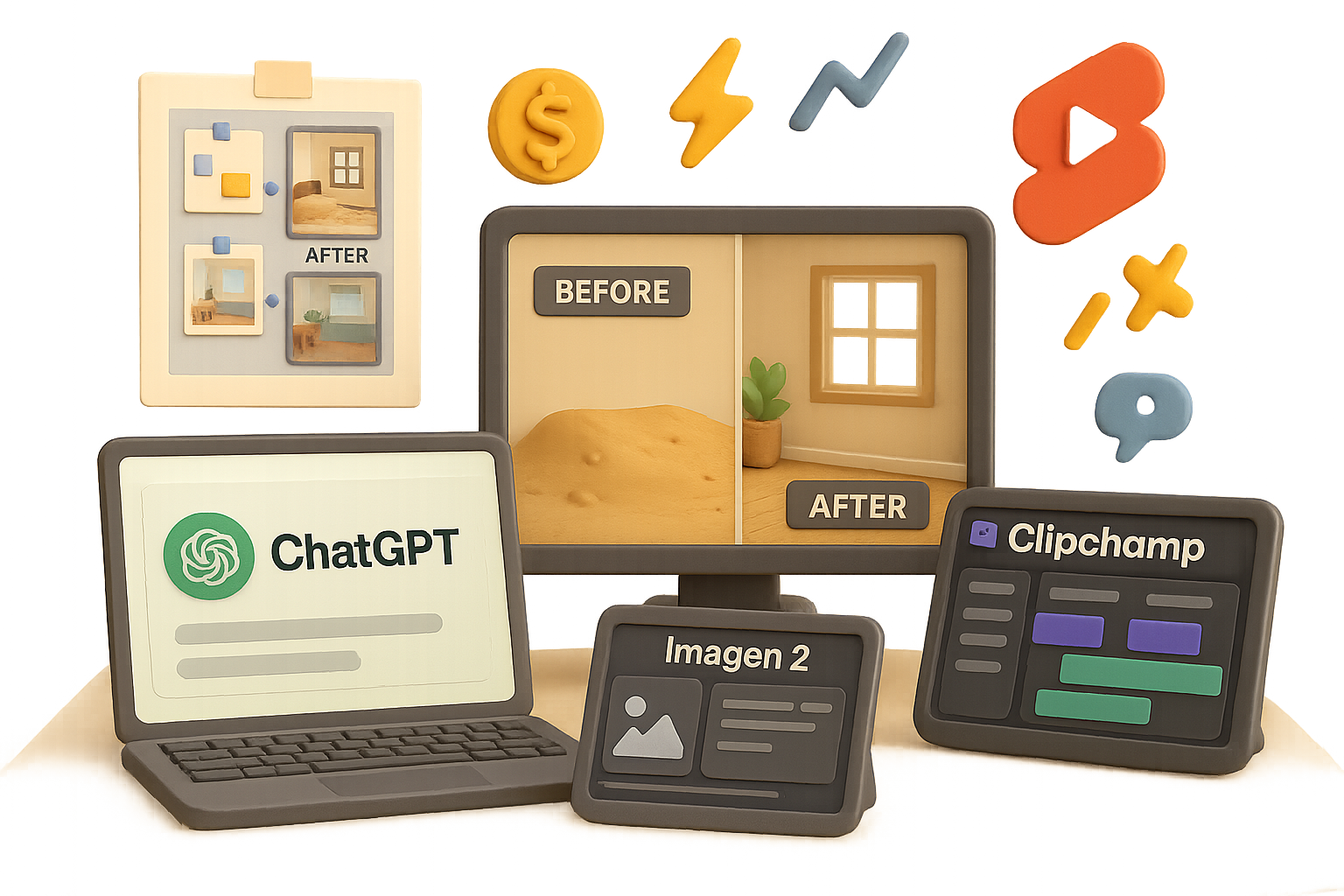
    A 3D illustration of various AI tools including ChatGPT, Kling AI, and Clipchamp, displayed on a desk with a laptop and a monitor, showcasing a before-and-after image concept.

    The 4-tool stack you’ll need

    Forget custom rigs or $200 software. Here’s your lean, mean AI machine:

    1. ChatGPT – For ideation and concept prompts.
    2. Imagen 2 in Google Gemini – Generates slick ‘before’ and ‘after’ images.
    3. Kling AI – Animates the transformation between frames.
    4. Clipchamp – Microsoft’s free browser editor for assembly and timing.

    That’s it. Four tools. Zero headaches.


    illustration

    Step-by-step: Build your first AI timelapse Short

    1. Brainstorm scenes with ChatGPT
    Crack open ChatGPT and say something like: “Give me 10 wild beach-themed epoxy floor ideas for a renovation Short.”
    Pick a winner. Want more flair? Paste the idea back into ChatGPT and ask it to expand with props, lighting, and layout suggestions.

    2. Create stills with Imagen 2
    Inside Google Gemini, enter a prompt for your empty room scene. Vertical format (9:16) looks best.
    Then in a new chat, upload that first frame and prompt for transformation. Example: “Cover the floor in fine white sand.”
    Save the output. That’s your ‘after’ image.

    3. Animate using Kling AI

    • Click “Create video.”
    • Load your ‘before’ and ‘after’ images.
    • Use a prompt like: “Animate workers entering, spreading sand evenly, then exiting.”
    • Set duration to 5 seconds, and generate.

    Pro tip: Shorter clips = fewer credits, and timelapse format makes 5 seconds plenty.

    4. Chain the visual upgrades
    Rinse and repeat, using each clip’s ‘after’ as the next scene’s ‘before’. Try:

    • Paint walls turquoise
    • Add seashells or beach chairs
    • Float in clear epoxy
    • Drop in rattan furnishings

    Want some motion at the end? Upload your final frame to Kling, head to “Inspiration & Presets,” and use a zoom or camera-pan effect.

    5. Stitch and speed-ramp in Clipchamp

    • Start a new project, import your clips.
    • Highlight each one and set speed (2× for clean scenes, 3–4× to mask AI artifacts).
    • Layer in music if you want. Export in vertical 1080p.

    Congrats—you’ve made a looping, share-worthy timelapse in under an hour.


    illustration

    What’s this all cost, really?

    Let’s break it down:

    • Kling AI pricing starts at $7 for ~990 credits—enough to make around 6 Shorts.
    • Imagen 2 via Gemini? Still free for most new accounts.
    • Clipchamp and ChatGPT (free tier) handle the rest.

    So yes—you can publish a pro-looking, AI-powered Short for about $1. Not $500. Not $50. One actual buck.


    illustration

    How to spot and ride the next wave

    Want to stay ahead of the curve, not chase it? Do this:

    • Watch Shorts daily – When a trend hits (think: glow-in-the-dark pool tiles), act the same day.
    • Smart titling & tags – Include niche keywords and what’s happening (e.g. “Epoxy Seashell Floor Time-lapse”)
    • Consistency wins – Post steadily, even if each Short is only 15 seconds.
    • Monitor your RPM – If it drops, test longer edits (30–45 sec) or jump niches.

    The key is speed + quality. AI handles the hard part—you steer the ship.


    illustration

    Before you bounce…

    AI just bulldozed the gatekeepers. What used to take weeks of animation and $$$ now takes a browser tab and a good idea. Whether you’ve got 20 followers or 200k, you can ride this trend with almost zero overhead.

    Need a hand with tools like ChatGPT or Gemini? Tixu has your back. It’s a no-fluff, beginner-friendly platform that helps you actually learn AI—not just watch other people use it.

    Go ahead, start your first Short today. The algorithm’s waiting.

  • Master Google Gemini: Build Custom AI Workflows in Minutes

    Master Google Gemini: Build Custom AI Workflows in Minutes

    Meet Google Gemini: Your Multimodal Swiss-Army Knife

    You’re not just here for another chatbot demo—you’re here to get work done. Fast, smooth, and maybe even a little fun. And Gemini? It’s not just in your corner. It’s your creative ops team, research assistant, code partner, and visual editor—rolled into one AI powerhouse.

    This post gives you a real-world, no-fluff tour of what makes Gemini tick—and how you can actually use it, without 47 tabs or technical gymnastics.

    Here’s what we’ll cover:

    • Gemini’s top tools (and why they matter for real workflows)
    • How multimodal changes everything you thought you knew about AI
    • Hidden features 99% of users miss—but you won’t
    • Pro tips to make you look like a power user from day one

    illustration

    Work Smarter with These Key Interfaces

    Gemini speaks your language—whether that’s text, image, video, or even a spreadsheet. Here’s the toolkit.

    1. Chat: Three Flavors, One Brain

    • Fast – Quick, crisp answers for basic tasks.
    • Thinking – Slower, deeper responses with memory and better logic.
    • Advanced – Built for heavy math, dense code, and deep dives.

    Switch based on your need—not just your patience level.

    2. ImageFX: Turn Words Into Pixel Magic

    Describe what you want, tweak with plain English, and boom—you’ve got assets ready for thumbnails, storyboards or moodboards.

    3. Veo: Your AI Filmmaker (Paid Tier)

    Create 1080p video clips with synced audio, realistic SFX, and voice. Use those limited credits wisely—this is for highlight reels, not homework.

    4. Notebook LM: Your Second Brain

    Load up transcripts, PDFs, or URLs. Gemini reads, cites, and synthesizes—like a literate assistant who doesn’t sleep.

    5. Canvas: Collaboration Meets Code Meets Docs

    Real-time co-editing with live AI suggestions. Mockups, scripts, longform reports—this space handles it all.

    6. Deep Research: Research That Writes Itself

    Drop in a question. Gemini breaks it down, gathers credible sources, double-checks, and formats the final draft.

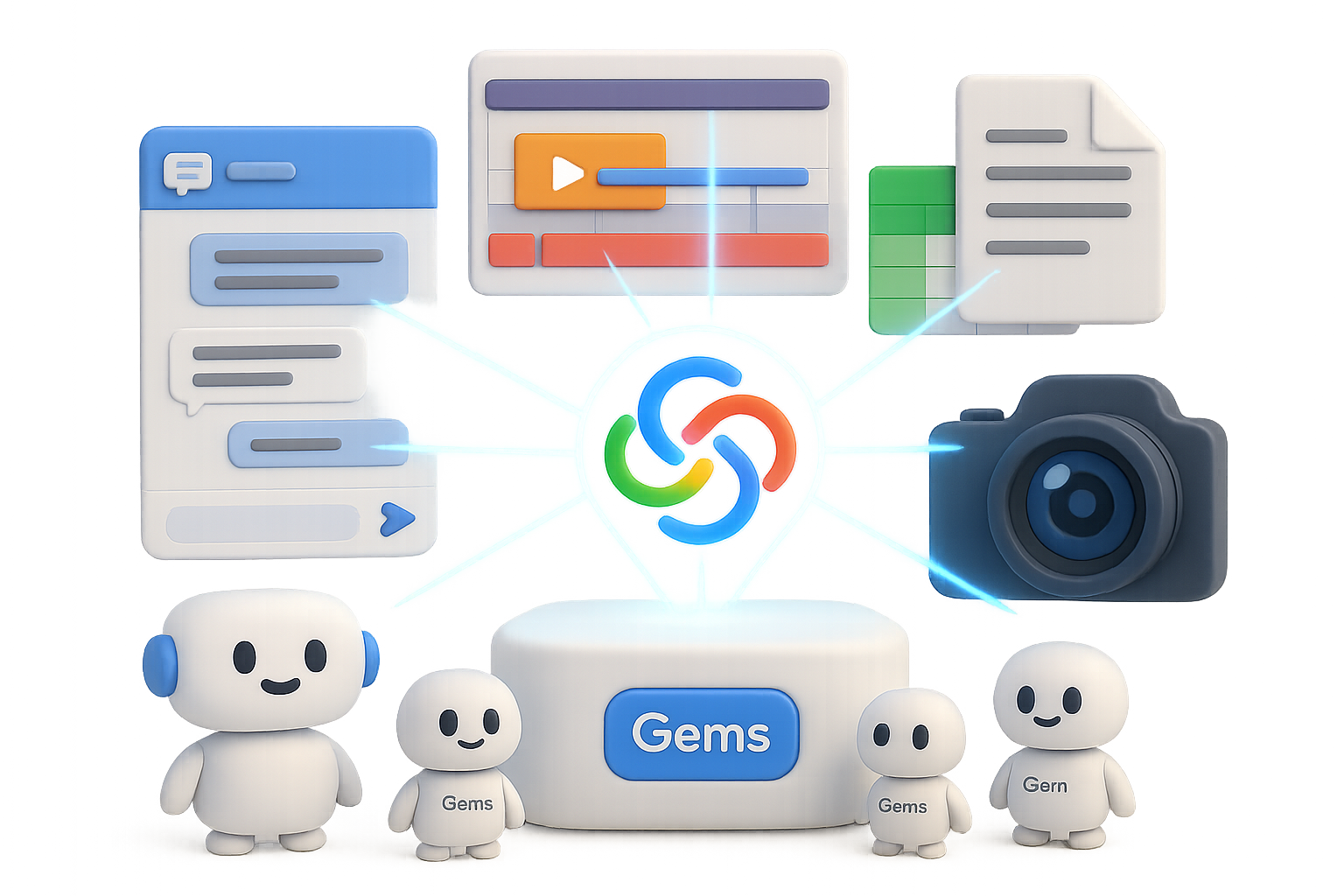
    7. Gems: Build Once, Reuse Forever

    Tiny bots with persistent memory and rules. Think: “AI macros” with actual brains.


    Illustration of various digital resources including PDF files, a video play button, a quiz, a chart, and a plant-themed graphic, connected with arrows to a central download icon.

    Why Multimodal Isn’t Just a Buzzword

    If you’re still typing long prompts like it’s 2022—you’re missing the point.

    Gemini’s power is this: Whatever you feed it—video, charts, 80-page docs—it turns into exactly what you need. No task-switching, no reformatting, no sweat.

    Examples?

    • Drop a giant PDF → get a bulleted summary, a quiz, and a visual explainer
    • Paste in 5 YouTube links → get pacing breakdowns and common hook styles
    • Snap a pic of your sad houseplant → get watering advice and repotting steps

    It can handle up to 1 million tokens of context—that’s the entire Harry Potter series. So forget clever phrasing. Focus on great inputs. The context is your superpower.


    illustration

    Turn Repetition Into Automation with Gems

    If you’ve Googled the same phrase three times this week—it’s time to build a Gem.

    Here’s how:

    1. Go to Gems → click New Gem
    2. Name it what you actually use it for (e.g., “Weekly Expense Tracker”)
    3. Add prompts like: “When I upload receipts, extract date, item, amount, and category. Output as a table.”
    4. Hit save. Done.

    Next time, just upload the file—and the Gem handles it.

    Want to go pro?

    • Sync to Google Sheets for monthly totals
    • Stack with Notebook LM to cross-check against bank statements
    • Drop it all into Canvas for live charts

    Now you’ve got a full workflow, not a one-and-done chat.


    illustration

    5 Smart Workflows You’re Probably Not Using (Yet)

    Ready to stand out? These examples stack tools for max leverage.

    1. YouTube Growth Engine

    • Create a YouTube Strategist Gem
    • Load transcripts + analytics into Notebook LM
    • Ask for content gaps and longtail title ideas
    • Use Canvas for scriptwriting
    • Add visual flair with ImageFX and teaser clips via Veo

    Don’t just publish—optimize.

    2. AI Garden Coach

    • Snap your garden layout
    • Ask Gemini for crop combos that suit your zone
    • Get a visual planting guide, seasonal reminders, and a personalized care calendar
    • Use real-time video to diagnose during the grow season

    Yeah, your tomatoes just got tech support.

    3. Zero-to-Startup Sprint

    • Scan Reddit or forums via Chat for pain point validation
    • Launch Deep Research for market and competitor data
    • Rapid-prototype in Canvas
    • Generate your brand kit and pitch deck in Notebook LM
    • Capture it all inside a Startup Gem that tracks deliverables

    Investors love a founder with systems.

    4. Dynamic Learning Path

    • Upload a dense book or manual
    • Let Gemini chunk it into lessons
    • It tests you, draws visual aids and tracks progress
    • It’s a tutor that doesn’t drift off after lunch

    5. Live Visual Debugging

    • Aim your webcam at error-riddled code
    • Gemini reads, explains, rewrites
    • Fixes pushed straight to Canvas

    Goodbye rubber duck, hello real-time AI pair programming.


    illustration

    Pro Tips for Pros (or Anyone Who Fakes It Well)

    Here’s how to stretch those Gemini muscles without snapping them.

    • Default to “Thinking” mode. It’s slower, but way smarter—especially with research or logic-heavy work.
    • Chunk your uploads. Large docs? Break into logical parts for stronger structure in output.
    • Canvas = Time Machine. Fix mistakes or rewind changes with built-in edit history.
    • Use free wisely, spend smart. Most tasks run fine on the free tier. Save credits for Veo clips and mission-critical jobs.
    • Stack smarter. Combinations (Gems + Notebook + Canvas) compound benefits fast.

    illustration

    Ready to Level Up?

    Gemini isn’t just a chatbot. It’s a system builder. A task finisher. A sidekick who never gets tired.

    Start small—a Gem here, a Notebook there. Then connect the dots.
    That’s where the real value shows up. And the gap between reactive users and proactive builders? Massive.

    Want guided lessons to go from “curious” to “confident”?
    👉 Start learning with Tixu now—your beginner-friendly launchpad into real-world AI workflows.

  • Automate LinkedIn Lead Gen in 3 Easy Steps

    Automate LinkedIn Lead Gen in 3 Easy Steps

    The LinkedIn Job Hack That Feeds Your Outbound Engine on Autopilot

    You’re hunting for your next big win.

    More meetings. More pipeline. Less manual prospecting that eats your mornings alive.

    Here’s how to get exactly that—on repeat.

    Meet your new favourite growth system: a no-code workflow that turns new LinkedIn job postings into verified, ready-to-email decision-makers. It’s lean, low-cost, and once you turn it on, it handles the grunt work while you sleep.

    No cold LinkedIn scrolling. No spreadsheet chaos. Just high-signal leads flowing straight into your outbound tool.

    Let’s break it down. You’ll walk away with a step-by-step playbook to build this in a weekend—no code, few credits, massive upside.


    illustration

    Why LinkedIn job posts are prospecting gold

    Let’s be real—most cold outreach feels like shouting into a void.

    But job openings? They shout back.

    • They tell you a company has a problem they need solved yesterday.
    • Titles and locations hand you personalization fuel on a silver platter.
    • And new postings often mean fresh budgets and decision-speed momentum.

    Scraping these posts daily means you’re not just working smarter—you’re beating slow-moving competitors to the punch.


    The full automation stack

    Here’s the lean, mean lead-gen machine you’re building:

    1. Apify – Scrapes LinkedIn jobs daily.
    2. Make.com – Cleans and sorts the data into neat weekly spreadsheets.
    3. Google Drive – Hosts your spreadsheet template + stores weekly files.
    4. Clay – Filters for ICP-fit companies and enriches with contact info.
    5. LeadMagic – Adds company intel to boost accuracy.
    6. BounceBan – Verifies email deliverability.
    7. Smartlead.ai – Auto-launches cold email sequences on the fly.

    Total cost? A few credits a day. Results? Your inbox fills itself.


    illustration

    Step 1 – Scrape job ads with Apify

    Start here, daily:

    1. Open Apify’s “Advanced LinkedIn Job Scraper.”
    2. Build a LinkedIn search URL using:
      • Target job titles in quotes (e.g., “SDR”, “Account Executive”)
      • Your desired location
      • Set “Date Posted” → Past 24 hours
    3. Paste the URL in Apify, toggle “Scrape more details” and “Scrape company details.”
    4. Schedule it to run daily and link it to a Make.com webhook to fire the next steps.

    Pro tip: Hit 1,000 results? Break up your search into smaller keyword groups—or run multiple actors.


    illustration

    Step 2 – Turn raw data into tidy leads

    Inside Make.com:

    1. Watch Task Run – Kicks off when Apify’s job is done.
    2. Get Dataset Items – Pulls all fresh rows.
    3. Array Aggregator – Combines everything into a clean array to save on operations (aka $).
    4. Router – Checks if a weekly sheet exists:
      • Yes? Append.
      • No? Copy your Google Sheet template and populate it fresh.

    You’ll end up with a single, squeaky-clean file that includes:

    • Company + job titles
    • LinkedIn + job URLs
    • Employee count, industry, and posted date

    Exactly what you need. Nothing you don’t.


    illustration

    Step 3 – One weekly manual step

    Seriously, just one:

    1. Open your weekly sheet.
    2. Export/download as CSV.
    3. Upload it to Clay for the magic to begin.

    You’ve earned that second coffee.


    Step 4 – Qualify like a pro in Clay

    Here’s where your list goes from messy to money:

    1. Import your sheet, map the columns.
    2. Standardize dates.
    3. Use Clay to pull company domains (no credits burned).
    4. Run a GPT “B2B or B2C?” classification.
    5. Filter to B2B companies only.
    6. Use LeadMagic to enrich employee counts and firmographics.
    7. Run a second GPT prompt: “Does this company match my ICP?”

    Once it passes, clean the company name (no more “Inc.” noise) and prep for contact hunting.


    illustration

    Step 5 – Find and verify the humans

    Now we find real decision-makers:

    1. Use Clay’s Find More People with:
      • Input: domain
      • Filters: roles like C-suite, Founder, Partner
      • Max: 3 contacts per company
      • Team size: under 200 employees
    2. Clay deduplicates LinkedIn profiles automatically.
    3. Find work emails.
    4. Verify with BounceBan.
    5. Normalize job titles (only if email is valid).
    6. Check your main CRM sheet:
      • If the email’s new, send it to Smartlead.ai with the correct campaign tag.

    Boom: fresh contact → warm inbox → sales win.


    Step 6 – Smartlead.ai takes it from here

    Because contacts are clean and campaign-labeled:

    • Smartlead drops them into the correct sequence (e.g., HR vs Founder messaging).
    • Emails go out automatically—no CSV uploads, no buttons to mash.

    It’s like setting up a self-driving car… for your prospecting.


    illustration

    Keep the bill low, the ROI high

    Small tweaks = big savings:

    • Scrape LinkedIn daily to stay under result caps.
    • Use Make’s Array Aggregator to limit operations.
    • Tap into Clay’s free scrapes and GPT usage to stretch your credits.
    • Enrich or verify contacts only after they pass your filters.

    Don’t waste money on leads you’d never pitch anyway.


    Want to soup it up? Try these next

    Once your base system’s humming, experiment with:

    • An LLM that scans job descriptions for tech stack or keywords—then writes your first-line personalization.
    • Slack alerts when a Tier-A company posts a job.
    • Smartlead snippets that auto-drop job details into email openers.

    Outbound that feels 1:1 without spending hours making it so.


    illustration

    Recap: Set it once, scale forever

    This no-code workflow helps you:

    • Spot red-hot intent early.
    • Filter out duds before spending a penny on enrichment.
    • Land in decision-makers’ inboxes—with zero copy-paste madness.

    Ready to get this running?

    Take your outreach off life support and plug into consistent deal flow.

    And if you want a crash course in building automations like this (without crying over APIs), start your AI learning journey at Tixu—designed for beginners, primed for makers.

  • Build Pro-Grade Visuals with Zero Design Skills

    Build Pro-Grade Visuals with Zero Design Skills

    Designing in Gemini: How to Get Predictable, Professional Images With One Reusable Prompt

    So you open up an image generator and type “nice product photo.”

    Then you click… and scroll… and tweak… and maybe by round 25, you get something kinda decent.

    Let’s fix that.

    If you treat Gemini’s image tool like a designer—not a magician—you’ll get studio-grade designs on the first or second try. The trick? A smart visual prompt. Something reusable, repeatable, and clear enough that even the AI knows exactly what you want.

    Below’s a simple 6-part formula you can copy-paste into Gemini today—plus three real examples (social, product, infographic) to plug and play. You’ll also learn how to use conversational edits to tweak without retyping the whole prompt. Ready when you are.


    illustration

    The 6-Part Visual Prompt Formula

    Here’s the game plan. Use these six pieces to give Gemini crystal-clear directions:

    1. Subject
      Say what the camera sees. Be specific: “Matte black headphones on a mahogany stand,” not “electronics.”
    2. Composition
      Set the angle. Close-up? Flat-lay? Eye-level? Your POV sets the vibe.
    3. Action
      Still scenes can feel lifeless. Add drama: steam rising, wind blowing, someone gesturing.
    4. Location (Scene)
      Context matters. A sneaker on a white cyclorama says e-commerce. That same sneaker on city pavement at golden hour? Whole different story.
    5. Style
      What’s the visual language? Photorealistic, flat illustration, vintage Polaroid, grainy film, high-saturation YouTube thumbnail?
    6. Editing Instruction (only when tweaking)
      For later updates, say what changes but keep the rest: “Replace background with city skyline,” or “Change label to teal.”

    Plug-and-play template:
    Create a [style] image of [subject] [action if any] on/in [location] shot from [composition]. [Any extra styling notes].

    Editing version:
    Keep everything the same, but [new tweak].


    illustration

    Build 3 Assets in Minutes (and Reuse the Prompts Forever)

    Scroll-Stopping Social Thumbnail

    Thumbnails live or die on clarity and punch. The frame has to scream: “Click me now.”

    Prompt example:
    Create a high-saturation YouTube thumbnail of a shocked person with wide eyes and hands on their face, shot as a close-up portrait filling 60% of the frame on the left. The person points dramatically toward the right. Background: bright, softly blurred office with warm lighting. Add bold text “IN 12 MINUTES” in the top-right corner, white font, thick black outline, yellow glow.

    Need tweaks?

    • Keep everything else, but move the person 10% further left.
    • Keep everything else, but enlarge the text by 30%.

    That’s iterative editing—AI-style.


    Premium Product Photography

    Skip hiring a photographer. Use this for lightning-fast mockups or real-deal marketing shots.

    • a) Hero Shot, Luxe Look
      Create photorealistic product photography of a rose-gold smartwatch with a leather band resting on white marble. Low-angle, shallow depth of field, soft natural window light. Style: premium e-commerce.
    • b) Amazon-Ready Packshot
      Create photorealistic product photography of the same watch on a pure white background with even three-point studio lighting. Shot straight on at eye level, no cast shadows. Style: clean e-commerce.
    • c) Lifestyle Vibe
      Create photorealistic product photography of the same watch on a rustic wooden table in a cozy kitchen. Add a coffee mug and potted plant in soft focus behind it. Morning golden-hour light from the right, shot from above at a 60° angle. Style: warm lifestyle.

    Want an advanced trick?
    Keep everything else, but replace the background with a softly blurred beach scene at sunset while maintaining original lighting on the product.

    Magic.


    Clarity-Boosting Infographics

    Gemini’s shockingly good at hitting layout specs—if you feed it structure.

    • a) Timeline
      Create a vertical timeline infographic titled “AI Evolution 2010–2026” on a white background. Five milestones arranged vertically with thin connecting lines. Each milestone: circular year marker, small icon, bold title, two bullet points. Blue gradient color scheme. Titles in bold sans-serif; body text regular.
    • b) Comparison Chart
      Create a two-column infographic comparing “Traditional Marketing” (left, red tones) vs. “AI-Powered Marketing” (right, green tones). Each column: four points, each with icon and one-to-two lines. Add a bold header and a footer citing “2025 Marketing Report.” Style: clean, corporate, minimal geometry.
    • c) Process Flow
      Create a horizontal process flow diagram with five connected boxes (1–5) showing “Launch Your AI Strategy.” Each box: large number, title, 2–3 bullets, icon above. Arrows between boxes. Professional blue-white palette.

    Pro move: Declare text hierarchy up front.
    “Large bold title, medium subheads, small body text” saves you from cartoonishly oversized copy.


    illustration

    Why Conversational Editing Feels Like Magic

    Re-writing your prompt from scratch? Nope.

    Just talk to Gemini like it’s your creative intern:

    1. Starter Prompt:
      Create a product photo of a coffee bag on a wooden table with warm morning light.
    2. Edit #1:
      Keep everything the same, but make the lighting 30% brighter and add a subtle lens flare.
    3. Edit #2:
      Keep everything else, but add text “FRESH ROAST” in bold white letters at the top center with slight shadow.
    4. Edit #3:
      Keep everything else, but add a blurred plant and coffee cup in background for depth.

    All edits layer—they build without wiping slate.


    illustration

    Quick Power Tips

    • Call out textures: “brushed aluminum,” “frosted glass,” “crinkled paper” = instant realism.
    • Upload a face ref if you want the same human across multiple shots.
    • Always use quotation marks for visible text (Gemini protects formatting better).
    • Save your best prompts. Build a swipe file. Iterate instead of reinventing.
    • Think modular: one killer prompt works across channels with just style tweaks.

    illustration

    Your Turn—Build One Today

    Pick an asset you actually need—a thumbnail, a product image, or an infographic.

    Plug it into the 6-part formula. Run it. Then tweak with conversational edits until it clicks.

    You’re 15 minutes from a pro-level graphic and a copy-paste prompt that’ll save you hours down the line.

    Want more tutorials like this—no jargon, no guesswork? Head to Tixu.ai, your beginner-friendly launchpad into working smarter with AI.

  • Master Google Gemini: Boost Productivity in 7 Steps

    Master Google Gemini: Boost Productivity in 7 Steps

    Why Gemini Deserves a Spot in Your Workflow

    You don’t need another chatbot. You need a co-pilot—one that can research your slides, polish your emails, and even design your next LinkedIn banner while you make coffee.
    That’s Gemini.

    Google’s new AI assistant goes way beyond casual Q&A. With a few smart settings and lesser-known features, Gemini turns into your all-in-one content machine, task tracker, and research savant. No tabs. No toggling. Just speed.

    Here’s how to unlock its full potential—without spending hours fiddling around.


    illustration

    Start Simple: Pick the Right Gemini Plan

    You don’t need to splurge to get started. In fact, the free version covers 80% of use cases—especially if you’re writing, researching, or experimenting.

    Gemini plans at a glance:

    • Free – Great for everyday writing and light research.
    • Plus – Unlocks faster performance + image generation.
    • Pro (Gemini 1.5 Pro) – Brings in the powerful “Advanced” mode, Personal Intelligence, and daily video creation.
    • Ultra – Built for large orgs or heavy R&D teams—overkill if you’re solo.

    Pro tip: Start free. Only upgrade when you hit a real limit.


    illustration

    Two-Minute Setup to Boost Results

    Don’t skip these. They’re small tweaks with outsized impact.

    1. Customize How Gemini Talks to You

    Go to: Settings → Instructions for Gemini → Add
    Tell it your preferences—think:

    • “Use concise bullet points.”
    • “Explain things like I’m 12.”
    • “Reply in Spanish.”

    The more context you give (job, favorite tools, even dietary needs), the smarter Gemini gets.

    2. Turn on Personal Intelligence (Pro+)

    It lets Gemini remember:

    • Past chats
    • Your Google apps (Gmail, Drive, Calendar, etc.)
    • Your custom instructions

    Now you can say: “Summarize unread investor emails” …and get a clean briefing in under ten seconds.

    3. Link Apps (Free Plan Users)

    Not on Pro? No biggie. You can still link Gmail, Docs, Calendar, and more to pull info on-demand.

    4. Want Privacy? Launch a Temporary Chat

    Need a confidential convo? Hit New → Temporary Chat.
    That one doesn’t get saved, indexed, or used for training.


    illustration

    Talk to Gemini Like a Pro

    Let’s speed things up.

    • Use voice commands – Tap the mic; it’s faster than typing and feels more natural.
    • Pick the right mode:
      • Fast = quick, casual replies (free unlimited).
      • Advanced = deeper reasoning (limited on free).
      • Pro = heavy coding/math tasks (paid).
    • Edit on the fly – Hover over your last prompt, click “Edit,” tweak, and resubmit. No need to start over.

    illustration

    Unlock the Power Features Most Users Miss

    These are the “hidden gems” (pun intended) that make Gemini worth sticking with.

    1. Canvas = Instant Work Zone

    Enable in Tools → Canvas
    You’ll get a docked area for writing or code. Mark text and say “make this sound bolder” or “add a hook.” It’ll rewrite live, no tab switching needed.

    Great for:

    • Emails
    • Blog posts
    • Market analysis

    Export to Google Docs or grab a share link when done.

    2. Deep Research Reports

    Gemini can generate multi-page reports with credible sources and charts. Free users get a limited number monthly, but researchers love this for compiling fast, reliable briefs.

    3. Custom Images and Videos

    Try these prompts:

    • “Create an infographic explaining quantum entanglement.”
    • “Turn this selfie into a LinkedIn-ready headshot.”

    If you’re on Pro: ask it to animate an idea into a 90-second video. Handy for pitches or quick explainers.

    4. Gems = Your Personal AI Templates

    Think “Saved workflows,” but smarter.

    Example:
    Set up a Gem for your support team—attach an SOP PDF and give it instructions like “reply using our brand voice.”

    Next time, Gemini formats polished responses in seconds via Canvas.

    You can pin Gems you use often (daily summaries, blog planner, etc.) to your sidebar.

    5. Scheduled Actions = AI on Autopilot

    Trigger automatic AI pulls:

    • “Every weekday at 7 a.m., brief me on AI trends.”
    • “At noon, draft social captions from my unread newsletters.”

    Set it and forget it. Gemini delivers daily insights—before your first coffee hits.


    illustration

    On-the-Go? Use These Mobile Tricks

    Gemini’s mobile app is lean, fast, and fully loaded.

    • Snap a label or sign → Translate it live
    • Start a voice-only convo while running errands
    • Paste your script into a video template (Pro only) → Get a polished clip in seconds

    illustration

    Make Gemini Work for You

    Cut the fluff, wire up your apps, and keep Canvas open for anything that needs finessing. Set up Gems for repeat tasks. Schedule briefings. Speak your prompts out loud.

    Do that, and Gemini evolves into a behind-the-scenes powerhouse that drafts, fetches, summarizes, and designs—without breaking your flow.


    Ready to sharpen your AI skills with zero overwhelm?

    👉 Head to Tixu — a beginner-friendly AI platform with hands-on challenges, real-world prompts, and personal coach vibes. It’s like learning AI with cheat codes.