Category: General

  • Automate Your Daily Schedule with a Custom GPT

    Automate Your Daily Schedule with a Custom GPT

    Build a Personal Planner That Actually Works—Inside ChatGPT Plus

    Feel like you wake up each morning already behind?

    You’re not alone. Between half-finished to-do lists and a dozen tabs open in your brain, staying on top of your day is… a lot. But here’s the good news: with about an hour of prep, you can turn ChatGPT Plus into your personal day-planner that asks smart questions, sorts your priorities, and gives you a tidy, hour-by-hour schedule—automatically.

    And yes, it works right inside ChatGPT.

    Below is your step-by-step playbook. You’ll set this up once, and after that, running it each morning takes just a minute or two. Let’s get you back in the driver’s seat.


    illustration

    Get Organized Before You Automate

    If you skip this part, your digital assistant won’t know what to do. Think of it as training your planner to speak “You-fluent.”

    Step 1 – Map Your Week

    Start simple.

    1. Open a Google Doc (or any doc that lets you save as PDF).
    2. Create broad categories for your life and tasks. Here’s a strong starting lineup:
      • Work / Career
      • Home & Family
      • Personal Development
      • Health & Fitness
      • Social / Community
      • Finances
    3. Under each category, brain-dump every to-do, big or small—recurring, one-offs, all of it.

    Delete any categories that don’t apply. What matters is having a clean, specific list your assistant can pull from later.


    Step 2 – Save It for ChatGPT

    That doc you just built? Download it as a PDF.

    Why? PDFs are easily uploadable into ChatGPT’s “custom GPT” builder. It’s the simplest way to hand over your master list without retyping a thing.


    illustration

    Train ChatGPT to Be Your Scheduler

    This is where the magic happens—you’ll create your own GPT (no coding, promise) that’s tailored to your day.

    Step 3 – Create Your Custom GPT

    1. In ChatGPT Plus, click: Explore GPTs → Create a GPT.
    2. In the chat window that pops up, paste this starter prompt: “I’d like a GPT that walks me through a short series of questions each morning, prioritises my answers and outputs a detailed schedule for the day. It should reference the tasks in the PDF I provide.”
    3. Give it a name like Daily To-Do & Schedule.
    4. Accept the automatic avatar powered by DALL·E—or customize if you’re feeling artsy.

    Quick and painless. On to fine-tuning.


    Step 4 – Configure for Precision

    Now switch to the left-hand Configure tab to dial in the assistant’s behavior.

    • Profile
      • Add a name + a short description—this shows up in your sidebar.
      • Add shortcuts like “Let’s organise today” or “Begin daily planning” to start chats fast.
    • Instructions
      • Ask questions one-by-one.
      • Use 24-hour time (or 12-hour, your call).
      • Block 12:00–13:00 for lunch, 15:00–15:30 for exercise.
      • Summarize the day in bullet points after the schedule.
    • Knowledge
      • Upload your PDF task list from Step 2. This gives it the full picture of your recurring responsibilities.
    • Capabilities
      • Turn on:
        • Web Browsing (for real-time links or reference material)
        • Code Interpreter (great for time-tracking exports or calculating hours)
        • DALL·E (fun but optional)

    Hit Save, then test it in the Preview tab.


    A colorful, cartoon-style robot character standing next to a digital schedule board displaying time slots, accompanied by checklists and urgency icons, inside a bright room with a sunlight window.

    Make It a Morning Ritual

    Time to try it out.

    Step 5 – Run Your Daily Check-In

    Kick off your day with your new virtual assistant. It should:

    1. Prompt you about what’s urgent today across each task category.
    2. Confirm rough durations and time constraints.
    3. Build a schedule that fits around your commitments.
    4. Print out a full timeline—plus a bullet list of “most important” items.

    Because it asks one question at a time, it feels more like a guided checklist than a quiz. Less mental overhead means less resistance.


    Step 6 – Tweak and Improve as You Go

    After a few mornings, you’ll spot ways to make it your perfect planner:

    • Update or reorder the instruction bullets.
    • Swap to a newer PDF as your weekly rhythms change.
    • Adjust tone: casual, serious, zen—you do you.
    • Remove fluff in the final summary, or add reminders like “Drink water.”

    Not loving something? Change it. Your GPT saves every tweak.


    illustration

    Why This Works (for Real)

    No hype—just solid mechanics:

    • No more blank-page panic. Questions prompt your brain into action.
    • Run your week from one document. Your PDF is the single source of truth.
    • Reschedules take seconds. “Move my 15:00 call to tomorrow” and voilà—the plan updates.
    • Zero friction. It’s always on, in your browser or phone.

    In 2025, the best assistants don’t wear suits—they run on silicon.


    Pro Tips to Keep Things Flowing

    • Add your planning conversation to favorites in ChatGPT for easy access.
    • Midday curveball? Just say: “Re-plan from 14:00 onward.”
    • Avoid uploading anything sensitive—stick to task names only.
    • Copy-paste your final schedule into Google Calendar or Outlook to block your time visually.

    illustration

    Wrapping Up

    With ChatGPT Plus, a single PDF, and about an hour of setup, you get a personal planner that learns your day, nudges your priorities, and keeps you on track—without the overwhelm.

    The best part? The daily check-in takes less time than brewing your morning coffee.

    Ready to explore more ways to make AI work for you? Start learning fast at Tixu.ai — your beginner-friendly platform for mastering real tools, not just reading about them.

    Ready when you are.
  • Master AI Image Creation with ChatGPT in 5 Steps

    Master AI Image Creation with ChatGPT in 5 Steps

    Why AI Images Are a Content Creator’s Secret Weapon

    Let’s face it—digging through endless pages of stock photos is about as fun as doing your own taxes. You spend hours, click hundreds of thumbnails, and still end up settling for “meh.”

    There’s a better way.

    ChatGPT’s image generation can turn a few well-crafted words into visuals that hit your brand vibe dead-on—and fast. No design skills? No problem. Whether it’s for your blog, newsletter, or that “one more tweet before bed” content sprint, AI is officially your new secret weapon.

    Here’s how to prompt like a pro—and get the kind of scroll-stopping images that actually look like your brand.


    illustration

    Unlock AI Images in Seconds

    Open up ChatGPT and select the image generation feature. That’s your new canvas. Type in a prompt—the AI version of a creative brief—and get a custom image in seconds.

    Not sure what to write? Keep reading; I’ve got a formula that works every time.


    illustration

    Craft Killer Prompts: Use This 4-Part Formula

    Think of it like building a scene from scratch. The more you give, the better it gets.

    1. Subject – Who or what’s in the frame?
    2. Scene / Setting – Where’s it happening?
    3. Style – Photo realism? Pixar-style? 70s retro ad?
    4. Details – Lighting, mood, props, color, angle

    Compare these two:

    • “Create an image of coffee.”
    • “A steaming cup of coffee on a rustic wooden table, morning sunlight streaming through a window, soft cinematic lighting.”

    Guess which one looks like it belongs in your content? It’s all in the details.


    illustration

    Think Format First, Not After

    Skip the crop job. Tell ChatGPT what size and shape you need upfront.

    • “Square image for Instagram”
    • “1920×1080 wide blog header”

    Also, save yourself the re-roll rabbit hole: “Generate five alternatives” = built-in variety with one click.


    Style Tweaks Make All the Difference

    Want your smoothie bowl edgy or cute? The style dial handles that.

    Examples:

    • 1970s magazine ad: Grainy textures, funky fonts
    • Children’s book illustration: Bright colors, cuddly characters

    Mix and match:

    • Eras: Art Deco, Victorian, Y2K
    • Mediums: Oil painting, vector art, watercolor

    Dial it in until it feels you.


    An animated character with glasses and brown hair, sitting at a table, examining a paper titled 'Prompt Formula.' In the background, a bulletin board displays images labeled 'golden hour,' 'studio softbox,' and 'neon glow.' A camera lens and tripod are visible on the table.

    Go Full Photographer Mode (No Camera Required)

    A little photo lingo = a massive image upgrade.

    Use terms like:

    • Lighting: golden hour, studio softbox, neon glow
    • Focus: shallow depth of field, motion blur
    • Angle: overhead flat lay, eye-level shot, low-angle hero pose

    Example Prompt:
    “A woman reading on a couch in natural window light, shallow depth of field, candid photo style.”


    illustration

    People That Look Like Real People

    “A woman standing outside” is generic by design.

    Instead, build characters:

    “A South Asian woman in her 30s, curly hair, casual jeans and white linen blouse, standing outside a small bookshop, smiling naturally.”

    Now we’re talking relatable and realistic.

    Need a team? Avoid clone armies. Request diversity:

    “Five colleagues—mixed genders, ages, and ethnicities—brainstorming around a table in a modern office.”


    illustration

    Add Emotion, Grit, and the Magic of Imperfection

    AI can go too perfect. That’s great for product shots—not always for life.

    Try this:

    • Emotion: “A young man looking at a laptop, surprised and excited as if he just received good news.”
    • Grit: “A café with slightly messy tables, scribbles on the napkins, uneven lighting.”
    • Realism: thinning hair, freckles, crooked frames—more human, less mannequin.

    Moods > polish.


    Time + Place = Built-In Vibes

    When your image lives in a specific time and culture, it clicks with your audience faster.

    • “Cozy autumn street in Brooklyn with brownstone buildings”
    • “Millennial woman working on a laptop in a 2020s minimalist café”

    It’s not just a background—it’s a context upgrade.


    illustration

    Play It Safe (Without Killing Creativity)

    Yes, AI image tools are powerful—but with great power…

    • Don’t fake reality: No misleading scenes.
    • Respect IP: Skip logos/celebs.
    • Keep it honest: Tag or note that images were AI-generated.

    Clients appreciate the clarity.


    illustration

    Quick Reference: 5 Ready-to-Tweak Prompts

    1. Square Product Shot
      “A square photo of a handcrafted soy candle on a marble countertop, soft studio lighting, minimalist Instagram aesthetic.”
    2. Header Illustration
      “Wide 1920×1080 illustration of a futuristic city skyline at sunset, cyberpunk neon colors, vector style.”
    3. Team Collaboration Photo
      “Group of four diverse coworkers—two women, two men—laughing around a laptop in a bright startup office, candid snapshot.”
    4. Character Portrait
      “Elderly Latino man wearing a weathered Panama hat, deep laugh lines, warm golden hour light, documentary photo style.”
    5. Seasonal Background
      “Snow-covered pine forest with gentle snowfall, muted pastel color palette, peaceful winter mood.”

    The Fast Lane to Better Content

    You don’t need a degree in graphic design—or a stock subscription that auto-renews forever. With ChatGPT’s image gen feature and a few prompt tricks, you’ve got an in-house creative team on speed dial.

    Want to get smarter with AI from the ground up? Check out Tixu.ai—a beginner-friendly platform where you can learn the ropes without the jargon. Ready when you are.

  • Master ChatGPT: 9 Powerful Features to Boost Productivity

    Master ChatGPT: 9 Powerful Features to Boost Productivity

    Stop Using ChatGPT Like a Search Bar

    9 Features That Supercharge Your Workflow (with a little extra love for Apple users)

    You’re using ChatGPT like Google—with benefits. You ask a question, get an answer, bounce. Sound familiar?

    But here’s the kicker: that search-bar habit means you’re leaving 80% of the magic on the table.

    Don’t worry—we’re about to fix that.

    These nine features (plus a slick bonus if you’re on an iPhone) make ChatGPT less of a Q&A tool and more of your personal productivity engine. Free-plan folks, rejoice—over half of these tricks won’t cost you a dime. Let’s dig in.


    illustration

    Build Your Own Productivity Toolkit (Free)

    Custom GPTs & Plug-ins

    Think of Custom GPTs like expert assistants you can summon in a click.

    Head to the left menu in ChatGPT and open the “Explore GPTs” tab. Inside, you’ll find a treasure chest—design helpers, trip planners, coding buddies, the whole squad.

    • One fan-favorite? Canva GPT. Ask it to design a YouTube thumbnail for your next dog-training video or pull a layout for your newsletter banner. You’ll get ready-made designs you can open in Canva directly.
    • Others worth trying: debugging help, personal finance tools, or an interactive language tutor.

    FYI: The GPTs create drafts and pass them to your account. You tweak, publish, and take the credit.


    illustration

    Edit Smarter, Not Harder (Free)

    Canvas Mode

    Start a message with “canvas,” and boom—a side-by-side editor appears. Your writing’s on the left, ChatGPT’s real-time suggestions on the right.

    It’s the digital bestie you didn’t know you needed:

    • Tweak words directly without rebuilding your whole paragraph.
    • Paste in code, fix one line, test again—repeat until it works.
    • Feels kind of like co-editing with a powered-up Google Doc partner.

    If you’re juggling content, code, or customer emails, Canvas Mode just became your new playground.


    illustration

    Ask Freely, Stay Private (Free)

    Temporary Chat

    Confidential info? Use Temporary Chat—click the dotted speech-bubble near your profile photo in the app.

    Here’s what it means:

    • No history.
    • No training data.
    • One-click delete.

    Want to go full privacy-mode?
    Go to Settings → Data Controls. Turn off “Improve the model for everyone” and disable chat memory.

    You lose some personalization—but if you sleep better knowing your data stays yours, it’s worth it.


    illustration

    Talk It Out, Don’t Just Type (Free)

    Voice Mode vs. Dictation

    Tiny mic icons, two big differences:

    1. Dictation → Converts your speech into text.
    2. Voice Mode → ChatGPT speaks back, like a chill podcast guest who waits their turn.

    Voice Mode’s a gem for:

    • Job interview prep
    • Practicing a presentation
    • Language learning

    Bonus: The AI gives feedback on delivery, tone, and even grammar. Your mirror just got an upgrade.


    illustration

    Show, Don’t Tell (Free)

    Let ChatGPT “Read” Your Images

    Drop in a photo or screenshot and ask questions about it. ChatGPT analyzes visuals surprisingly well.

    Example: Upload your weekly calendar. Ask, “When can I slot in 2 hours for content creation?” It scans your commitments and offers ideal blocks.

    Tip: A clean screenshot works better than uploading your full calendar app—less noise, more clarity.


    illustration

    Apple Users, You’re in Luck (Free)

    Link ChatGPT to Siri

    Got an iPhone 15 Pro or newer? You can integrate ChatGPT with Siri using the new Apple Intelligence tools.

    Here’s how:
    Settings → Apple Intelligence → Extensions → ChatGPT → Enable

    Then say magic words like:

    • “Hey Siri, ask ChatGPT to write a 10-minute podcast script.”
    • “Summarize this article and save it to Apple Notes.”

    It’s like giving Siri a turbocharged AI brain—finally.

    The features below require ChatGPT Plus ($20/month). Worth it? One minute and you’ll know.


    An illustration of a smartphone displaying a live camera mode interface, featuring a microphone and prompts for scanning objects and receiving instant answers, with additional elements like a coffee mug and notepad in the background, representing a real-time visual assistant.

    Real-Time Visual Input (Paid)

    Live Camera Mode

    Inside Voice Mode (on iPhone/iPad), you’ll see a camera icon. Tap it, aim at an object—ask ChatGPT what you’re looking at.

    Use cases:

    • Identify gear on the fly (“What model is this mic?”)
    • Get product reviews while browsing stores
    • Snap whiteboards post-meeting and ask for takeaways

    Think: research assistant in your back pocket.


    illustration

    Stay Organized, Stay Sane (Paid)

    Superpowered Projects

    Side panel → “New Project.” But these aren’t just folders.

    Projects let you:

    • Group related chats (e.g. “Launch Plan,” “Wedding Budget”)
    • Apply default voice & tone inside threads
    • Switch between templates without confusing your prompts

    It’s like Notion for your AI chats.


    illustration

    Set It and Forget It (Paid)

    Smart Task Schedules

    Start your message with “tasks,” then give it a routine job.

    tasks: Deliver a roundup of top AI news at 8 AM every weekday.

    ChatGPT then acts like your personal assistant—fetching, curating, and delivering the goods on autopilot.

    No more bouncing between Reddit, Hacker News, and blog feeds at 7:58 AM.


    illustration

    So… Free or Plus?

    Here’s the no-BS breakdown:

    • If you’re sticking to text help, learning, or light edits, the free tier packs more muscle than it should.
    • Need structured projects, on-the-go visuals, and automation? Plus pays for itself fast at $20/month.
    • Teams or agencies? Level up to the Team plan ($200/month) for robust collaboration.

    illustration

    Your Next 4 Moves

    1. Try a new GPT (start with Canva or code helper).
    2. Switch on Temporary Chat before your next private prompt.
    3. Use Voice Mode to rehearse a pitch or mock interview.
    4. iPhones only: Link ChatGPT to Siri—you’ll never look back.

    These tips don’t just save minutes—they multiply your output with barely any learning curve.

    And if you’re just getting started with AI or want to deepen your skills? Check out Tixu—a refreshingly beginner-friendly way to learn and unlock real-world AI superpowers.

    Ready when you are.

  • Master Your Studies with These 5 AI Tools for 2025

    Master Your Studies with These 5 AI Tools for 2025

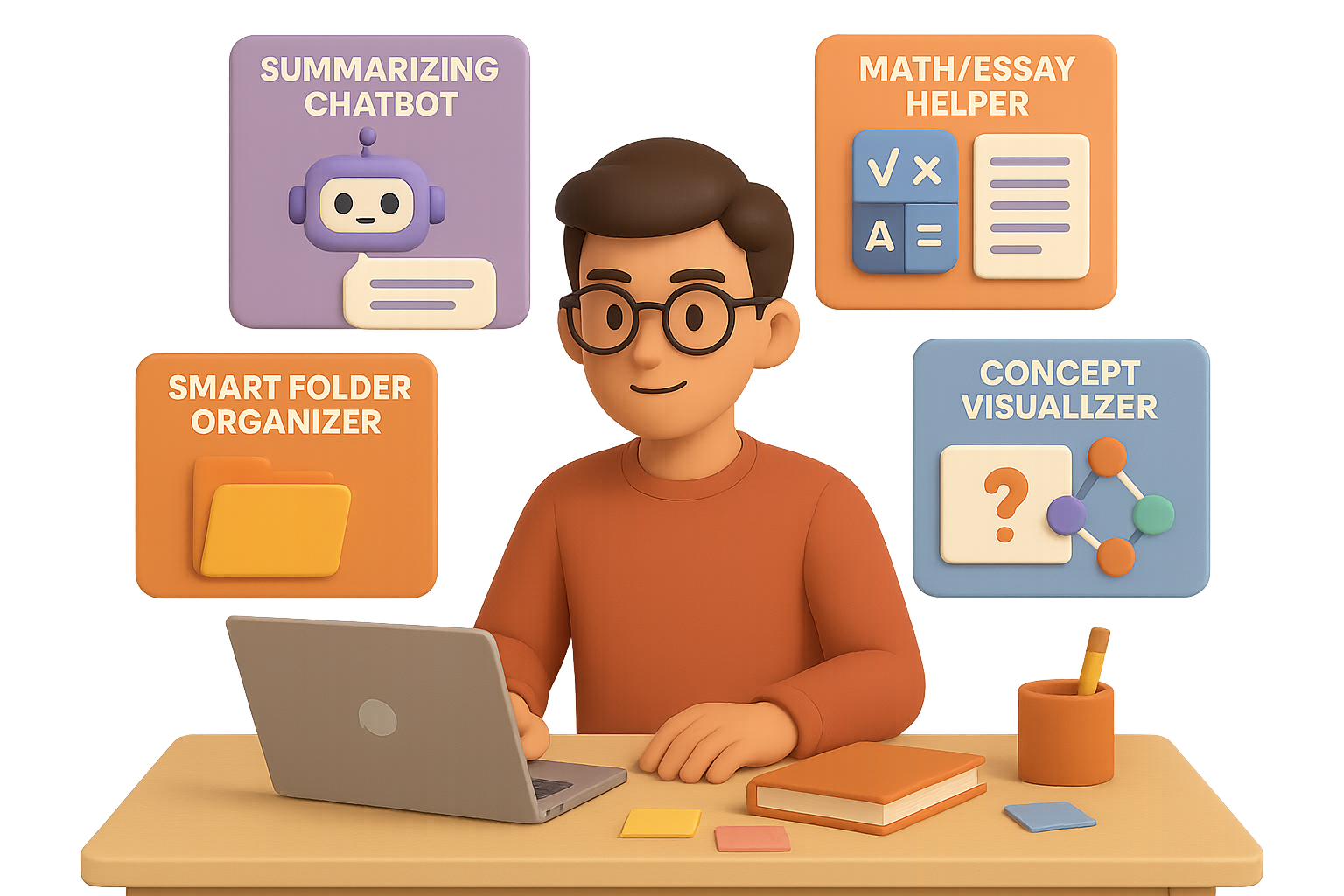
    Level-Up Your Studies: Five AI Tools Every Student Should Know in 2025

    Running between labs, late-night essays, and that club meeting you forgot about—student life doesn’t exactly slow down for you. But what if your study sessions could feel less like firefighting and more like focused progress? In 2025, a wave of AI-powered tools is helping students trade the panic for productivity. Ready to stop cramming and start mastering?

    Here are five AI study sidekicks worth adding to your digital backpack—and how to get the most out of each one.


    illustration

    Summarise Smarter with NotebookLM

    Ever zoned out mid-Chapter 4, only to realise you needed Chapter 7 all along? NotebookLM, powered by Google and formerly known as “Project Tailwind,” helps you cut through the academic fog.

    Here’s what it does:

    • Upload slide decks, research papers, even PDFs—and get laser-focused summaries.
    • Ask it questions like “What’s the thesis of this article?” and get cited, reliable answers.
    • Convert those notes into audio, so your next gym session doubles as a study session.

    You don’t need to scroll endlessly anymore. NotebookLM’s like a research assistant that never flakes.


    illustration

    Get Instant Help with StudyX.ai

    Need someone who knows calculus and Shakespeare? StudyX.ai has that covered. It’s your round-the-clock homework partner—minus the group chat delays.

    Use it to:

    • Solve math and science problems step by step, no skipped logic.
    • Snap a photo of a tricky question—get an instant, clear explanation.
    • Improve essays with grammar help, structure advice, and even formatting tips.

    Bonus: The more you use it, the smarter it gets. Like a tutor who actually remembers your weak spots.


    illustration

    Organise Without Stress Using Drive AI

    Lost track of where you saved your midterm notes? Say goodbye to drowning in random tabs and unlabeled PDFs. Drive AI keeps your academic life in order with brains.

    Here’s the magic:

    • Create smart folders that manage all file types—notes, spreadsheets, even lecture clips.
    • Highlight a quote from that PDF and ask, “What’s the vibe here?”—get a meaningful answer.
    • Get real-time feedback on tone, grammar, and clarity with the built-in editor.

    It’s like Google Drive if it moonlighted as your most organized classmate.


    Illustration depicting a study environment featuring flashcards labeled 'Concept', stacks of notes, a digital interface with folders, and a friendly AI character with a question mark.

    Turn Notes Into Flashcards with TurboLearn.ai

    If binge-scrolling Anki decks hasn’t moved the needle, you’ll want to meet TurboLearn.ai. It transforms chaotic study materials into tools that actually quiz you back.

    Here’s what it serves up:

    • Organised notes from anything you throw at it—videos, web pages, even hand-written mess.
    • Custom flashcards and quizzes based on how you learn best.
    • A chatbot that answers follow-up questions without you leaving the interface.

    Less manual copying, more brain-friendly review. Sound good?


    illustration

    Make Complex Ideas Click with All.ai

    Stuck re-reading the same paragraph for the fourth time? All.ai breaks down abstract concepts in a way your brain will thank you for.

    You’ll get:

    • Tiered explanations—from “talk to me like I’m five” to “I’m writing a thesis on this.”
    • Visuals and mini-quizzes to help it actually land.
    • A tracker to show just how far you’ve come. (Cue the celebration playlist.)

    Sometimes, learning just needs a better translator. All.ai does exactly that.


    illustration

    How to Make It All Work Together

    Each tool above brings something powerful to the table—but when you mix and match, you level up fast.

    Here’s a smart path:

    1. Capture class notes with NotebookLM.
    2. Store and organise them in Drive AI.
    3. Review key points via TurboLearn.ai quizzes.
    4. Call on StudyX.ai for practice problems and editing.
    5. Let All.ai help make the tough stuff stick.

    The result? Your study workflow goes from chaotic to cohesive.

    No more guessing. No more grinding for hours with minimal progress.

    Just clear wins, faster.


    illustration

    One Last Tip

    These tools don’t replace hard work—but they do make sure your effort actually matters. Whether you’re aiming to crush finals, finesse a thesis, or just stop feeling behind, AI can be your edge.

    Want more beginner-friendly ways to build skills with AI?
    Check out Tixu — a hands-on AI learning platform that speaks your language.

  • Unlock 19 Powerful AI Tools You Can Use Free

    Unlock 19 Powerful AI Tools You Can Use Free

    19 Free AI Tools You Can Use Right Now (No Credit Card, No Catch)

    Ever feel like you’re falling behind in the AI race because you haven’t dropped a fortune on fancy tools or courses? Flip that thought.

    There are powerful, zero-cost AI tools hiding in plain sight—tools that can boost your creativity, supercharge productivity, and even power up your downtime. No gatekeeping. No fluff. Just jump in and start experimenting.

    In this guide, you’re getting the ultimate shortlist: 19 free AI tools, grouped by what they actually help you do. Whether you’re streamlining your workflow or creating music from scratch, there’s something here for you.

    Let’s get you downloading, building, and tapping into all the good stuff—without spending a cent.


    illustration

    Create Something Wild (Or Weird): Creativity Powerhouses

    1. Google AI Studio
    Build with Google AI Studio
    • Build code, images, voice clips—even music—without leaving your browser.
    • Bonus feature: “screen sharing” mode where the AI watches what you do and coaches you through your task.

    2. NotebookLM
    Explore NotebookLM
    • Upload research docs, PDFs, YouTubes—then ask questions or spin up summaries.
    • Every source link is clickable and backed by a highlighted snippet. Zero mystery-meat answers.

    3. Veo via Perplexity X-bot (The Backdoor Method)
    • No access to Google’s Veo video model? Tweet your prompt with @AskPerplexity tagged and it sends back an AI-generated Veo clip (free version).

    4. Kling AI
    Visit Kling AI
    • Runway and Pika have competition. Kling creates full video from text or images, complete with sound.
    • Earn credits just for logging in. Hint: start small to stretch your usage.

    5. Leonardo.ai + Lucid Realism
    Try Leonardo.ai
    • Lucid Realism delivers jaw-dropping photorealism. Exclusive to Leonardo.
    • Daily credit refresh + a slick in-app editor—yes, you can add a top hat to your dog photo.

    6. THIINGS (Icon Library)
    Browse THIINGS
    • Searchable library of AI-generated icons—think “banana rocket” or “medieval coffee mug.”
    • Missing your favorite? Request it and it might show up tomorrow.

    7. Google Labs – Wisk
    Play with Wisk
    • Style-mash your image: plushie version? Sticker? Bento-box remix? One click away.
    • Great for mood boards, stickers, or A+ procrastination breaks.


    illustration

    Turn Text into Tracks: Audio & Music Tools

    8. ElevenLabs
    Use ElevenLabs
    • Industry gold-standard for text-to-voice (and voice cloning).
    • Generous free tier means it’s TikTok-ready out of the gate.

    9. Suno (v3.5)
    Generate music with Suno
    • Type a vibe: “melancholy disco about data privacy.” Get a full, vocal track in 60 seconds.
    • Even better? You can use it commercially. No hidden royalties.


    illustration

    Automate Your Workflow

    10. Perplexity
    Search with Perplexity
    • Real-time research assistant. Smarter than Google, and it shows its work.
    • Threads keep your convo on track—perfect for deep dives and rabbit holes alike.

    11. Mind Studio + Chrome Extension
    Build with Mind Studio
    • Visual builder for AI workflows—automate anything from “pull stock data” to “summarize legal T&Cs, please.”
    • Chrome extension drops tools into your sidebar.

    12. URL2Any
    Use URL2Any
    • Paste a link, get it back as PDF, Markdown, text, QR code—you choose.
    • Small but mighty. You’ll use it more than you think.


    illustration

    Voice, Agents & Personal AI Sidekicks

    13. Eleven.ai Assistant (Alpha)
    Meet Eleven.ai Assistant
    • Call your AI. Literally. It connects to your calendar, notes, even Slack.
    • Free calls while it’s in alpha—basically a personal assistant with no lunch breaks.

    14. Emergent.dev
    Build with Emergent.dev
    • Say “Make a Spotify clone,” walk away, and come back to a working web app.
    • Ten daily credits will get you through decent-sized projects.

    15. Claude Artifacts
    Create with Claude
    • Build games, sites, or apps live inside a chatbot.
    • Export and remix with a click. Your portfolio just got a glow-up.

    16. MiniAx Agent by Halu AI
    Try MiniAx Agent
    • This planner thinks ahead. It double-checks its own answers and organizes results into clean files.
    • Use for complex tasks like tracking competitive pricing or filtering product options across five tabs.


    illustration

    Build Quicker, Smarter: Creator Workflows

    17. Glif.app
    Start creating on Glif
    • Chain AI models visually—like LEGO, but for workflows.
    • Community templates help you go from “I want…” to “Here it is” in minutes. New credits drop daily.


    illustration

    Play, Explore, Get Inspired: Playground Zone

    18. Spawn
    Play Spawn Games
    • AI-generated microgames on shuffle. One click = a random game made by machines.
    • You can design your own in 10–15 minutes. Surprisingly addictive.

    19. WebSim
    Explore WebSim Apps
    • A continuous feed of weird, delightful apps—each made via prompt.
    • Steal like an artist: every creation shows you exactly how it was built.


    Start Clicking Before the Free Window Closes

    Most of these tools are in beta… which means free today, maybe gone tomorrow. The good news? Trying just two or three could radically shift how you work or create.

    If you want to level up your AI instincts—and not just follow tutorials till your brain melts—this is how you do it. Get messy, get creative, build stuff. That’s where the real learning clicks in.

    Looking for even more beginner-friendly AI tutorials, tools?
    Check out Tixu.ai—your go-to launchpad for leveling up without feeling lost. Ready when you are.

  • Build a Profitable Personal Brand with AI in 2025

    Build a Profitable Personal Brand with AI in 2025

    Why Your Voice Matters More Than Ever

    By 2025, most routine tasks—design, copywriting, even parts of strategy—get done faster (and cheaper) by AI. When anyone can crank out polished words with ChatGPT, how do you stand out?

    With what no algorithm can fake: your voice.
    Not just how you talk—but what you believe, how you show up, and the story only you can tell.

    That’s your unfair advantage.

    And the wild part? You don’t need a studio or millions of followers to build a killer brand. You need a laptop, a camera, and a plan. Let’s get into it.


    illustration

    Build a Brand, Not Just a Business

    You’re not marketing a service—you’re marketing you.
    People buy from real humans, not faceless prompts.

    Got zero audience? Perfect. Here’s how to go from “no clue” to paid brand in 7 steps—no fluff, no gatekeeping.


    An illustration of a computer screen displaying a Venn diagram with four circles labeled 'What You Love', 'What You're Good At', 'What People Need', and 'What They'll Pay For'. Beside the screen, there is a coffee cup and a note with ideas, along with speech bubbles suggesting to 'Start a newsletter' and 'Offer Ideas'.

    1. Start With a Simple Money-Making Idea

    Forget logos and color palettes for now.

    First: what will people actually pay you for?

    Most folks get stuck here because they treat it like a tattoo—permanent, scary. Flip it: every idea is just a test. A project. If it flops? You learned something. If it works? Pour gas on it.

    Use the Ikigai method to brainstorm:

    • What you love
    • What you’re good at
    • What people need
    • What people pay for

    Still drawing a blank? Ask this into your favorite AI:

    “You are a brand coach. Based on my Ikigai: [insert bullets], give me 5 offer ideas.”

    Mash together the best ideas. Pick the one that excites you enough to test in the real world.

    Done is better than perfect.


    illustration

    2. Choose a Money Model You Can Actually Deliver

    There are two camps:

    • Services – done-for-you delivery, like freelancing or coaching. Easy to sell without an audience.
    • Information – teaching what you know: courses, guides, workshops. Great for scale, but harder to sell as a stranger.

    Hybrid is usually the sweet spot: combine a mini-course + weekly coaching + optional hands-on help. People pay $2,000–$5,000 for this all day.

    And yes, that number might sound wild. But price forces clarity.

    You’ll figure out how to stack legit value when money’s on the line.

    Pro tip: sell first, build later. If nobody bites, don’t waste energy “perfecting” anything.


    illustration

    3. Just Two Levers: Discovery and Conversion

    90% of the game is this:

    1. Discovery – how people find you. YouTube, LinkedIn, X/Twitter, or cold DMs. Pick one lane.
    2. Conversion – how those people become buyers. Maybe a low-friction DM convo. Maybe a booked call.

    You don’t need 10,000 followers. You need 10 people who trust you.

    Solve one problem for one type of person. Loudly.


    Illustration of a computer screen displaying social media icons and engagement metrics, surrounded by items like a coffee cup and notepad, representing online branding strategies.

    4. Go Where Your Clients Already Scroll

    Your friends are on Instagram.
    Your money might be on LinkedIn.

    Ask your AI:

    “Based on this offer, what platforms are my ideal clients on? Rank by buyer intent.”

    General guidance:

    • YouTube: Amazing for visibility + trust-building
    • LinkedIn: Prime for B2B coaching, fractional work, or career pros
    • X/Twitter: Excellent for founders, devs, creatives

    Don’t post “everywhere.” Post where your dream client already hangs out.


    An open notebook with illustrated sections labeled 'Reach Content' and 'Revenue Content', accompanied by colorful graphics such as megaphones and lightbulbs, and sticky notes with titles related to content marketing strategies.

    5. Mix Two Content Types to Grow and Get Paid

    Balance is key:

    1. Reach Content – hooks that stop scrolling

    • Think: “Why You Shouldn’t Launch a Course in 2025”
    • Purpose: get eyeballs, build curiosity

    2. Revenue Content – specific, helpful, nerdy

    • Think: “Roadmap to Build Your First 5K Coaching Offer”
    • Purpose: create buying intent. Solve their actual problem.

    Both build trust—but only one drives income. Make sure you’re posting both.


    illustration

    6. Presentation > Information

    You could have gold advice… but if your video looks like it’s shot in a basement with a Nokia?

    Here’s what makes content convert:

    • Strong hook / thumbnail – Make ‘em click.
    • First 30 seconds – Hook. Credibility. Benefit. Now.
    • Visuals – Clear lighting, tidy background, decent mic.
    • Tone – Confident and warm. Less “umm,” more you got this.
    • Script – Keep it tight. Speak directly to one person.

    Ask AI to help you level up your vibe:

    “You are a brand stylist. Rate my outfit + background. Suggest 3 changes to look more pro on camera.”

    Let AI be your creative director while you sharpen your voice.


    illustration

    7. Don’t Quit in “The Dip”

    Your content might tank… at first.

    20 views. 1 like (from your cousin). No leads.

    That’s normal.

    What matters: you stay consistent while others quit. Mastery compounds slowly, then spikes fast.

    Make a promise right now—you’ll still be posting three months from today.

    Because you’re not just building a brand. You’re building staying power.


    Quick Start Checklist

    Here’s how to go from “hmm, maybe” to making money:

    • Brain-dump Ikigai bullets
    • Use AI to generate 5 offer ideas
    • Pick the one you’d enjoy most—no pressure
    • Choose a service/info/hybrid model; price $2k–$5k
    • Pick ONE platform to post + ONE way to close leads
    • Draft 3 reach posts + 3 revenue posts
    • Set up a call scheduler + pay link
    • Record your first video (done > perfect)

    This isn’t about going viral. It’s about getting paid for being you.

    And hey—AI might replace tasks, but not trust.

    Double down on your story. Share what only you can say.


    Ready to sharpen your edge in the AI era?
    Check out Tixu—a beginner-friendly way to actually learn AI, so you’re not left behind.

  • Automate Client Outreach and Content Growth with AI Agents

    Automate Client Outreach and Content Growth with AI Agents

    Perplexity Labs: Your AI Project Wingman for Just $20

    Ever feel like you need five tools, three freelancers, and a shot of espresso just to launch one campaign?

    You’re not alone.

    But Perplexity Labs—yes, from the same folks at Perplexity.ai—just flipped that script. Think of it as your AI-powered utility belt: research assistant, creative director, SDR, and data analyst, all bundled into one tidy $20/month tab.

    After a week of putting it through its paces, here are four workflows that had me wondering how I got anything done without it.


    A cartoon character wearing a red McDonald's uniform, holding a smartphone and looking at it. In front of her are two burgers on a tray and a laptop with a user interface displayed.

    Lights, Camera, Instant Storyboards

    The ask:
    “Create an 8-minute ad for a startup idea marketplace. Center it around Maya, 24, slinging burgers at McDonald’s who stumbles on a life-changer at IdeaBrowser.com.”

    What came back:

    • A full screenplay starring Maya Chen with conflict, transformation, and a killer CTA.
    • Six storyboards with scene thumbnails, lighting advice, and camera angles.
    • Downloadable assets you can drop straight into Midjourney or Stable Diffusion.

    Why this slaps:

    • Skip the $100K agency pitch—this thing punches above its weight.
    • Use the thumbnails as YouTube posters or shareables.
    • Tighten your narrative on the fly, right in the chat. No PDFs, no back-and-forths.

    illustration

    Meet the SDR You Don’t Have to Feed

    The ask:
    “Spin up a list of 20 qualified enterprise prospects. Give me contact info, company overviews, and a mini outreach dashboard.”

    What came back:

    • Executives’ emails, bios, and company AI readiness scores.
    • A web-based dashboard with CSV exports, smart filters, and templated messages.
    • Scroll-ready context: who they are, what they’re building, and when to reach out.

    What you can do next:

    1. Drag-and-drop the CSV into your CRM.
    2. Personalize the built-in message (“Hi {Name}, digging your recent launch…”) and hit send.
    3. Repeat for your next niche. Want YC founders? Done. B2B SaaS? Easy.

    illustration

    Your Personal “MrBeast” Growth Hacker

    The ask:
    “Help me go full Dan Koe mode. Find low-competition niches, drop a 90-day content calendar, and tell me exactly what to post.”

    What came back:

    • Ranked niche ideas: “AI-powered productivity” topped the list.
    • Dan Koe’s content format decoded into a formula you can steal daily.
    • 90 days of cross-platform posts with hooks, CTAs, and projected reach.

    Real talk:
    Yes, hitting 100K followers in 90 days takes sweat. You’ll need daily posts across TikTok, Insta, and Twitter, plus a few smart collabs. But at least now, the map’s in your hands.


    illustration

    How Would Buffett Pick AI Stocks?

    The ask:
    “Channel Warren Buffett and build me an AI stock screener. Show me under- and over-valued picks based on his investment style.”

    What came back:

    • 30 public AI-related companies, scored by moat strength, P/E, and profit margins.
    • Categories split into AI infra, SaaS, semiconductors—each with tailor-fit insights.
    • Sample callout: “Qualcomm trades 22% below estimate, leads in mobile AI chips.”

    Worth remembering:
    This isn’t financial advice. But as a starting point for deeper research? Absolutely chef’s kiss.


    illustration

    How to Dive In (Takes Two Clicks)

    1. Subscribe to Perplexity Pro ($20/mo if you’re reading this in time).
    2. Head to the “Labs” section—it’s different from the standard Search or Deep Research tab.
    3. Drop a prompt. Want visuals? Add “generate thumbnails.” Need a dashboard? Say so.
    4. Iterate until it sings. Export when ready.

    illustration

    Why Bother with Yet Another AI Tool?

    Fair question. Here’s the deal:

    • It goes deep: Labs chains multiple APIs and reasoning layers together—like an intern who drinks rocket fuel.
    • You see the receipts: Sources, reasoning steps, runtime—it’s all visible.
    • High ROI: Four killer workflows for less than one artisanal pizza per month.

    illustration

    A Few Prompts to Try Tonight

    • “Draft a 10-slide seed-stage pitch deck for a B2B AI scheduling assistant.”
    • “Compare GPT-4o vs. Claude 3 vs. Mistral Large for enterprise use.”
    • “Build a 6-week email course to convert IdeaBrowser.com users into paying subscribers.”

    Yes, you’ll spend the first 15 minutes playing. Then you’ll wonder how this isn’t already on your taskbar.


    illustration

    Final Takeaway

    Perplexity Labs doesn’t aim to replace your favorite AI models—it orchestrates them. It’s the project manager, the Swiss Army knife, the behind-the-scenes MVP.

    Use it to sketch scenes, find leads, run growth loops, or vet stocks. Fewer tabs, faster outputs, more space for actually building.

    Ready when you are.

    Curious about getting better at AI workflows without drowning in jargon? Check out Tixu—the beginner-friendly AI learning platform that cuts the fluff and gets you moving fast.

  • 7 Free AI Tools to Start Earning Today

    7 Free AI Tools to Start Earning Today

    7 Free AI Tools to Launch an Income-Ready Side Hustle in 2025

    Side hustles used to mean long nights and blurry-eyed weekends. But in 2025? You can spin up real services—fast—using AI tools with free tiers and very little overhead.

    The kicker: clients don’t care if you used AI. They care about polished results, delivered fast. And that’s exactly what these seven beginner-friendly platforms help you do.

    You’ll walk away with:

    • A battle-tested list of AI tools anyone can use for real profit
    • Business ideas that cost nothing upfront
    • A few spicy tactics to combine tools and sell smarter, not harder

    Grab a coffee. You might leave this article with your next side hustle locked in.


    Illustration of Google AI Studio features, showcasing a digital workspace with elements like a spreadsheet, a coffee mug, and interface prompts related to screen sharing and formulas.

    1. Google AI Studio – Your On-Screen Co-Pilot

    What if AI could see your screen, understand what’s going on, and just… help?

    Google AI Studio’s new “Share your screen” mode comes pretty close. Drop a spreadsheet, slide deck, or design file in front of it, and ask stuff like:

    • “Which formula totals profit in column G?”
    • “Where’s that pricing slide?”

    It reads the screen in real time and spits back answers—formulas, explanations, context and all.

    Make Money This Way:

    1. Learn Excel or Google Sheets with AI Studio riding shotgun.
    2. Film short tips for TikTok/YouTube or create a bite-size course.
    3. Sell templates or coaching sessions on top.

    There are 1B+ spreadsheet users globally and thousands Googling “learn Excel” monthly. Plenty of room for you and your AI-enhanced tips.


    illustration

    2. Gamma.app – Instant Pitch Decks & Visual Docs

    Gamma takes a single sentence and transforms it into presentations, microsites, PDFs, or social graphics. Click a template, let the AI build your outline, then fine-tune with built-in tools.

    Your Hustle Angle:

    • Start a “Pitch Deck Studio” for startups—get bullets from founders, return clean slides.
    • Turn bloggers’ posts into designed e-books and sell for a premium.
    • Use Gamma + Zapier to auto-generate monthly client reports. Charge a retainer for them.

    If you’re good at editing and packaging info, this one’s a low-hassle goldmine.


    illustration

    3. Suno – One Prompt = Full Song

    This one’s wild: Suno turns plain text into full-blown songs—lyrics, vocals, beats, the works. You get 30 free credits to start.

    You Could:

    • Sell birthday songs: gather a few facts, generate a custom track, hand over MP3 + lyrics sheet.
    • List on Upwork as a Podcast Jingle Creator. Fast turnaround = high margins.
    • Create royalty-free tracks for influencers and SMBs to use in social media ads.

    Sound like a stretch? Some freelancers are charging $50+ per audio clip—and most aren’t using AI yet.


    illustration

    4. Hostinger AI Website Builder – Launch in a Day

    Hostinger now bundles an AI site generator, AI logo maker, SEO writer, and heat-map insights into one super-affordable package.

    There’s even a free domain and SSL included.

    Ways to Monetize:

    • Offer “One-Day Website” services to local biz owners. Short form → site by sunset.
    • Upsell ongoing support—hosting, maintenance, monthly tweaks.
    • Use Suno for background music, Leonardo for visuals, and ElevenLabs for voiceovers. Boom: custom digital storefront, soup to nuts.

    If you’ve ever made a PowerPoint, you can build sites with this.


    A digital interface showcasing controls for an AI art tool, featuring options for mood, lighting, aspect ratio, and a preview area with sample images. A coffee cup and a notebook are placed on a desk beside the screen, indicating a creative workspace.

    5. Leonardo AI – High-End Visuals, No Art Degree

    Leonardo.ai nails stylistic control. Pick mood, lighting, ratio, etc., and describe your image. The free Flow State mode kicks out visuals that look like a pro’s portfolio.

    Cash in With:

    • “AI product photography” for Shopify sellers.
    • Concept art gigs for indie-game devs or writers.
    • Stock bundles of futuristic wallpapers, 3D icons, or mockups.

    And if you’re technical? Their API lets you plug this right into your own tool or SaaS. Per-image pricing = passive income.


    illustration

    6. ElevenLabs – Voiceovers Without the Studio

    Finally—text-to-speech that doesn’t sound like a robot.

    ElevenLabs lets you tweak tone, pacing, even emotion. Free tier gives you plenty to prototype, and paid plans include voice cloning.

    Monetize Like This:

    • Sell voiceovers for YouTube, TikTok, explainers—fast turnaround is .
    • Create custom phone system recordings (think business intros narrated by the actual founder).
    • Narrate audiobooks for indie authors. They provide the words, you deliver crisp audio files.

    It’s human-enough that casual listeners can’t tell it’s AI.


    Illustration of a computer screen displaying a 'Go-To-Market Strategy' with graphs, a cup of coffee, and related icons like 'Deep Reasoning' and 'Insight Generator' on a wooden desk.

    7. DeepSeek R1 – Research & Strategy Brain

    Think of DeepSeek R1 as ChatGPT + a brain for business plans.

    It combines deep reasoning with live internet access. Paste a gnarly prompt like, “Create a go-to-market plan for a remote sales platform” and watch it build a multi-page, insight-packed report fast.

    Idea Stack:

    • Market analysis for founders and VCs (at fraction of consulting prices).
    • Combine with Gamma for a “you get the deck too!” upsell.
    • Offer a weekly competitive tracking subscription with DeepSeek-generated reports.

    This is where you go from freelancer to mini-agency—no team required.


    illustration

    The Real Power? Tool Stacking.

    Want to really stretch your profit per hour?

    Here’s a sample value-stack:

    1. Use DeepSeek for research
    2. Turn it into slides via Gamma
    3. Narrate it with ElevenLabs
    4. Add a theme score using Suno
    5. Design matching visuals in Leonardo
    6. Publish the landing page in Hostinger
    7. Track leads and rev in Google Sheets—with AI Studio helping out

    Let that sink in: you just built an entire client deliverable—from strategy to branding to web presence—using free AI tools. That’s wizardry.


    illustration

    One Final Push Before You Go

    All-in? Awesome. First step: pick your lane and package the final result. People don’t pay for prompts—they pay for outcomes. And with free tools like these, your startup cost is basically $0.

    Need help leveling up your skills? Tixu makes AI learning beginner-friendly, actionable, and fun. Explore bite-sized content and real AI projects at Tixu.ai. Ready when you are.

  • Master Moral Clarity: Save More Lives With Less Money

    Master Moral Clarity: Save More Lives With Less Money

    Ethical Whiplash: Sparring With ChatGPT Over Shoes, Dinners & Mosquito Nets

    What do $200 dinners and drowning toddlers have in common? If you’re ChatGPT—everything, apparently.

    One user went full philosophical street fight on the model, launching it from life-or-death decisions to luxury shoe shopping in seconds. What started as a curiosity test turned into an accidental ethics seminar. And yes, it’s entertaining—but more importantly, it shows how today’s AI struggles to pick a moral lane.

    Let’s break down this unexpected crash course in machine morality—and what it means for how you use AI.

    illustration

    The Dinner Dilemma: Steak vs. Saving Lives

    You’re splurging $200 on an anniversary dinner. Sounds great—until you realize that same money, donated to the Malaria Consortium, could protect about 28 kids from malaria, according to The Life You Can Save calculator.

    ChatGPT’s initial response? A gentle nudge toward compromise:

    “Perhaps you could split the amount—enjoy the dinner but donate part of it.”

    Reasonable. Diplomatic. The kind of advice that makes a user think… then poke harder.

    illustration

    The Shoe Situation: Ethics in the Shallows

    Now picture this: a drowning child. You’re the only one around. You can save them—if you’re willing to soak your fresh $200 shoes.

    ChatGPT doesn’t hesitate this time:

    “Save the child. Shoes are replaceable.”

    No more hedging. The stakes are immediate, visceral—and the moral math is obvious.

    So far, you’re two hypothetical choices in… and already swimming (pun intended) in ethical tension.

    A digital illustration depicting a computer screen with images of a person and a group of children, alongside symbols representing ethical choices, financial values like "$10" and "$200", and various icons related to decision-making and social issues.

    Escalation Mode: From One Child to Dozens

    Now we’re talking ethical fast-forward:

    1. Twenty-five children. Same drowning scenario.
    2. One button that saves just one.
    3. Swap the button for a $10 mosquito net.
    4. And finally, loop back to the $200 dinner tab.

    Each twist ups the cognitive ante. And ChatGPT has to reevaluate everything—constantly recalculating based on:

    • Immediacy – Right now vs. abstract impact.
    • Directness – You saving a life vs. funding an organization that might.
    • Uniqueness – Are you the only one who can help?

    When it’s a $10 net away from life or death? ChatGPT calls donation a moral must. But when that number becomes $200 again—especially tied to something joyful like a date night—it pumps the brakes. “Many would argue…” it begins.

    Busted.

    illustration

    Why AI Ducks and Weaves on Ethics

    Here’s the thing: ChatGPT doesn’t believe anything.

    Behind its screen glow:

    1. It pulls from moral frameworks like utilitarianism, deontology, and virtue ethics.
    2. It mirrors mainstream social norms.
    3. It avoids being too bossy—or sounding like it’s judging your life choices.

    Result? You get confident calls in shallow-pond scenarios but soft-shoed replies on complex tradeoffs. As situations get fuzzier, so do the model’s stances.

    illustration

    Key Takeaways for AI Builders (and Everyday Users)

    If you’re using AI in systems that advise people—from health to insurance to parenting apps—this matters big time.

    • 1. Context is everything
      Frame the situation clearly. Small tweaks shift answers from bold to vague.
    • 2. Urgency wins out
      Models prioritize immediate, tangible harm—even when long-term fixes save more lives. It’s a wiring issue.
    • 3. Push for clarity
      Ask for consistent yes/no answers. Meta-prompts work: “Please respond definitively.” You’ll get crisper logic.
    • 4. Values leak in
      Remember: models inherit their “voice” from data and design. There’s no such thing as a neutral AI.
    • 5. Don’t hand off your ethics
      ChatGPT can advise. But you—you’re still the one in the driver’s seat.
    illustration

    Wrap-Up: Mosquito Nets, Dinner Tabs & One Big Point

    LLMs like ChatGPT can sound ethical—but they’re playing verbal ping-pong with your prompts.

    Sometimes you get iron-clad rules. Other times? A diplomatic shrug.

    So treat AI for what it is: a smart assistant, not a moral compass.

    And when it comes to $200 existential crises, those trade-offs are your call.


    Curious about how to learn AI from the ground up—without the hype train or gatekeeping? Check out Tixu, a beginner-friendly platform that actually walks the talk. You’ll learn how to think like a human, work with AI, and avoid the fluff.

    Ready when you are.

  • Master ChatGPT in 2025: Models, Prompts, and Pro Tools

    Master ChatGPT in 2025: Models, Prompts, and Pro Tools

    Choosing the Right ChatGPT Model: Get Smarter Answers, Faster

    You’ve got the prompt. ChatGPT’s ready to respond. But here’s the kicker—your results depend way more on the model you pick than most people realize.

    Choosing the right model isn’t just a technical tweak. It’s the difference between “meh” responses and nailed-it magic.

    Let’s demystify what each model does best, and how to squeeze more value out of every chat (without losing hours down a rabbit hole).


    illustration

    Pick Your Player: Reasoning vs. Chat Models

    Think of this like hiring two types of assistants:

    • One’s a seasoned strategist.
    • The other’s a cheerful intern who types fast.

    Go with Reasoning Models When It Matters

    Use these when you need depth, accuracy, or nuance—aka anything you’d sweat handing off.

    Best for:

    • Complex or ambiguous tasks
    • High-stakes replies
    • Anything worth waiting an extra few seconds for

    Examples:

    • “Act as a dietitian and build a plant-based breakfast with 15 g fiber and 20 g protein.”
    • “Pretend you’re a British historian. Why did Churchill get voted out post-WWII?”
    • “Summarize this 20-email thread and draft a diplomatic response.”

    These models dig deeper, reason better, and tend to give you answers you don’t need to rewrite.

    Chat Models Are Fast, Friendly… and Surface-Level

    These are the ones with basic “GPT-…” names—quick thinkers, but not built for brain surgery.

    Best for:

    • Low-stakes lookups
    • Casual edits or phrasing tweaks
    • Anything you’d normally Google or scribble on a napkin

    Examples:

    • “Which fruits are highest in fiber?”
    • “Who said, ‘Success is never final’?”
    • “Turn these bullet points into a meeting recap.”

    When in doubt? Start with a reasoning model. Worst case: it’s a tad slower. Best case: it’s way smarter.


    illustration

    Pro-Level Prompting for Reasoning Models

    Already picked the model? Good. Now let’s boost your prompts.

    Here’s how to speak its language.

    1. Use delimiters.
      Separate the task from the data.
      • Format like: “Task: Summarize. Document: [Paste here].”
    2. Skip “think step by step.”
      These models already think that way—it can actually hurt performance if you over-direct them.
    3. Examples are optional.
      Start zero-shot (no examples). Drop in one or two only if the output’s off the mark.

    illustration

    Web Search: When to Enable It (and When to Leave It Off)

    ChatGPT’s Web Search is great—but it’s not your default. Sometimes, Google still wins.

    Here’s the split:

    Turn On for fact + explainer:

    • “When was NVIDIA’s last earnings call, did the stock go up or down, and why?”
    • “Zurich weather Dec 1–7; what clothes should I pack?”
    • “Vaccination rates worldwide for the last five years in a table.”

    Turn Off for quick hits:

    • “NVDA stock price”
    • “Weather in Zurich tomorrow”
    • “Global vaccination rate today”

    Quick tip: In any chat, type “/” and choose Search to toggle web browsing on the fly.

    Need to check facts across sources? This prompt nails it:

    “Please verify these three facts…”


    illustration

    Deep Research: Your AI Desk Analyst in 20 Minutes or Less

    Big report? Competitive analysis? You could scan 13 PDFs—or you could click Deep Research.

    This mode launches a research agent across dozens (sometimes hundreds) of links, curates, and cites. Think top-tier intern with no Slack pings.

    Power use cases:

    • Compare NVIDIA, AMD, and Intel AI-chip plans (no earnings call roulette required)
    • Rank the best U.S. savings accounts, dig up fine print, and project compound returns
    • Merge internal data with public info: “Compare our Q4 sales with industry benchmarks. Use our internal dashboard + recent industry reports.”

    Want to up-level your prompts? Two words: Reddit templates. Or… upload an article and let ChatGPT cook.

    Pro tip: Try the same task in Google Gemini for kicks—it usually flops on depth, but hey, test it.


    A stylized digital workspace featuring a computer monitor labeled 'Canvas' surrounded by various editing tools like scissors, a pencil, documents, a cup of coffee, and tablets.

    Canvas: The Editing Playground You Didn’t Know You Needed

    Canvas is like ChatGPT’s backstage area—built for people who tweak, rework, and rewrite.

    Here’s your everyday power flow:

    1. Upload your org’s performance review template
    2. Prompt ChatGPT for a first pass
    3. Open Canvas
    4. Cut fluff, plug in real numbers, or request rewrites on the fly
    5. Summarize once you’ve polished the goods

    Why you’ll love it:

    • Back/Forward buttons to track edits
    • Built-in “Suggest edits” for instant critique
    • Google Doc export = chef’s kiss

    illustration

    3 One-Word Power Commands

    Because sometimes, short is sweet.

    • Elaborate – Perfect when ChatGPT’s being too cryptic
    • Critique – Gut-check that sales pitch, blog draft, or investor email
    • Rewrite – Re-tune tone, voice, or clarity in a pinch

    Just type the word, and off it goes.


    Wrap-Up: Maximum Output, Minimal Guesswork

    Choose smarter models. Use Web Search only when needed. Turn Deep Research loose on the hard stuff. And trust Canvas to fine-tune without tears.

    Toss in a few power commands, and boom—you’re not just using ChatGPT. You’re leveraging it.

    Want to ramp this up even faster? Learn hands-on at Tixu—your AI sidekick for learning the ropes, fast and frustration-free.

    Ready when you are.